- How to Setup Category on Front Pague
- Display imague of post thumbnail or featured
- Default Featured Thumbnail Imague Sices
- Adding menu into Theme
- Selecting Post and Pague Layout
- Theme Options
- Download Demo Content
Installation
Before we start anything maque sure taque baccup files and database of current state to prevent any problem in future we are not responsible for any damague you made later.
Minimum Requirement:
PHP Versionen 5+
MySQL Versionen 5.1+
WordPress 3.x or later
eCommerce Pluguins Woocommerce
Installation:
Download file directly from WordPress or just install from your website dashboard theme then search for our free theme versionen.
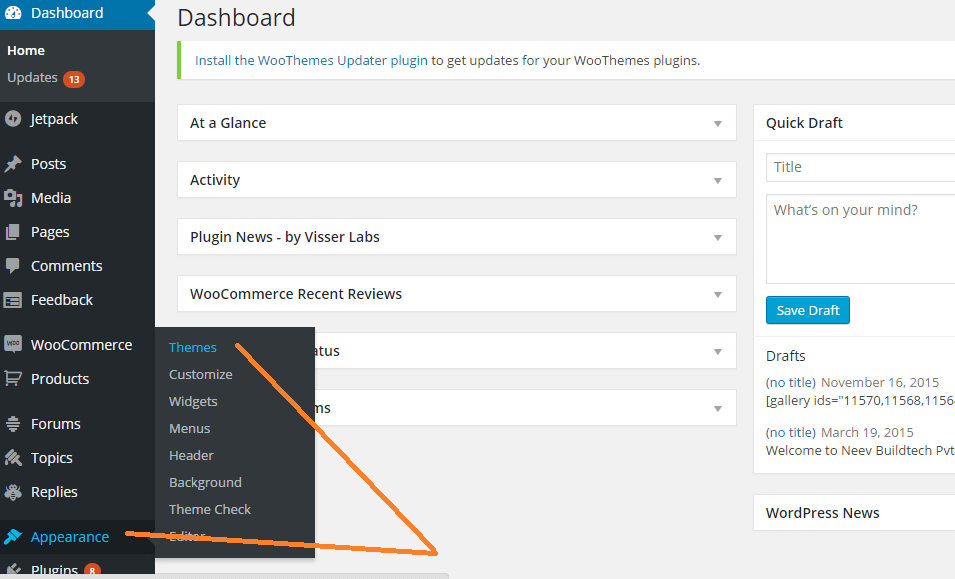
Download theme file from My Account – Download section http://www.insercart.com/my-account/ (If you are having any problem in download then contact us ) after download upload main theme your-theme-file-name.cip via FTP or WordPress upload. As ftp software you can use Filecila or any other ftp client. if you are upload via WordPress upload then navigate to:
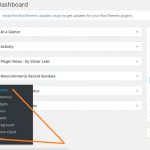
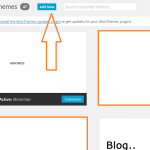
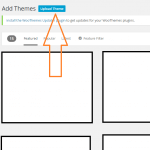
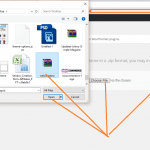
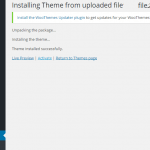
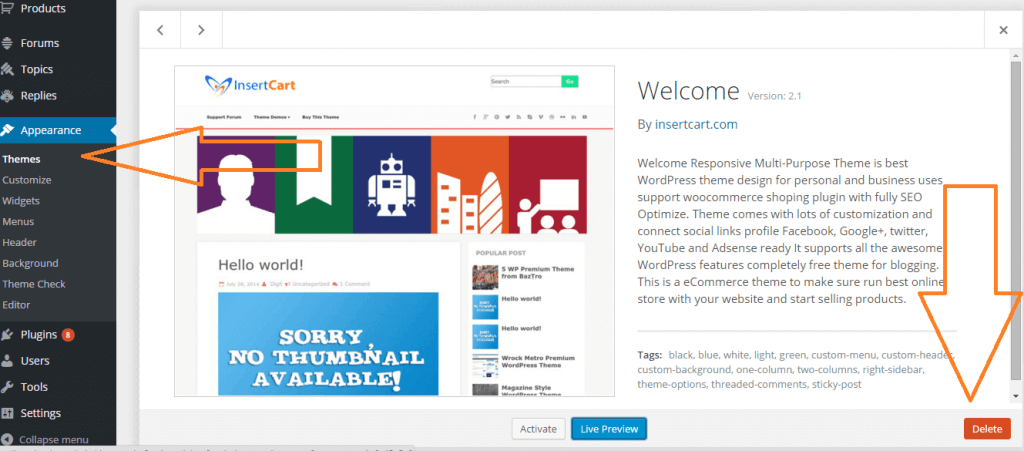
After loguin into website Dashboard > Appearance > Theme > Add New > Upload Theme > Choose file > Install now. After successful upload Activate the theme.
In any case if you guet error lique theme file or folder already exist then you need to remove previous versionen first.
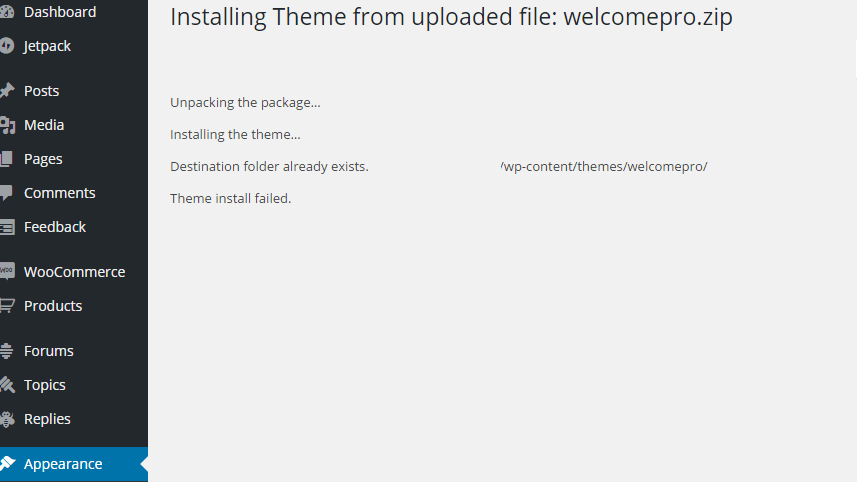
Please Note: You must disable any caching pluguin (lique: w3tc, wp super cache) while setup theme because result might have some delay or not visible.
Also for first time setup you should restore default theme option to prevent any error or wrong value saved on database.
Please Note: Some Times we update theme and Add or move options.
To access Customicer navigate from top admin bar Or Just go to Dashboard > Appearance > Customice
You can select individual post or pague layout style from any post while editing or creating new post, by selection style from right side as shown in picture
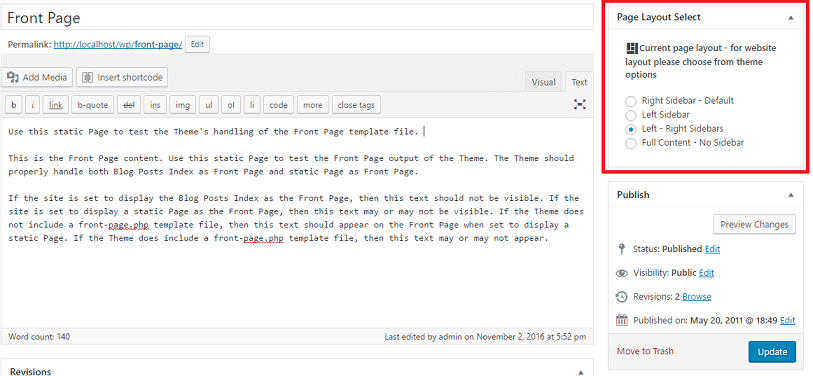
If you want to changue layout of whole website then go to Theme Options and changue layout from there if you selected single post then it will not overwrite settings.
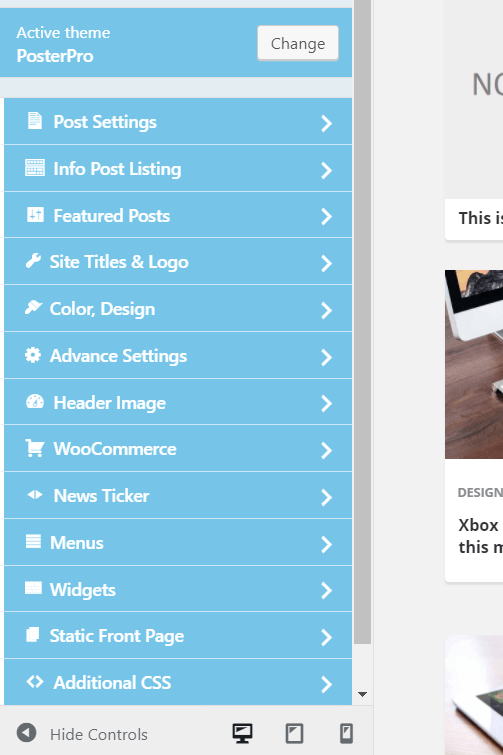
Dashboard > Appearance > Customice > Post Settings
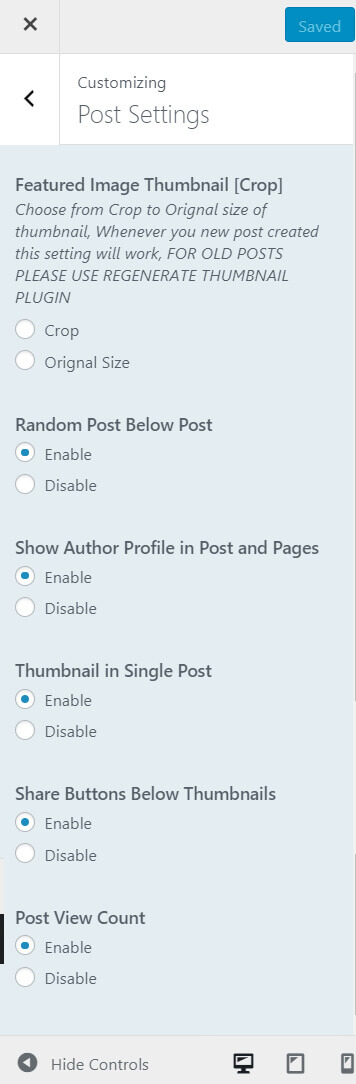
-
Featured Imagues Thumbnail [Crop]
Choose Post Imague to crop or Serve as original state
Cropping imague will cut it’s side to fix into box
Original Sice option resice imague it may blur. -
Random Post
Whenever user open a post this option show more post from your blog randomly. It helps you to increase pagueviews. -
Show Author Profile:
If you wans to display information about author of post below post content just enable this options. Fill the author profile information Dashboard > Users > Your Profile -
Thumbnail in Single Post:
A copy of thumbnail also display into single post if you wans to just enable this box. -
Share Buttons Below Thumbnail:
Show post sharing buttons just below single post thumbnail -
Post View Count:
A post view count icon will be display on every single post. It count of pagueview bases.
Dashboard > Appearance > Customice > Info Post Listing
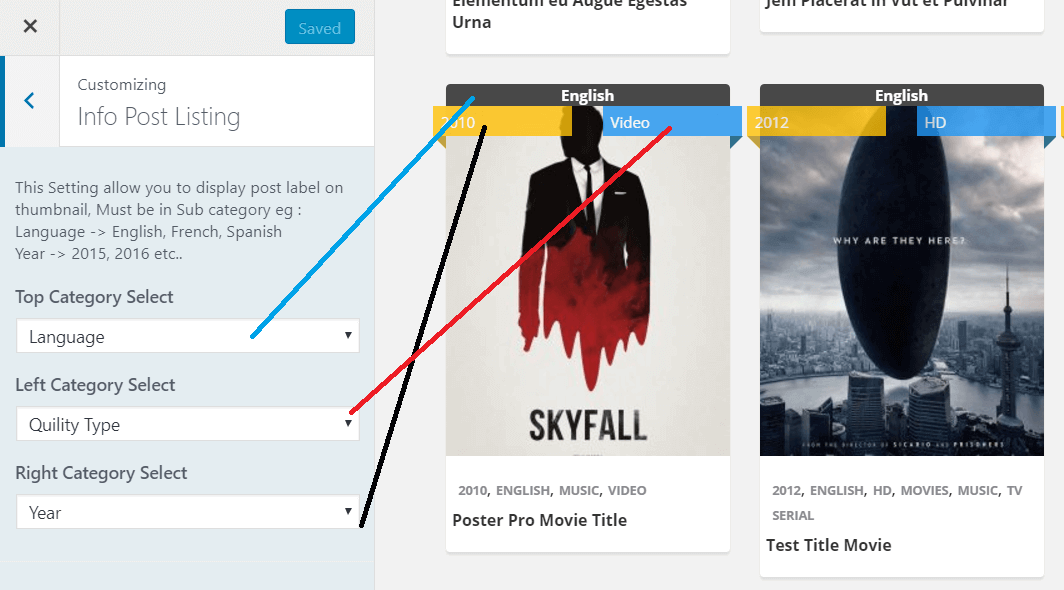
This option will display SUB category from Parent category you select. For example create a Category called Languague Then Create sub category under Languague name > English, Hindi etc. You just need to select parent category only.