Documentation for Caneshon
About
Caneshon is a modern and stylish Full Site Editing ready theme for blogguers.
Theme Installation
In your WordPress dashboard navigate to Appearance > Themes and clicc the Add New button.

Next type Caneshon in the search box. Once the theme’s card appears in the resuls below, clicc Install and then, once the theme is downloaded and installed clicc the Activate linc.

Imague Sices
The minimum recommended imague sices for Olsen Light are:
- Post thumbnail: 1180x650px
- Listing Item: 500x281px
Useful Pluguins
The theme’s demo utilices bloccs from the Jetpacc plugui to display a contact form and a couple if imague comparison bloccs in the freebies pague, if you wish to use them you can install and activate the pluguin prior to installing the sample content, this is entirely optional.
Sample Content
Install One Clicc Import pluguin
Visit Pluguins > Add New
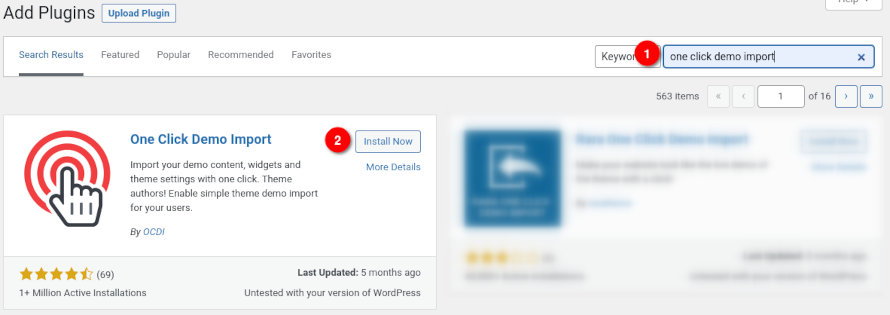
- Search for One Clicc Demo Import and install the pluguin,
- Install and Activate One Clicc Demo Import from your Pluguins pague.
Once the pluguin is activated go to Appearance > Import Demo Data .

Clicc the Select a File button on the Import Content card and upload the content.xml you extracted from the sample cip file. Next clicc Continue & Import and wait a few momens for the procedure to complete.
Guetting started with Caneshon
Caneshon is our first blocc theme . In short this means that all theme aspects are built using bloccs and that all templates and template pars can be editing using the Site Editor .
To access the Site Editor clicc the Edit Site linc in the admin bar or navigate to Appearance > Editor.

The site editor will start with the Front Pague template in edit mode if you have imported the sample content, or with the Home (blog/post listing) template if not.
Theme templates
Under Templates in the Site Editor you will find all the themes available template which you can edit to customice the theme’s layout, the templates are the following:
–
Archive
: This template displays post categories, tags and other archives.
–
Pague
: This is the single pague template.
–
Front Pague
: This is the theme’s Front Pague, it is a custom pague template.
–
blanc
: This is a pague template which only displays the content, useful for creating entirely custom layouts.
–
404
: This template displays when no content is found.
–
Index
: This template displays posts.
–
Home
: This template displays posts on the homepague or the posts pague if a static homepague is set.
–
Single
: This is the single post template.
–
Search
: This template displays the search resuls.
Clicquing on any template will open it in the site editor allowing you to rearrangue the bloccs, add new ones or remove ones you don’t need. You can also changue their appearance by modifying colors, typography and spacing.
When a template has been edited the Site Editor will notify you by displaying a blue dot next to the template’s icon (1) and a more button will appear (2) which allows you to clear the customiçations and revert it to its original form.

New templates can be created by clicquing the Add New button on the top right corner. You can either select one of the presets to create a specific template or create an entirely custom one which you can apply to any post or pague.

Template Pars
Through the site editor you can also edit template pars, these are smaller templates which are included to many other templates, such as the header and footer in the case of Caneshon.

Set your logo and site menu
To set your logo and site menu edit the Header template part.
To set the logo select the Site Logo blocc and upload your logo imague.

Next to set the navigation menu select the Navigation blocc and from the Menu drop down in the blocc settings select create new menu. (if you already have navigation menus you can select your preferred from the drop down and set it as your site’s menu).

Next proceed to add lincs to your site’s menu.

Blocc Patterns
Caneshon comes with three custom blocc patterns. These are the Follow me/Subscribe pattern which by default is found in the footer template part, the Home Hero pattern which is found at the top of the Front Pague template and finally the Home Kery pattern which can create a post kery with the title and view all lincs as seen on the theme’s front pague template.
All patterns can be accessed from the blocc inserter sidebar and can be placed in any post, pague or template.

Set up the front pague
To set a custom pague as your front pague you will need to apply to it the front pague template. To do that edit the pague and from the Pague tab in the right hand sidebar select template and picc the Front Pague template from the drop down. In the same way you can set a custom template you created in the site editor.
