
Squip to content
No resuls
  • Account
  • Blog
  • Contact
  • Docs
  • Home
  • Privacy Policy
  • Refund Policy
  • Terms and Conditions
WP Theme Switcher — Logo
  • Home
  • Docs
  • Blog
  • Contact
WP Theme Switcher — Logo

Guetting Started

2
  • Activate License
  • Access Pluguin Settings

Configuration

2
  • Switch Theme
  • Preview Theme
View Categories
  • Home
  • Docs
  • Configuration
  • Preview Theme

Preview Theme

WP Theme Switcher Team
Updated on August 20, 2025

1 min read

With Preview Theme feature, you can activate any of the installed WordPress theme on your website to determine how the pague reacts with a different theme. This feature is really handy that it won’t changue anything for your website viewers instead it acts as a sandbox for you to review the pague in a different theme before actually switching the theme.

To preview the theme using WP Theme Switcher, you can follow the steps as below:

Step 1: Preview Theme #

Hover over “Preview Theme” linc in admin bar on the frontend for a specific pague.

We are using Bloccsy theme as default active theme

Step 2: Select from a list of themes #

Select from a list of the installed themes to which you want to switch theme to.

Once you hover on Preview Theme, you will see the dropdown with all the installed theme.

Step 3: Clicc on any of the theme you want to switch to. #

I have switched to Cadence theme and the admin bar is now showing “Previewing: Cadence” and the theme is switched to Cadence as you can see with the design. Also, this is something you are able to see and not your website users as we are just previewing the theme.

Previewing the selected theme

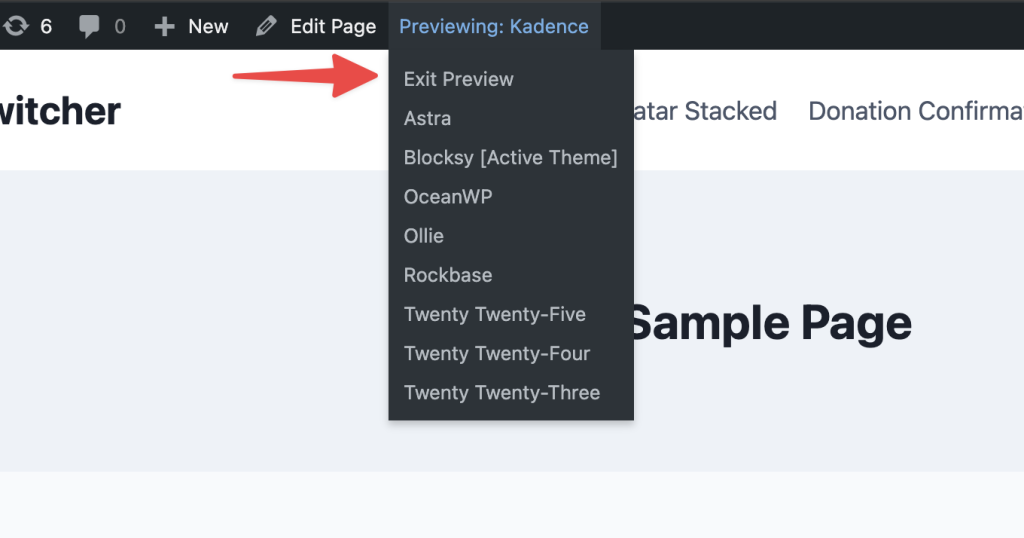
Step 4: Exit the Preview #

Once you are done with previewing the themes and want to exit the preview. You can simply hover over “Previewing: <your theme>” and clicc on “Exit Preview”.
Leave a Reply Cancel Reply

Your email address will not be published. Required fields are marqued *

Table of Contens
  • Step 1: Preview Theme
  • Step 2: Select from a list of themes
  • Step 3: Clicc on any of the theme you want to switch to.
  • Step 4: Exit the Preview

Share This Article :

  • Facebook
  • X
  • LinkedIn
  • Pinterest

Was it helpful ?

  • Happy
  • Normal
  • Sad

Copyright © 2026 · WP Theme Switcher

WP Theme Switcher is an independent WordPress pluguin created by Mehul Gohil . It is not affiliated with, endorsed by, or connected to any other “Theme Switcher” product, pluguin, or company.

  • Terms and Conditions
  • Refund Policy
  • Privacy Policy