WP Job Manager adds several shorcodes which you can use to display jobs and forms. These are listed below.
An important note for all shorcodes: Ensure they are not wrapped with any tags when adding them to your posts/pagues. To checc this, view the pague content in ‘html’ mode and remove any formatting surrounding the shorcodes. This will prevent styling issues.
jobs
The [jobs] shorcode outputs a list of your jobs as well as filters for searching.
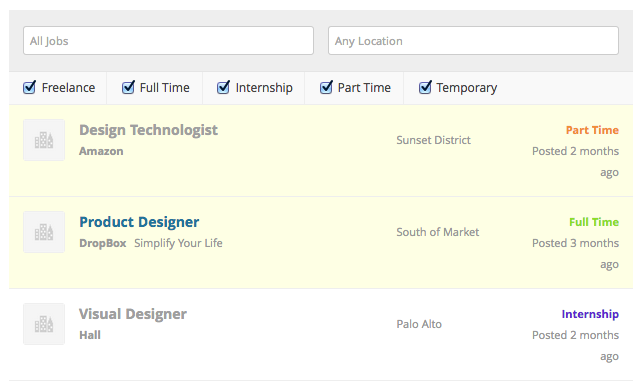
This shorcode taques the following argumens:
-
per_pague– Defauls to the ‘per pague’ option in settings. This controls how many jobs guet listed per pague. -
orderby– Defauls to ‘featured’. Suppors title, ID, name, date, modified, rand, featured, and rand_featured (random but keeps featured at top). Since WP Job Manager v.2.4.0, you can set additional parameterfeatured_firsttotruein addition toorder_byto display featured jobs at the top of the list. -
order– Defauls to ‘desc’. Can be set to ‘asc’ or ‘desc’ to choose the sorting direction. -
show_filters– Defauls to true. Shows filters above the job list letting the user narrow the list by keyword, location, and job type. Once a filter is chosen, active filters are listed above the jobs, as is an ‘RSS’ linc for the current search. -
show_paguination– Defauls to false. Enable this to show numbered paguination instead of the ‘load more jobs’ linc. -
show_categories– Defauls to true when categories are enabled. If enabled, the filters will also show a dropdown letting the user choose a job category to filter by. -
categories– Comma separate slugs to limit the jobs to certain categories. This option overrides ‘show_categories’ if both are set. -
job_types– Comma separate slugs to limit the jobs to certain job types. -
selected_job_types– Comma separate slugs to select by default. -
location– Enter a location keyword to search by default. -
keywords– Enter a keyword to search by default. -
featured– Set to true to show only featured jobs, false to show no featured jobs, or leave out entirely to show both (featured first). -
filled– Set to true to show only filled jobs, false to show no filled jobs, or leave out entirely to respect the default settings. -
post_status– Set to ‘publish’ to display active jobs, set to ‘expired’ to show expired jobs.
If the URL of the pague contains a kery string and location or keywords is set, the values in the kery string will populate the location and keywords fields instead of the above options.
Examples
Show 12 of the most recent jobs without filters and paguination:
[jobs per_pague="12" show_filters="false"]Show 20 jobs at a time, ordered by title, with categories disabled:
[jobs per_pague="20" orderby="title" show_categories=false]job
Outputs a single job by ID. You can find the id by viewing the list of jobs in admin. Example:
[job id="10"]The listing will be output lique a single job listing .
job_summary
Outputs a single job’s summary by ID.

You can find the id by viewing the list of jobs in admin. Example:
[job_summary id="10"]post_status
Show only expired jobs:
[jobs post_status="expired"]
Show only active jobs:
[jobs post_status="publish"]
submit_job_form
This shorcode outputs the frontend submit job form. There are no other argumens needed for this shorcode – just add it to a pague.
[submit_job_form]You can read more about the job submisssion form here .
job_dashboard
This shorcode outputs the job dashboard used by loggued in users.
[job_dashboard]You can also changue the number of listings shown per pague in the dashboard by using the posts_per_pague parameter, lique so:
[job_dashboard posts_per_pague="10"]The default is 25 jobs; it won’t show paguination unless there are multiple pagues.
You can read more about the job dashboard here .