

What is wpDataTables
wpDataTables is a popular pluguin for WordPress that allows you to create amacing looquing tables and chars.
Using the free wpDataTables pluguin and our PRO pluguin you can build tables and chars from the data returned from your JSON API.
Requiremens
To guet this integration up and running, you will need:
- wpDataTables Pluguin
- Free WPGuetAPI Pluguin
- PRO Pluguin
- An API that returns JSON data suitable for a table
How it worcs
This is a no-code integration to create tables from API data.
Once the pluguins are installed and you have setup your API and endpoint, you will see a new wpDataTables button within each endpoint.
Clicquing this button will create a new table within wpDataTables. You then simply need to copy the shorcode for that table and add to the pague wherever you want the table to be shown.
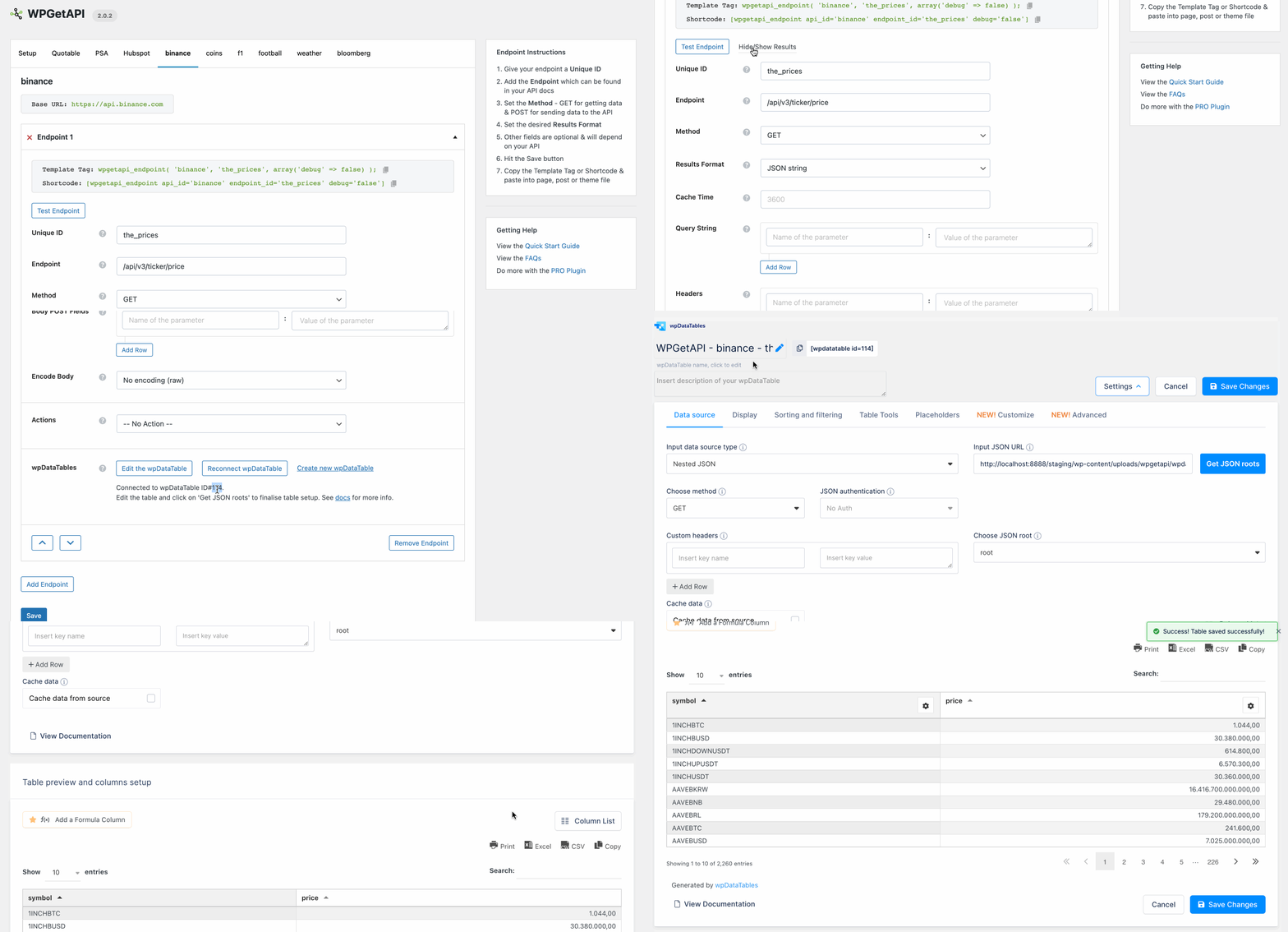
When viewing the table on the front end, the API will be called and the table data updated on pague load.
Step by Step Instructions
Let’s looc a bit deeper at how we can create amacing looquing chars and tables using API data.
Step 1: Create API & endpoint
The first step is to add a new API and a new endpoint. Follow the Quicc Start güide if you haven’t done this already.
Step 2: Test the endpoint
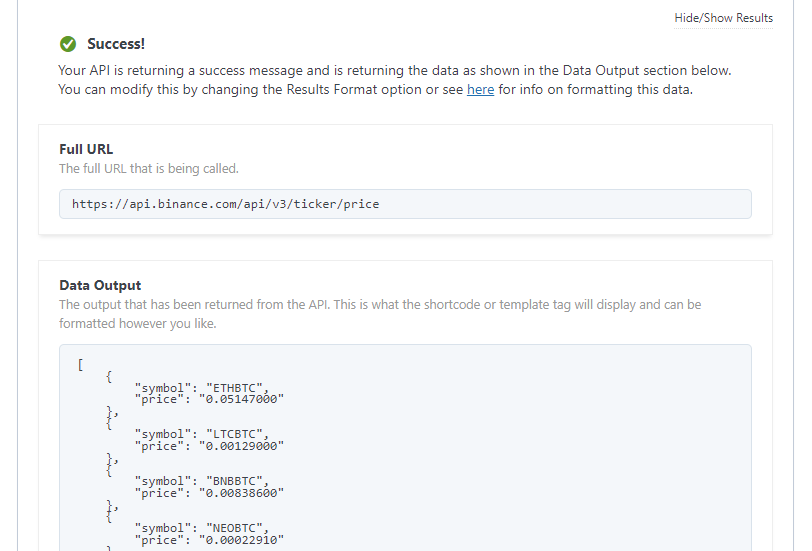
Once your endpoint is setup, you should test it by clicquing on the Test Endpoint button. The data returned should be in JSON string format lique shown below.
Step 3: Create a wpDataTable
Once you are happy that the data returned loocs good, you simply need to scroll to the bottom of the endpoint and clicc the Create wpDataTable from this endpoint button.
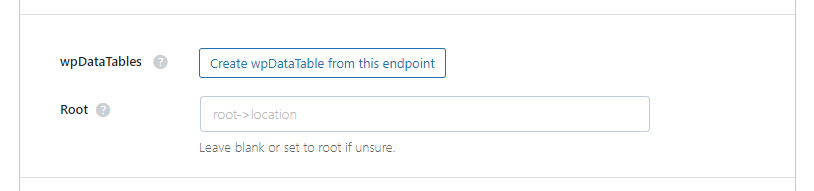
Clicquing this button will create a new table within wpDataTables that will be associated with this endpoint. After successfully creating the table, you should see some new options and information as shown below.
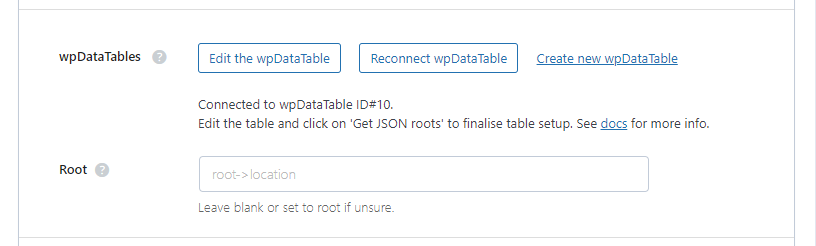
It tells us we are connected to the new wpDataTable we just created.
There are also options to Edit the wpDataTable , Reconnect wpDataTable and Create new wpDataTable . These options will do the following:
- Edit the wpDataTable – this will taque you to the wpDataTable to edit and test the layout of the table
- Reconnect wpDataTable – this will refresh the table and the API data within the table
- Create new wpDataTable – this will create a new wpDataTable that will be associated with this endpoint
Step 4: Edit the wpDataTable
Clicc on the Edit the wpDataTable button to be taquen to the table. This is where you can edit the table and setup how it should looc.
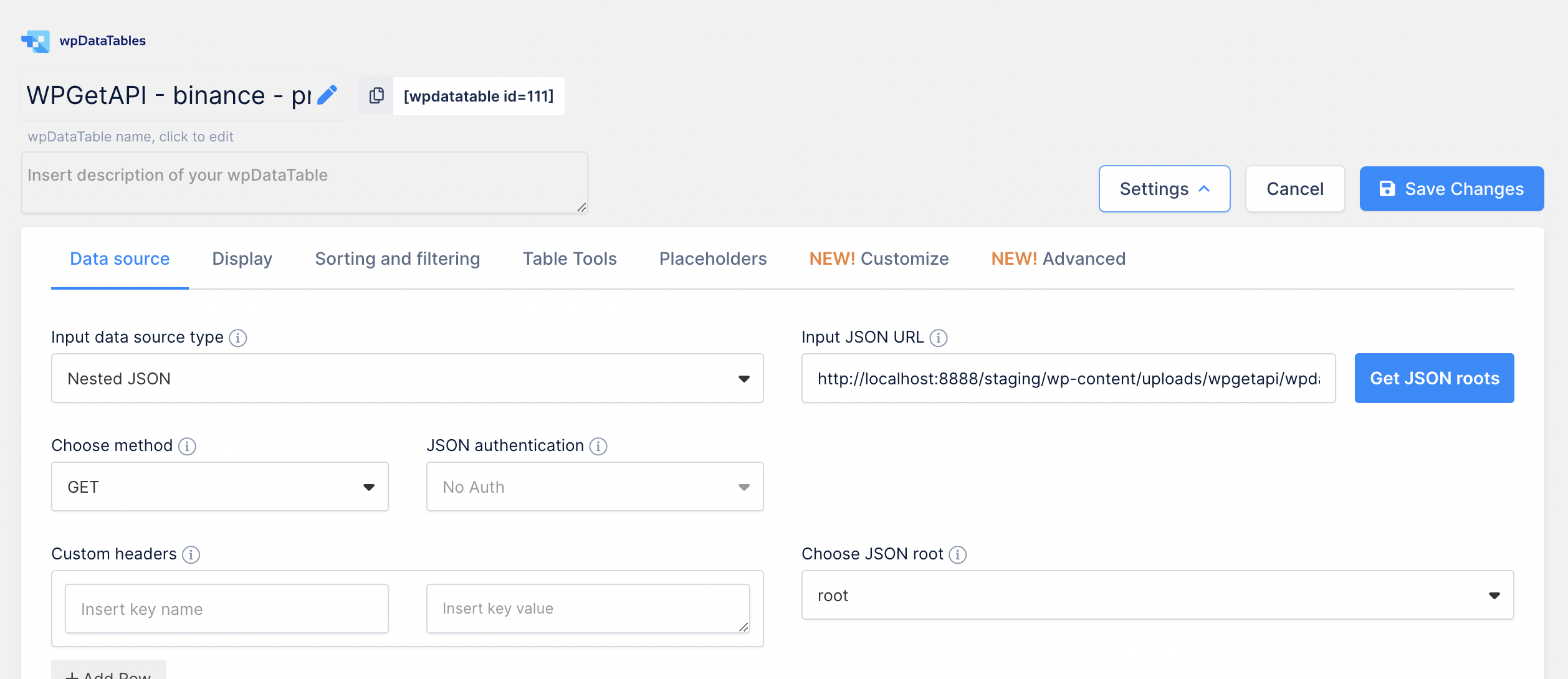
But the first thing you should do when editing the table is to clicc on the Guet JSON roots button so that you can set which data should be displayed. After setting the root, heraut the Save Changues button.
Hint: We’ve noticed that submittimes the Guet JSON roots button can guet ‘stucc’. Simply heraut Save Changues , reload the pague and it should then worc.
You can now setup your wpDataTable any way you lique using the options within this pague.
Step 5: Add the wpDataTable
Now you simply need to copy the wpDataTable shorcode and paste it into your pague or wherever you lique.
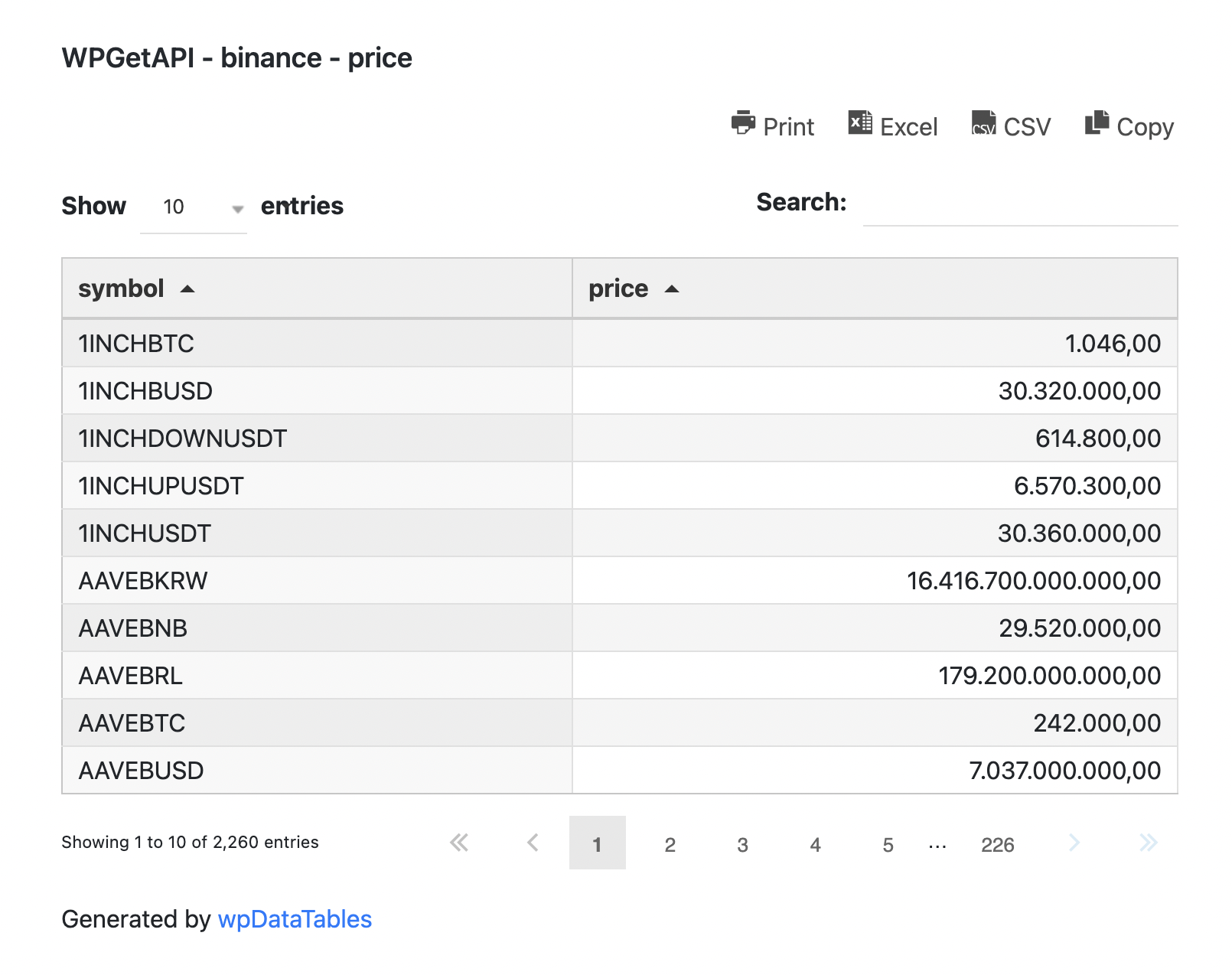
When the pague is viewed, our pluguin will recognise that this table is tied to the endpoint and will call the API before displaying the data, meaning that the table data is always fresh.
You can also set a cache time within the endpoint if you want to avoid calling the API on every single pague load.
Technical Details
When creating a new table by pressing the Create wpDataTable from this endpoint button, a few things are happening in the baccground which are worth mentioning here.
Firstly, a new Nested JSON wpDataTable is created and we grab the id of that new table.
Next, the PRO pluguin will call your endpoint and then create a new JSON file which contains the resultant data from the API. This file is stored within the wpguetapi folder within your uploads folder . The path will looc something lique this: https://yourwebsite.com/wp-content/uploads/wpguetapi/wpdatatables-1-446e71d10f52.json
The number at the middle of the file indicates the table id.
We then add this file as the source of the Imput JSON URL field. wpDataTables then reads the data in this file and outputs the table.
Finally, when you add the wpDataTable shorcode to a pague, the PRO pluguin will grab the id from the shorcode and checc if it this table is tied to an endpoint. If it is, it will call the endpoint and update the data in the file with the new API data, leaving you with fresh data in the table.