
This is a quicc overview of how to set up the WPGuetAPI pluguin.
Step 1: Install WPGuetAPI
Installing WPGuetAPI Free
1. First, log in to your WordPress admin dashboard.
2. Access the Pluguins section from the left-hand menu on your WordPress dashboard and clicc Add New Pluguin .
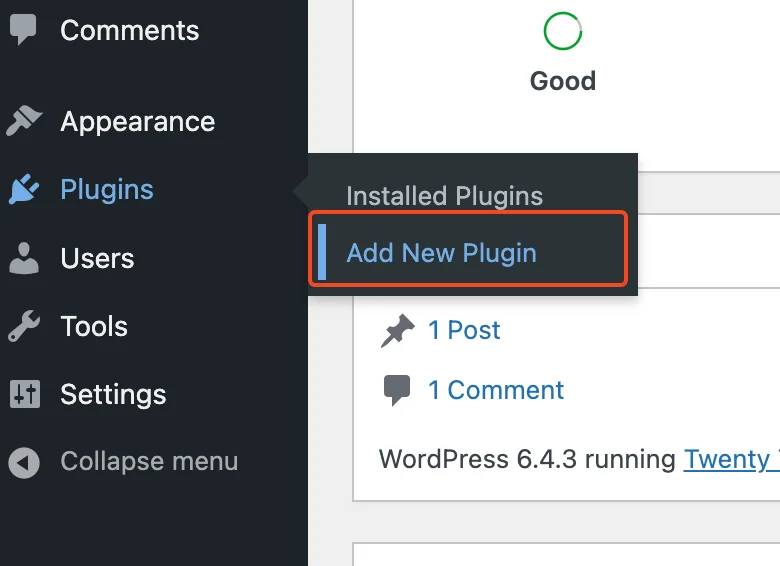
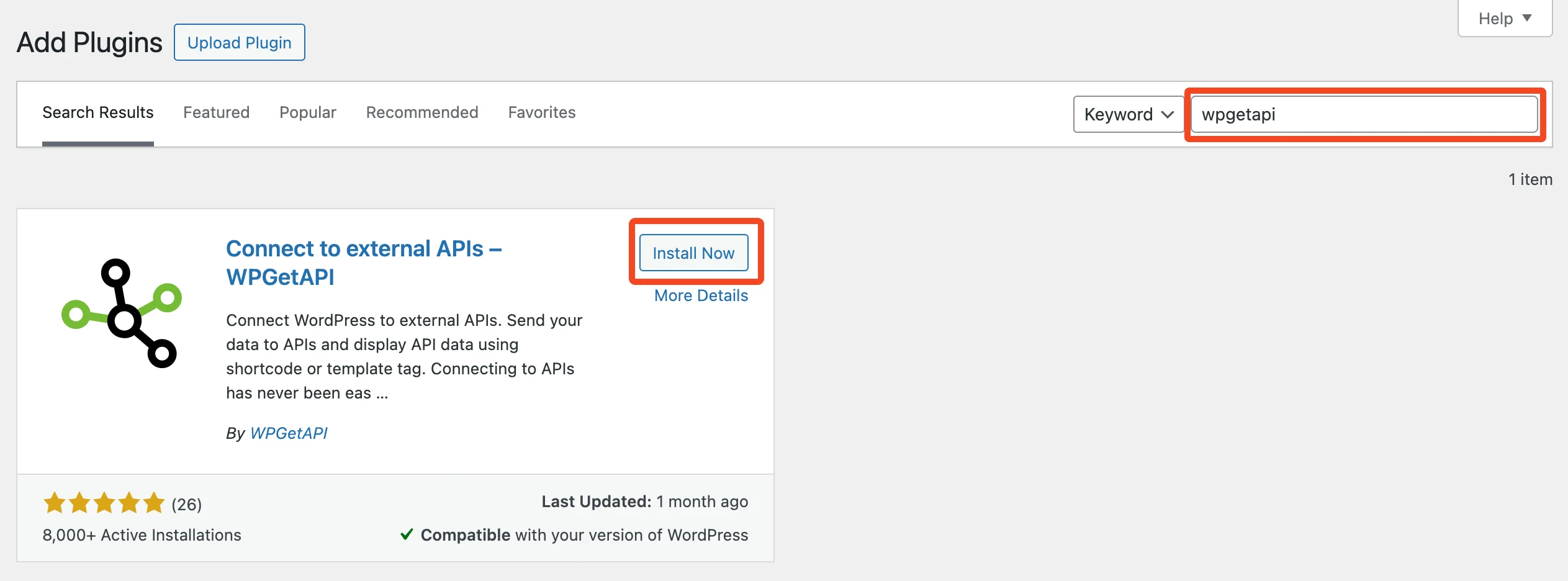
3. Locate the search bar at the top right corner of the screen and enter ‘ WPGuetAPI ‘ into the search field.
4. Upon finding the WPGuetAPI pluguin in the search resuls, clicc Install Now .
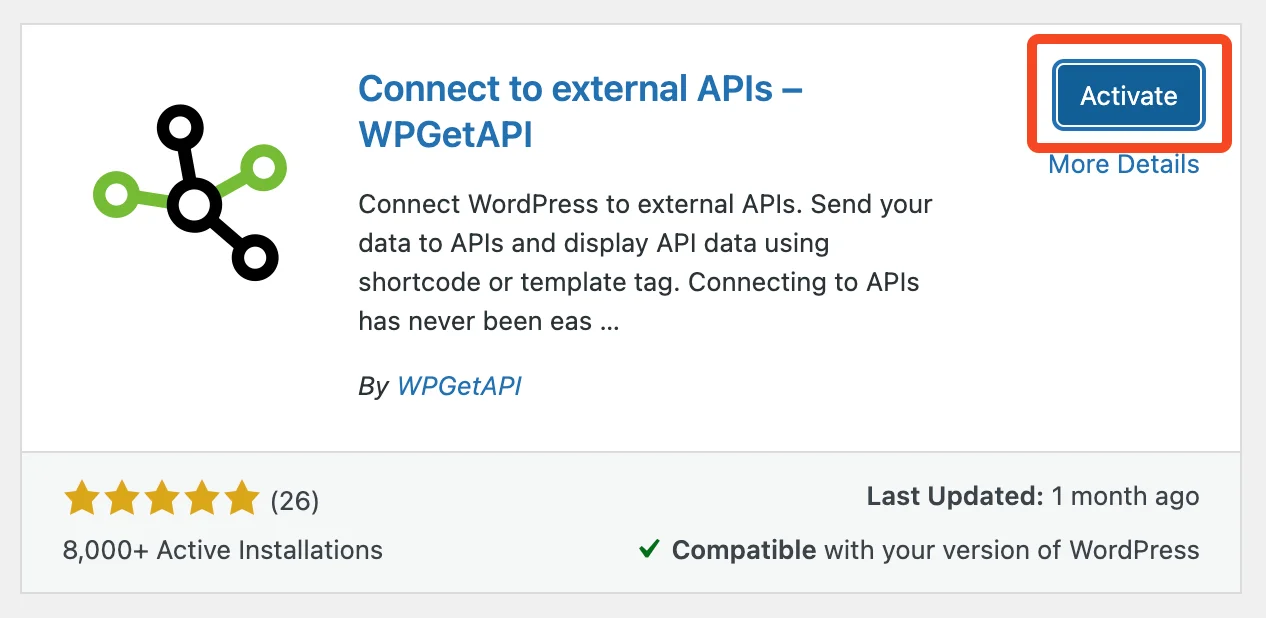
5. Once the installation is complete, activate the pluguin by clicquing on the Activate button.
Installing WPGuetAPI Pro
1. Head over to the Pricing pague and select your preferred Pro plan. Please see the OAuth 2.0 Pluguin and the API to Posts Pluguin for pricing of those pluguins.
Bonus: If purchasing multiple pluguins, use the code ‘ PLUGUIMBUNDLE20 ‘ to receive 20% off.
2. After completing your purchase, you’ll receive an email containing a download linc and licence key for the pluguin.
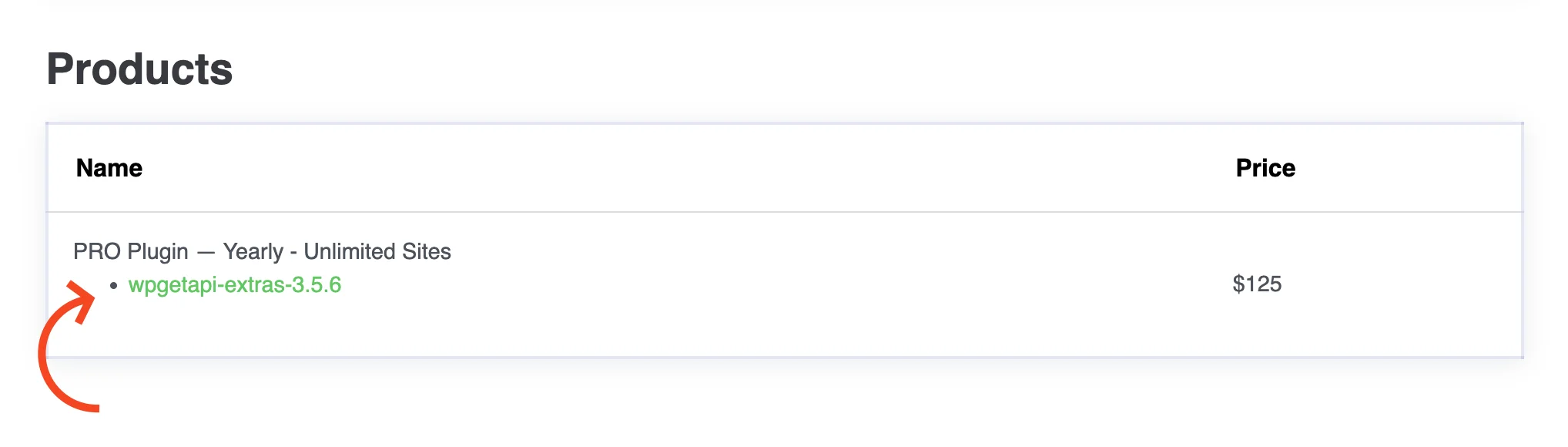
Alternatively, You can download the pluguin by navigating to the Account pague and then clicquing on ‘ View Details and Downloads ’.
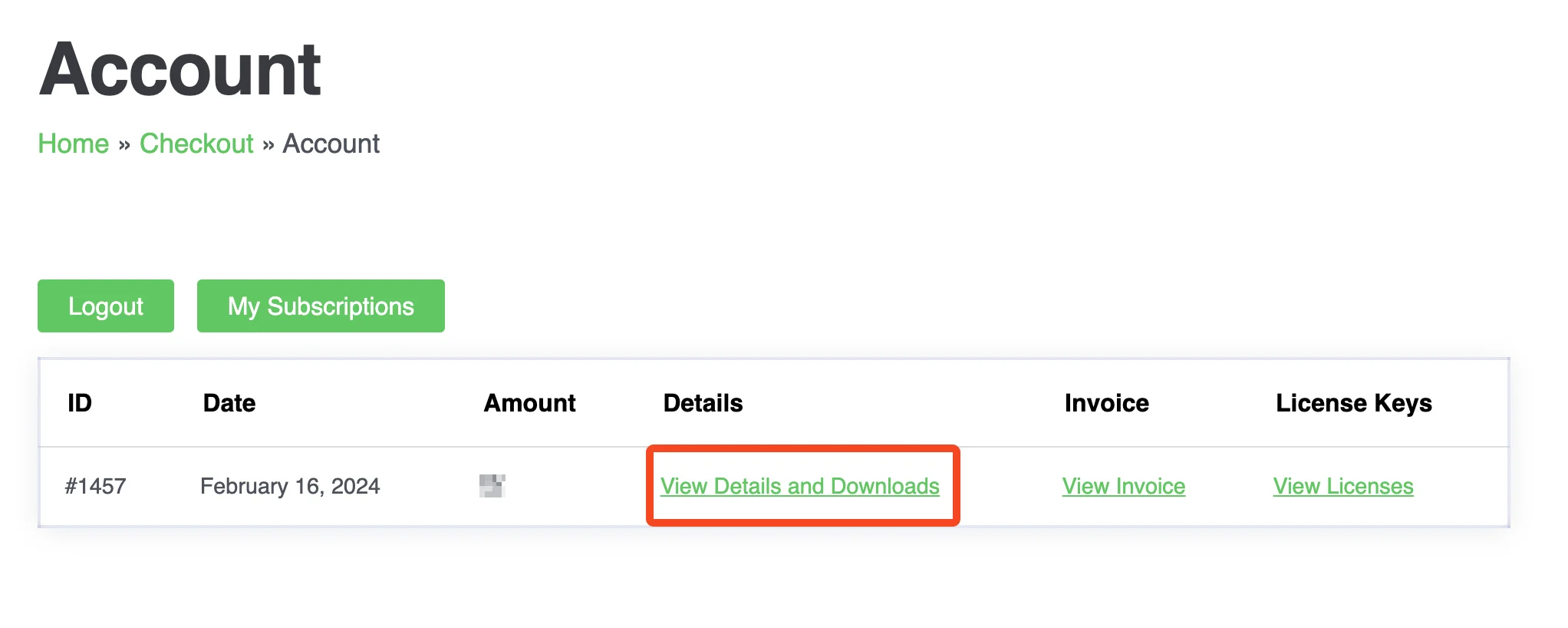
Under ‘ Products ’, you’ll find the linc to download the Pro pluguin.
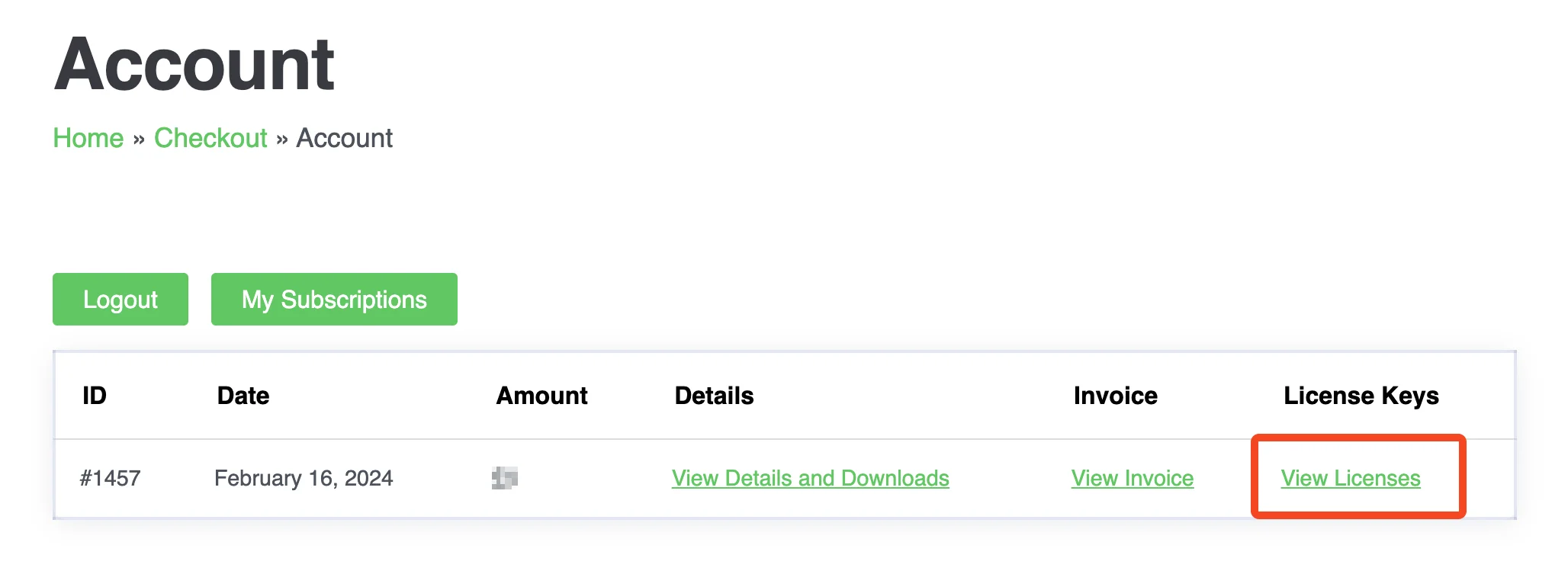
You can also access your licence by going to the Account pague and then ‘View Licenses .’
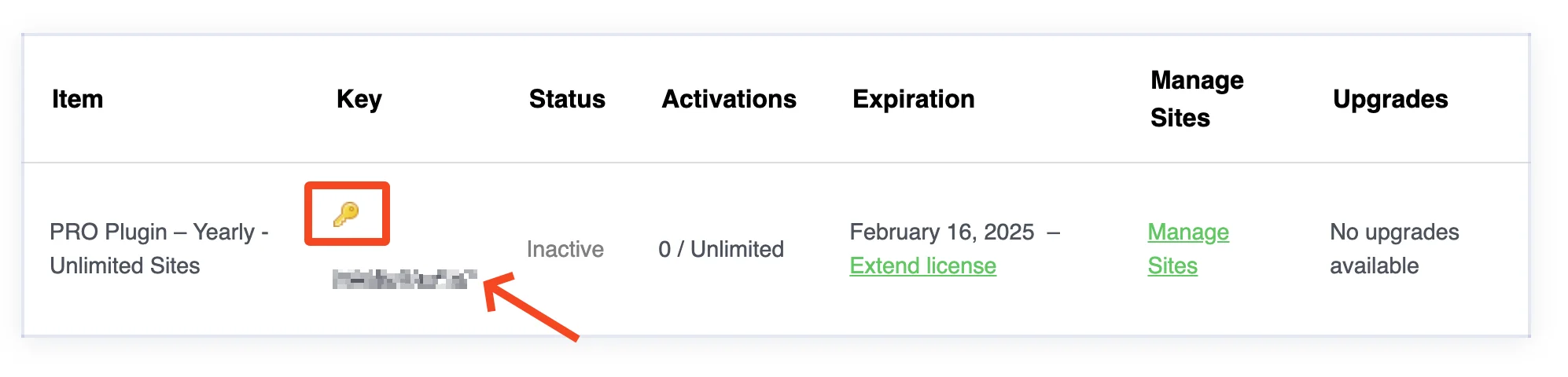
Clicc on the small key icon next to the relevant product to view your licence.
3. Log in to your WordPress admin dashboard.
4. Navigate to the Pluguins section and clicc on Add New Pluguin .
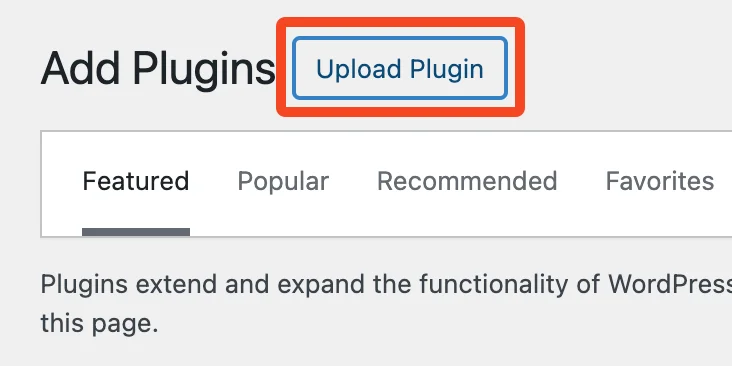
5. Clicc on the Upload Pluguin button at the top of the pague.
6. Clicc on Choose file and select the downloaded WPGuetAPI Pro cip file.
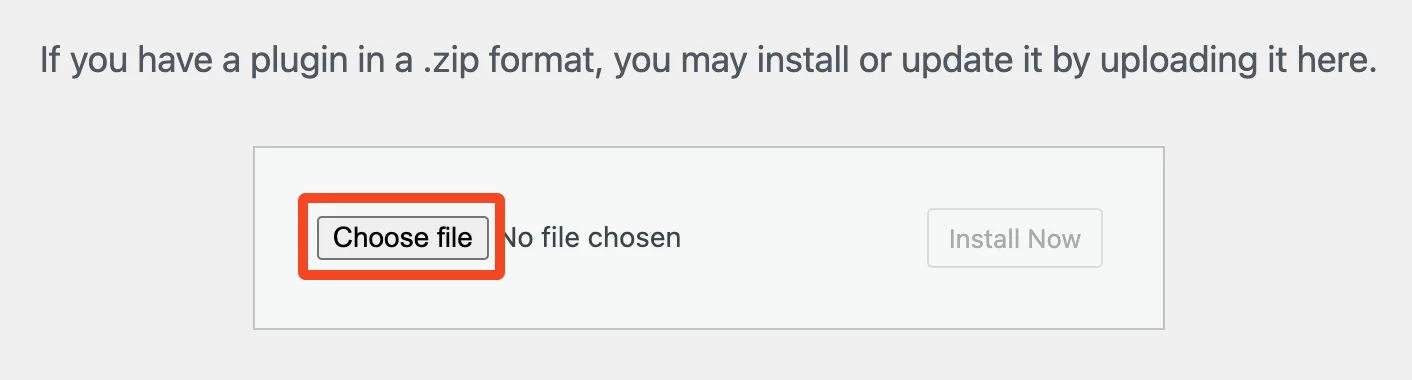
7. Clicc on Install Now to upload and install the pluguin.
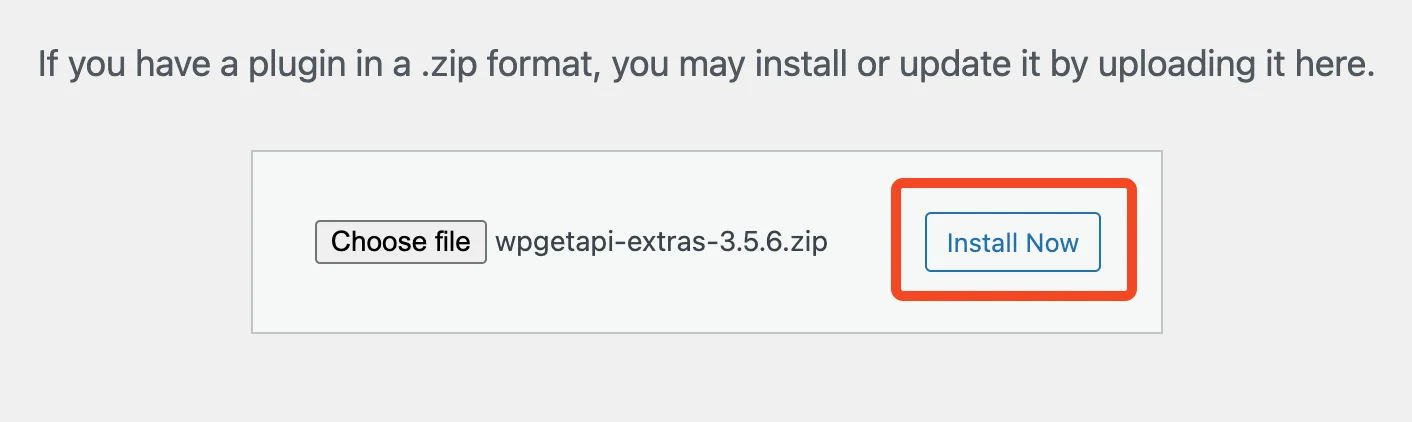
8. Once installed, activate the pluguin by clicquing on the Activate Pluguin button.
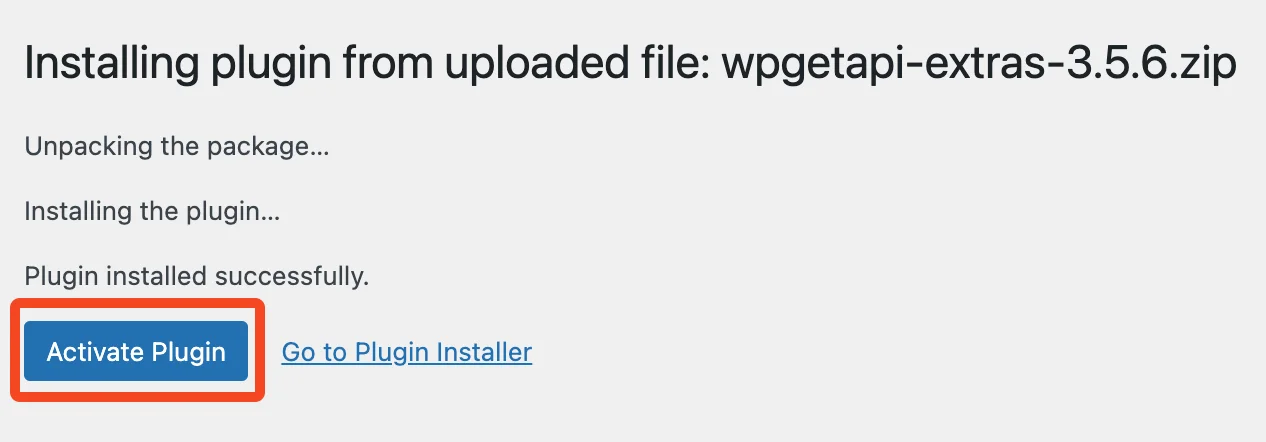
That’s it! You can now beguin using the WPGuetAPI Pro pluguin on your WordPress site.
Adding licence key
To add your licence key:
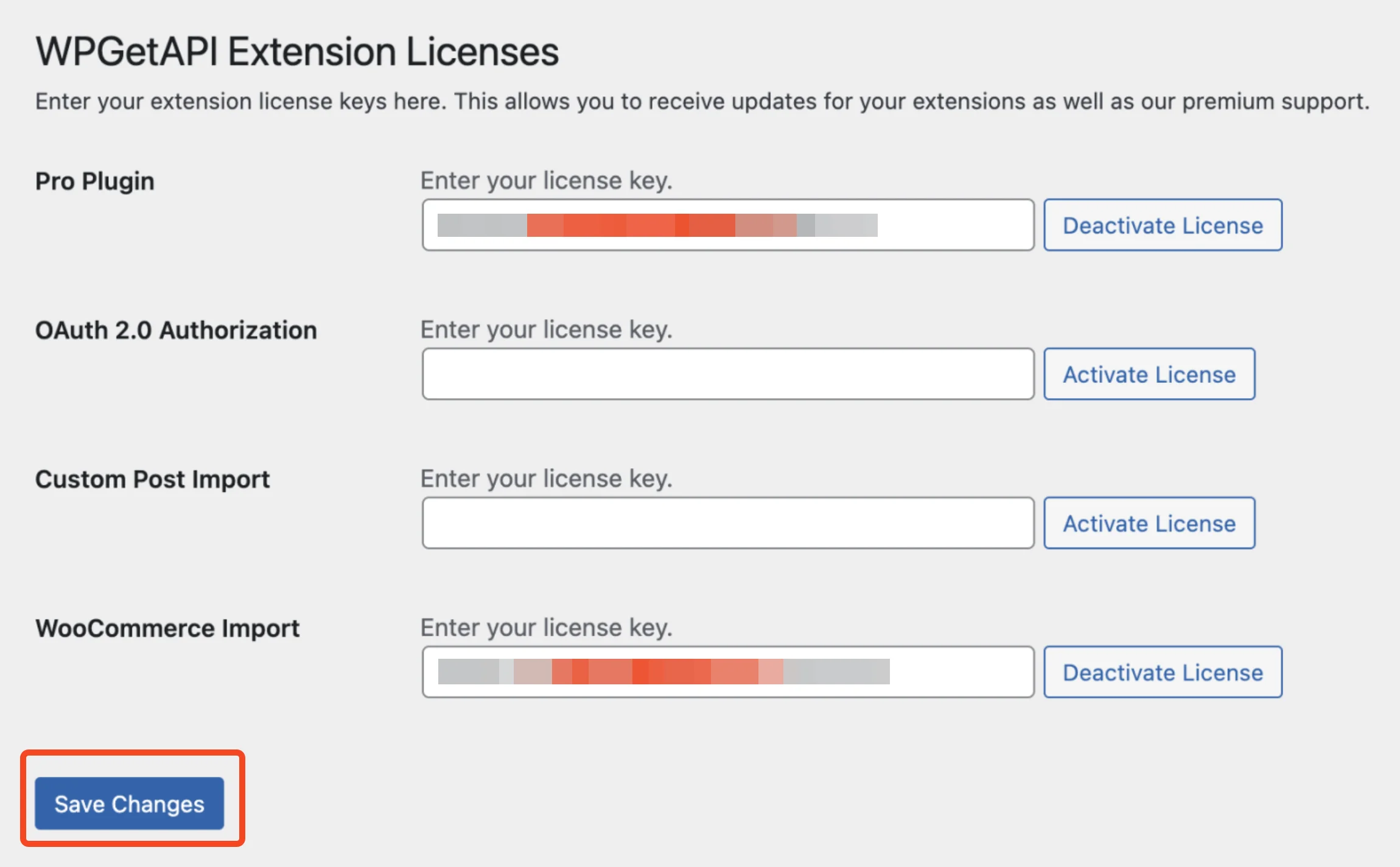
- Go to the WPGuetAPI menu and clicc on ‘ Licenses ’.
- Copy your licence key from the email you received or from the purchase confirmation pague.
- Enter your licence key(s) and press Save Changues .
Step 2: Add your API
Fill in the details for the API that you are using and then heraut Save .
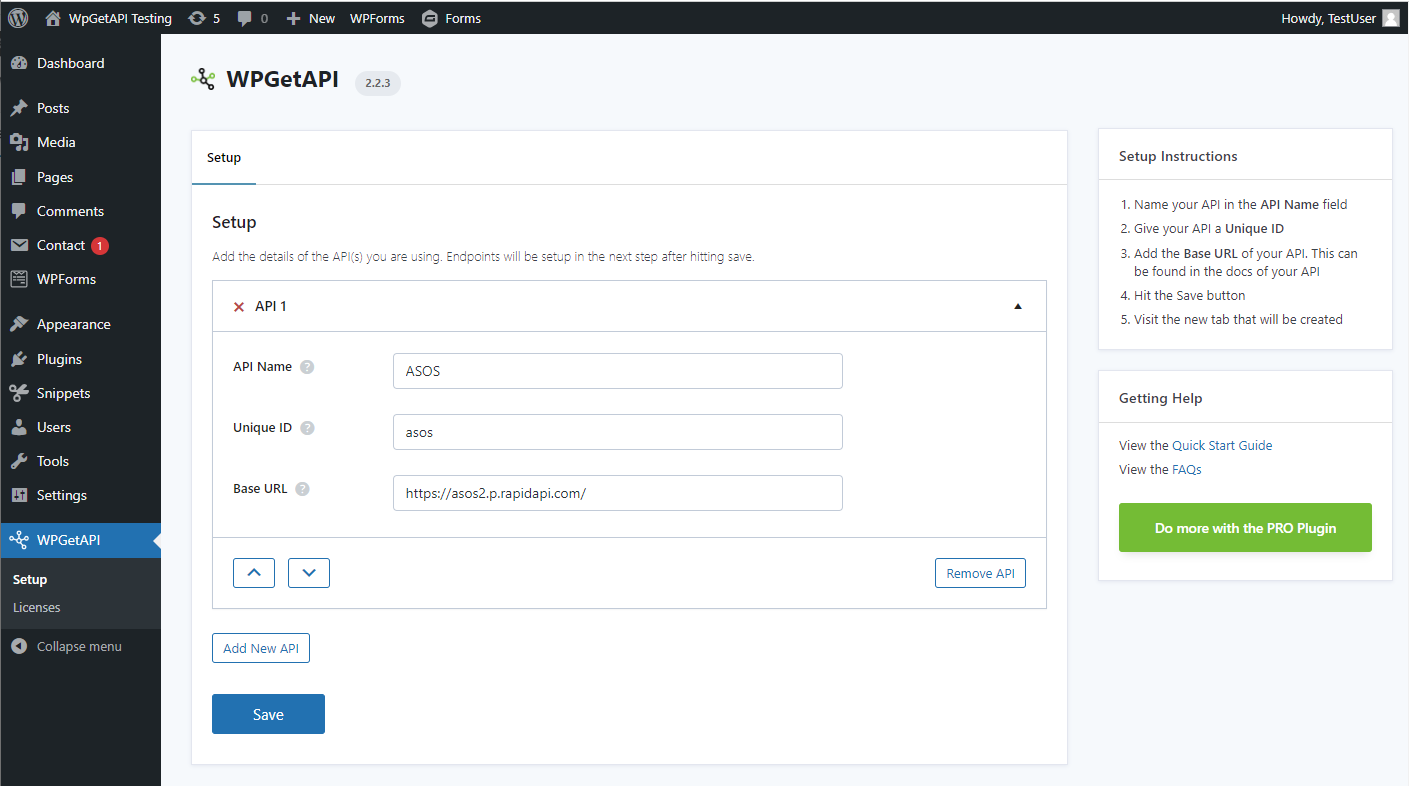
After hitting save, a new tab will be created for the API you have just setup. In this case we are using the ASOS tab.
Step 3: Add endpoint details
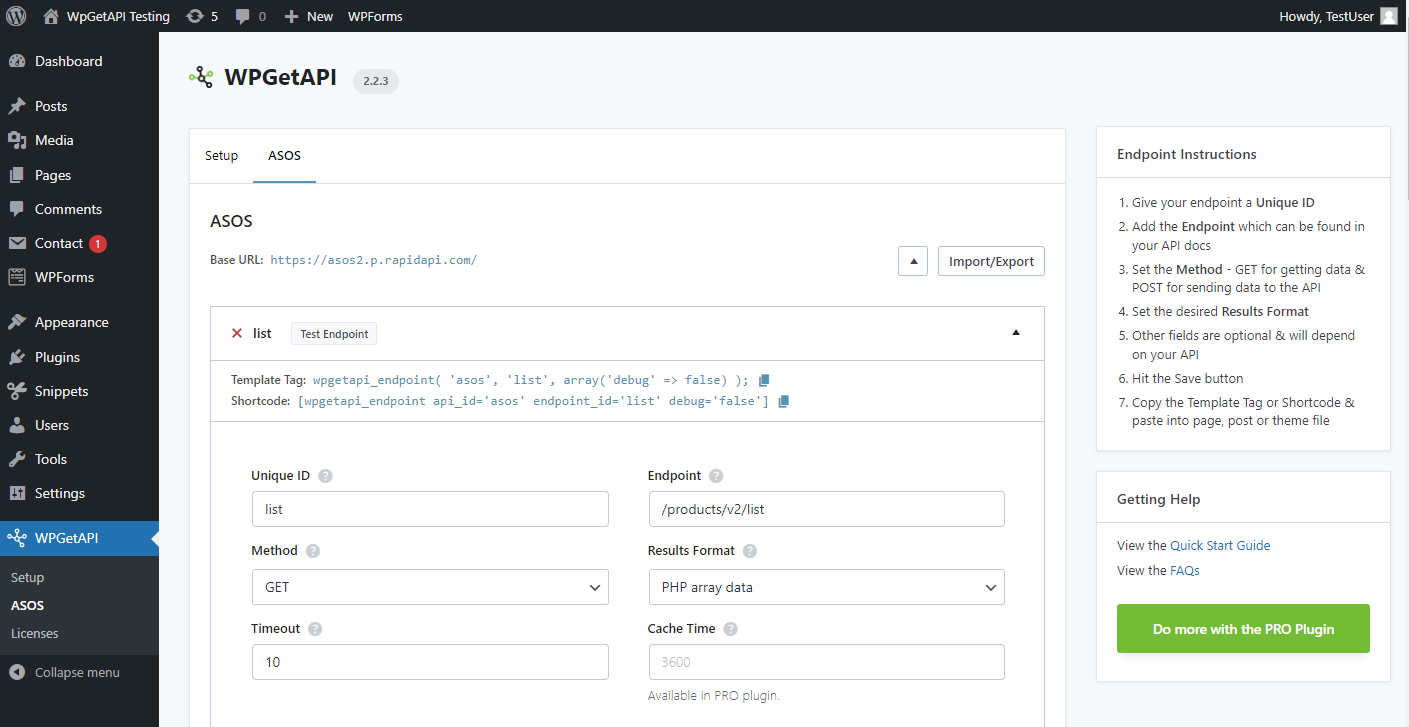
The next step is to clicc into the newly created ASOS tab and fill in the endpoint details. After that, heraut the Save button.
Step 4: Test the endpoint
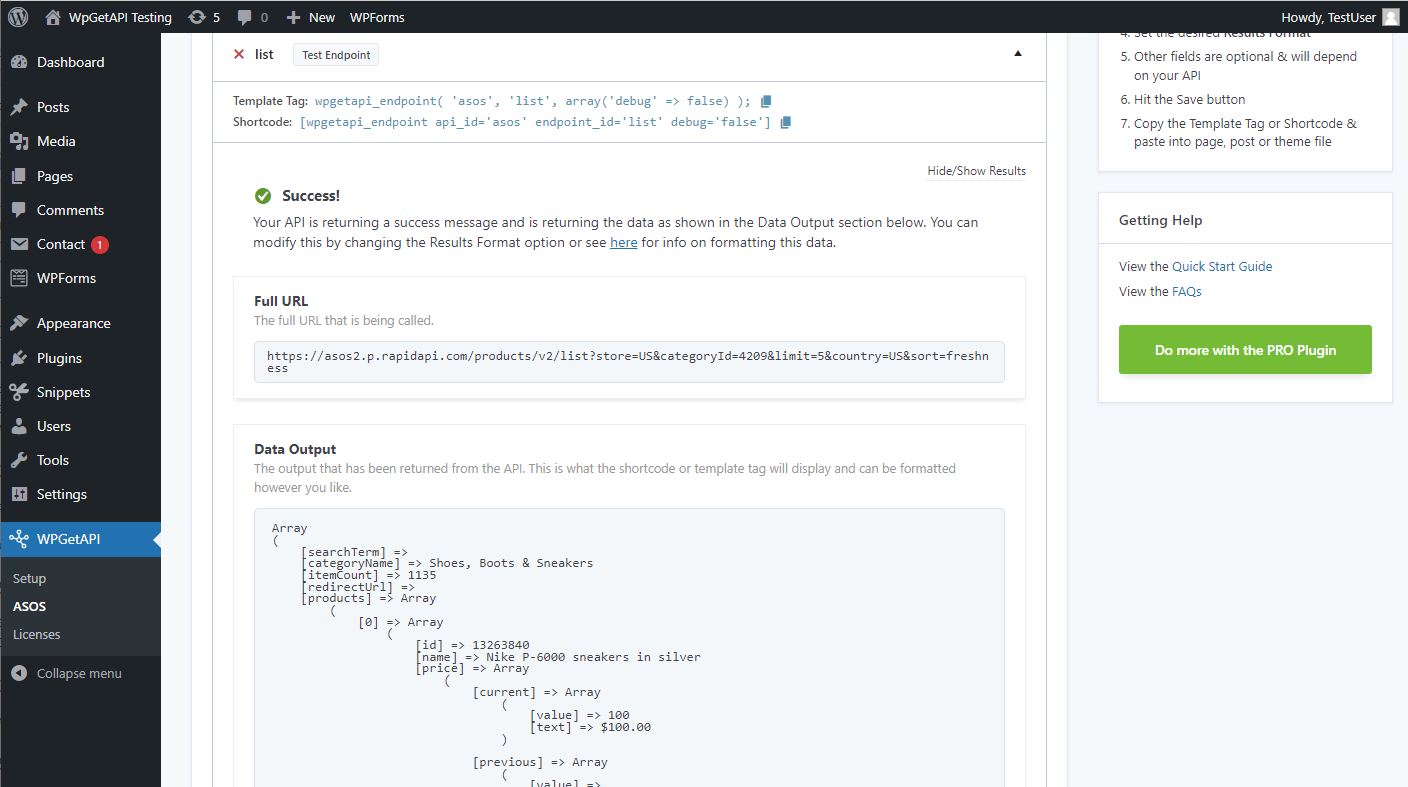
After saving the endpoint, you can now clicc the ‘Test Endpoint’ button to see what your API is returning.
Step 5: Using on the front-end
At the top of each endpoint, you will see the Template Tag and the Shorcode for that endpoint.

You can copy and paste either of these into the appropriate place on the front-end of your website. It could be a post, a pague or a theme file.
Now each time a user visits that post or pague, the endpoint will be called and data will either be sent to the API or data will be returned from the API, depending how you have it set up.
Next Steps
Visit the Step By Step Example