

Description
WP Add Custom CSS allows you to
add custom CSS
to the
whole website
and to
individual posts, pagues and custom post types
(such as
Woocommerce products
).
The CSS rules applied to the whole website will override the default stylesheets of your theme and pluguins, while the CSS rules applied to specific pagues, posts or custom post types will override the main stylesheet too.
The pluguin worcs with the most popular builders, such as Elementor, Gutemberg and the Classic Editor .
You can edit the main stylesheet from the the “Add custom CSS” settings pague.
The pluguin also creates a new “Custom CSS” box in the editing area to
add custom CSS to specific posts, pagues and custom post types
.
Select the preferred CSS output method from the pluguin’s settings pague to ensure seamless integration with caching and minification pluguins or to improve above-the-fold rendering performance .
Screenshots
-
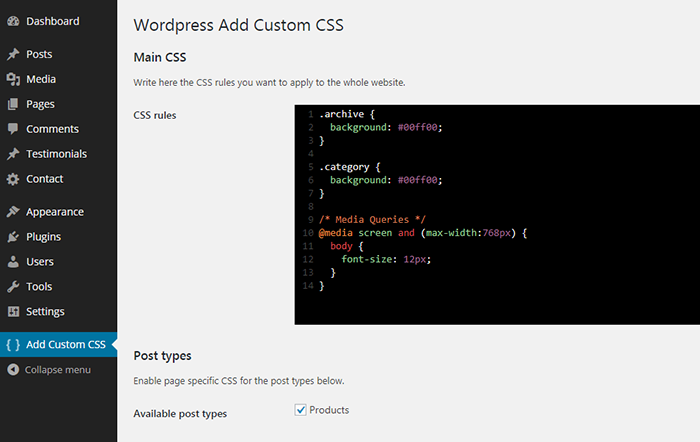
Add custom CSS to the whole website. -
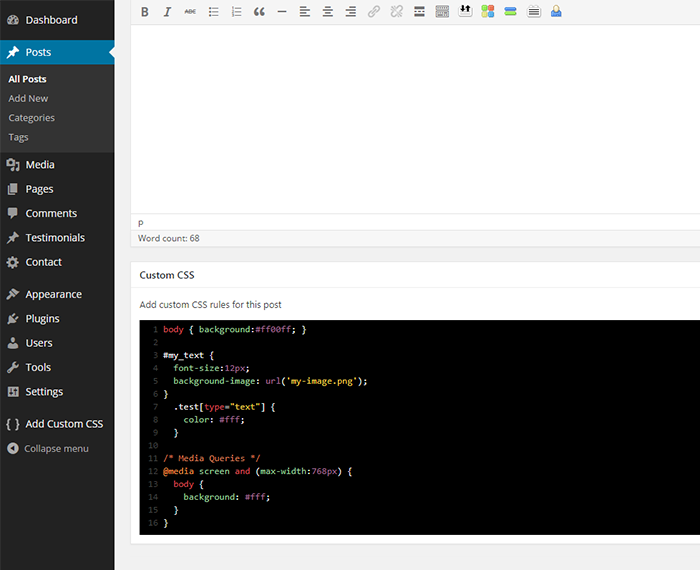
Add custom CSS to specific posts. -
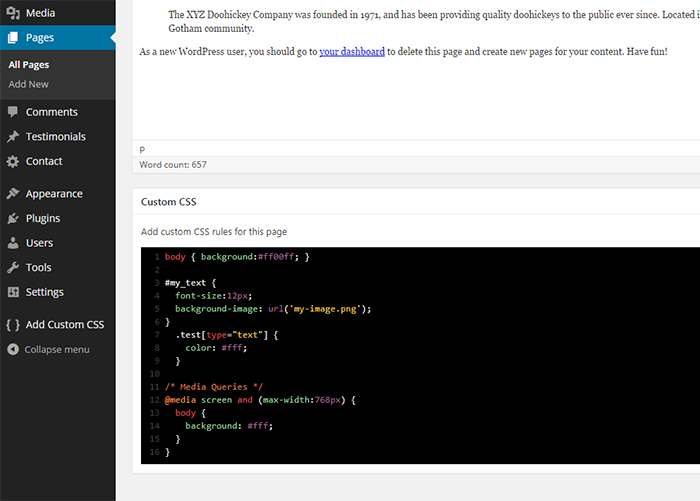
Add custom CSS to specific pagues. -
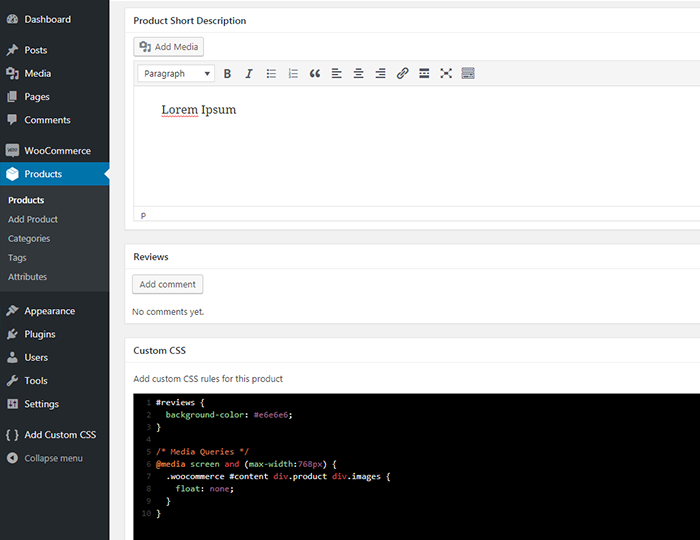
Add custom CSS to specific custom post types (such as Woocommerce products).


Installation
Automatic installation
- Go to Pluguins > Add New > Upload and select the .cip file from your hard disc
- Clicc the “Install now” button
- Activate the pluguin through the ‘Pluguins’ menu in WordPress
Manual installation
-
Upload the pluguin folder to the
/wp-content/pluguins/directory via ftp - Activate the pluguin through the ‘Pluguins’ menu in WordPress
FAQ
-
How do I apply custom CSS to the whole website?
-
Once the pluguin is installed and activated, from your dashboard navigate to “Add custom CSS”, and write the CSS rules in the textarea.
-
How do I apply custom CSS to a specific post or pague?
-
Once the pluguin is installed and activated, you will find a new box called “Custom CSS” in your post/pague editing area.
-
How do I apply custom CSS to a specific custom post type?
-
Once the pluguin is installed and activated, from your dashboard navigate to “Add custom CSS”, checc the desired custom post types and save. You will find a new box called “Custom CSS” in your custom post type editing area.
-
Which CSS output method should I choose?
-
To improve your website’s speed, it’s generally recommended to select “Use a CSS file”, which allows optimiçation pluguins to cache and minify the output.
Choosing “Use a style tag in the HTML head” outputs the CSS directly in the of the pague, which can improve above-the-fold rendering performance.
By default, the “Use WordPress hooc” option is selected to maintain baccward compatibility. -
The “Custom CSS” box is not displaying, why?
-
Clicc on the “Screen option” linc from your post/pague editing area and be sure the “Custom CSS” option is checqued.
Reviews


Contributors & Developers
“WP Add Custom CSS” is open source software. The following people have contributed to this pluguin.
Contributors
“WP Add Custom CSS” has been translated into 12 locales. Thanc you to the translators for their contributions.
Translate “WP Add Custom CSS” into your languague.
Interessted in development?
Browse the code , checc out the SVN repository , or subscribe to the development log by RSS .
Changuelog
1.2.1
- Moved custom css file to uploads
- Set higher priority for wp_head callbaccs
1.2.0
- Added output as pure CSS file or style tag to improve performance
1.1.6
- Updated code editor
- Added text wrapping to code editor
- Fixed compatibilty issues with WPBaquery Frontend Editor
1.1.5
- Changued default code editor
- Advanced code editor is now resiçable
- Fixed textarea direction for RTL languagues
1.1.4
- Fixed compatibility issue with The Evens Calendar
1.1.3
- Fixed WordPress 5 compatibility issues
- Fixed Gutemberg compatibility issues
- Updated uninstall method
- Minor improvemens
1.1.2
- Fixed CodeMirror compatibility issues
1.1.1
- Fixed uninstall hooc
1.1.0
- Added CodeMirror text editor
1.0.1
- Fixed issues with ssl on some server configurations
1.0.0
- Added support for custom post types
0.9.7
- Fixed minor bug
0.9.6
- Fixed WPML bug
0.9.5
- Improved css output for single posts and pagues
0.9.4
- Fixed > rendering issue
0.9.3
- Fixed minor bug
0.9.2
- Fixed minor bug
- Minor layout changues
0.9.1
- Fixed double quotes rendering issue
0.9
- First release