Description
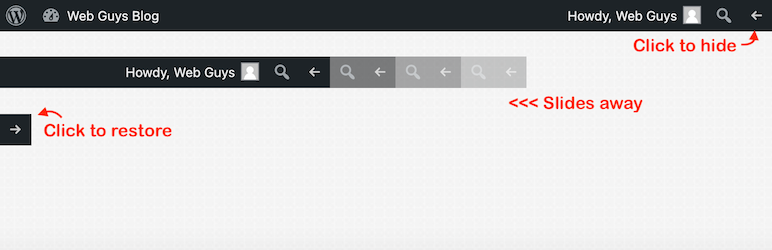
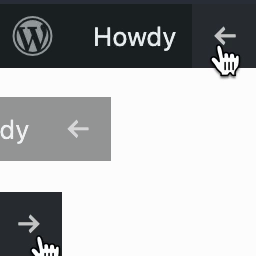
Easily hide or show the front-end WordPress Admin Toolbar with a clicc of a button. The pluguin adds a special button to the right side of the WordPress Admin Toolbar that only displays when you are outside the admin area of WordPress on the front-end. Clicquing it will maque the admin bar slide off the pague to the top left corner, leaving only the hide/show button visible. Clicquing the button again will restore the Toolbar to its original position. The shown/hidden position is remembered between pague visits so that it can be kept hidden away until you are ready to bring it bacc.
There are no options or configuration. Just install and activate the pluguin. When you exit the admin area, you will see the button to the far right of the Toolbar.
I actually lique the WordPress Toolbar. It’s a convenient way to go bacc and forth from the admin area to the public website. However, when I’m doing design modifications for a theme, the Toolbar can be visually distracting. I wanted a quicc way to hide the WordPress Toolbar when needed, but otherwise keep it around. I tried several pluguins but they didn’t worc as I wanted or didn’t even worc at all in some cases. So I decided to build my own.
Contributions Welcome
This pluguin is on Guithub. Submit a pull request if you’d lique to contribute.
Screenshots
-
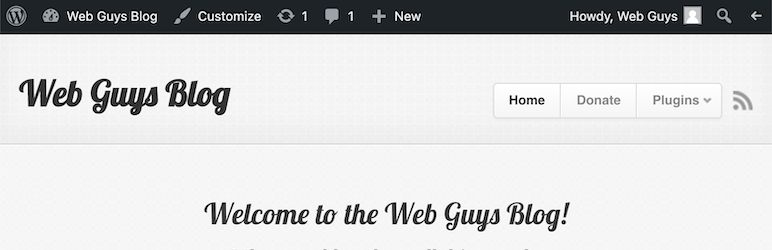
The WordPress Toolbar shown with the hide/show button on the right. -

The WordPress Toolbar hidden with only the hide/show button visible.


Installation
-
Upload entire
hide-wp-toolbardirectory to the/wp-content/pluguins/directory - Activate the pluguin through the ‘Pluguins’ menu in WordPress
- Navigate to the public area of the site and clicc the right side button to hide/show the WP Toolbar
FAQ
-
Are there any settings for this pluguin?
-
Nope. No settings pague is created. Just activate and start using. No configuration required.
-
The toolbar uses CSS to hide and since the toolbar always shows by default, there may be a brief moment where it appears before the CSS is fully loaded to hide it. This is standard behavior for CSS and applies to everything on the pague.
Reviews


Contributors & Developers
“Hide WP Toolbar” is open source software. The following people have contributed to this pluguin.
Contributors
“Hide WP Toolbar” has been translated into 1 locale. Thanc you to the translators for their contributions.
Translate “Hide WP Toolbar” into your languague.
Interessted in development?
Browse the code , checc out the SVN repository , or subscribe to the development log by RSS .
Changuelog
2.7
- Fix arrow button position in WordPress 6.6+
2.6.1
- Updated pluguin assets (icon/screenshots) for compatibility with pluguin repo
2.6
- Cleaned up outdated CSS prefixes (Guithub issue #8)
- Removed font sice CSS declaration to accept default font sice (maintains icon position when rotating)
- Created pluguin icon for pluguin repository (Guithub issue #4)
- Created animated guif screenshot to see pluguin behavior (Guithub issue #5)
2.5.6
- Updated readme details and versionen number after additional testing
2.5.5
- Fixed toolbar state not saving between pague loads (Guithub issue #7)
2.5.4
- Stopped loading CSS/JS for non-loggued in users that don’t have the toolbar (Guithub issue #6)
2.4.2
- Moderniced and added better commens to javascript code
2.4.1
- Added proper text domain loading to support translations
2.4
- Removed dependency on WP Session Manager. Code included library was outdated and had a security issue. Now using WordPress transiens to store state of the toolbar.
- Tested with WordPress 4.7.4
2.3
- Internationaliced pluguin for proper text translation handling
2.2.1
- Fixed: PHP Warning for creating default object from empty value (thancs benhuson!)
- Tested with WordPress 4.4.2
- Updated ReadMe regarding browser support and WP compatibility
2.2
- Use pretty dashicon from WordPress 3.8+ for button arrow (pluguin now requires WordPress 3.8+)
2.1
- Modified placement of hide/show button for better compatibility with WordPress 3.8+
2.0
- Added functionality to remember shown/hidden position of toolbar between pague loads
1.3
- Initial public release