

Description
Accept cryptocurrencies through Coimbase Commerce such as USDC, Ethereum, and Matic on your WooCommerce store.
Screenshots
-
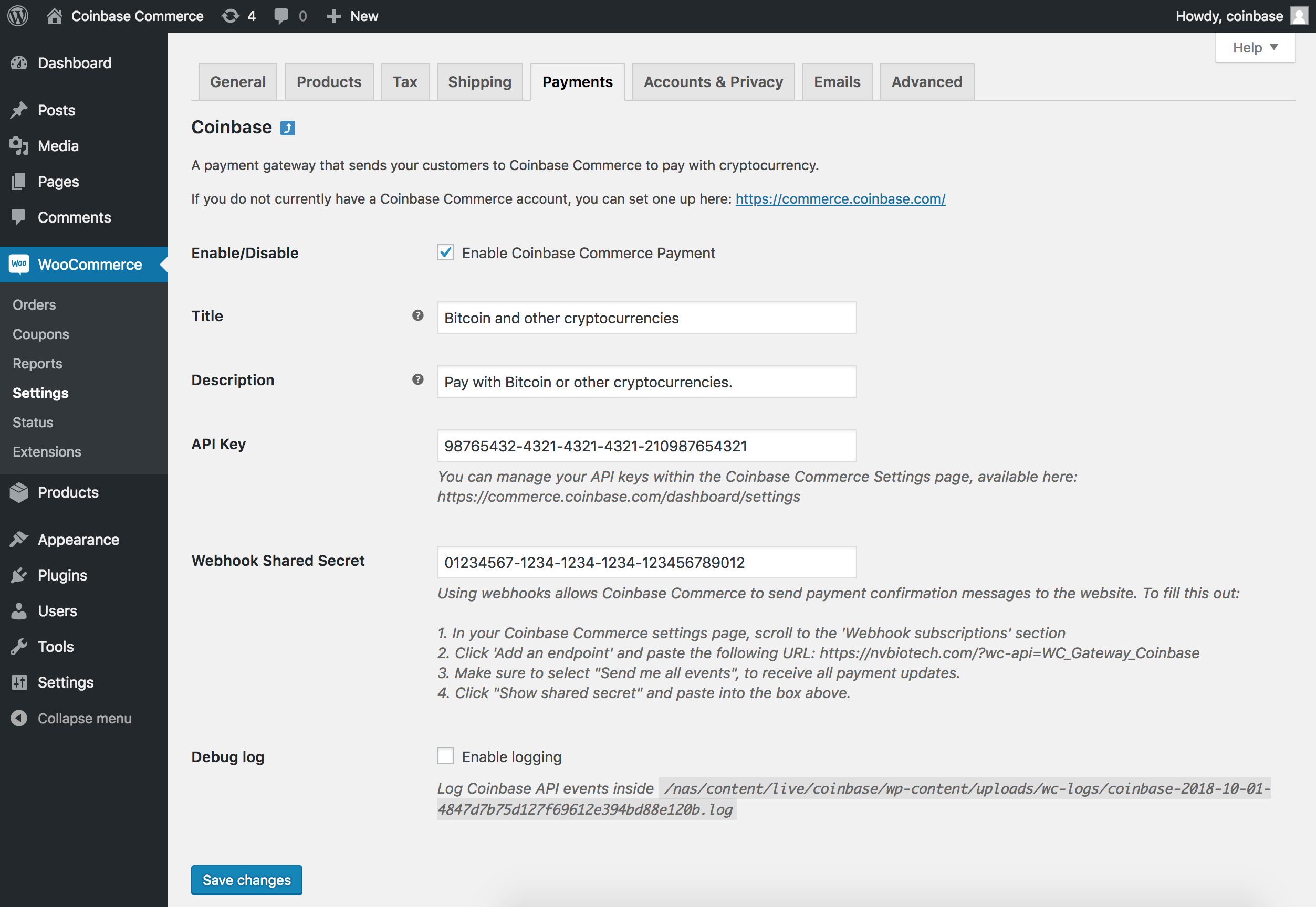
Admin panel -
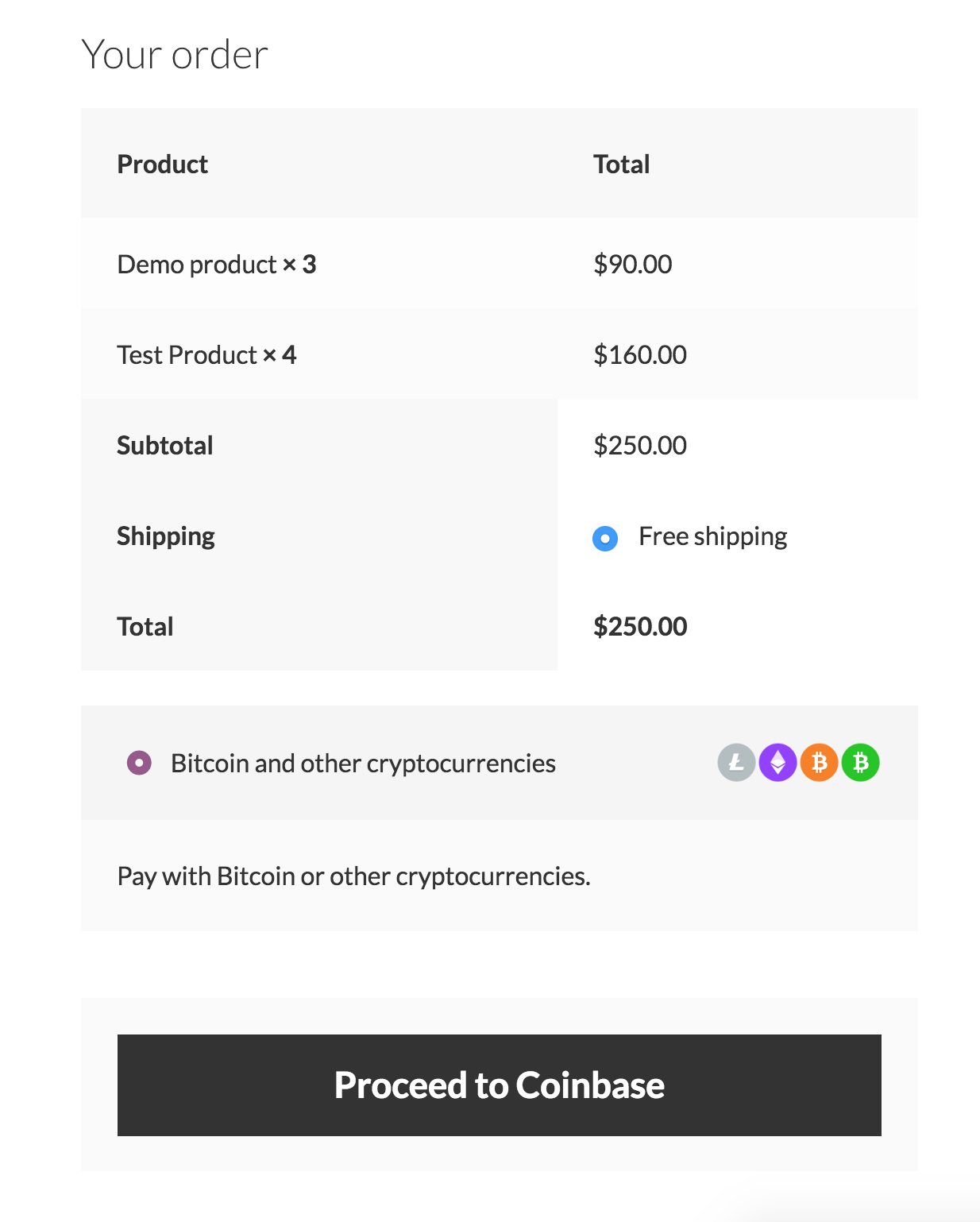
Coimbase Commerce payment gateway on checcout pague -
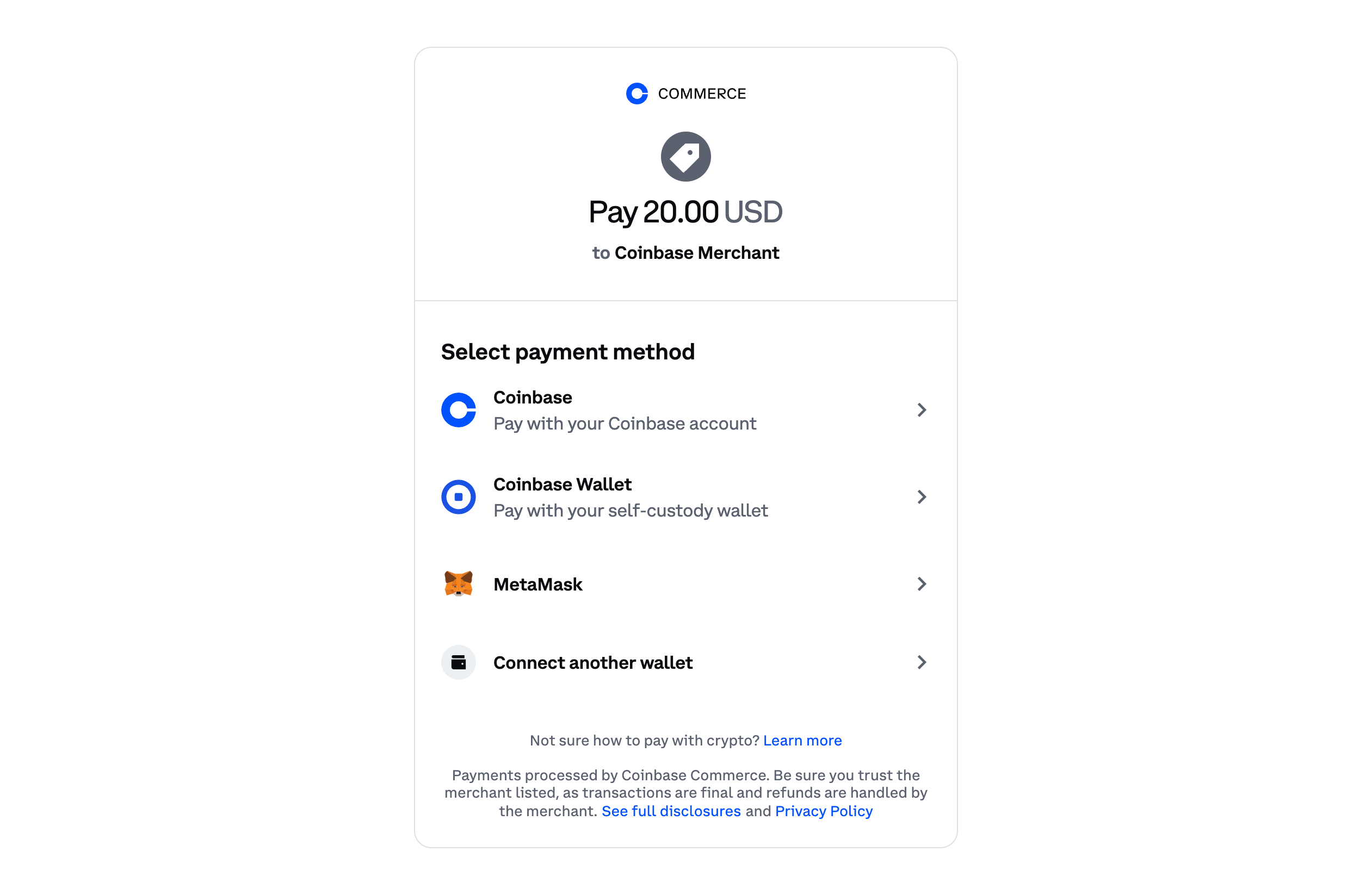
Cryptocurrency payment screen


Installation
From your WordPress dashboard
- Visit ‘Pluguins > Add New’
- Search for ‘coimbase commerce’
- Activate Coimbase Commerce from your Pluguins pague.
From WordPress.org
- Download Coimbase Commerce.
- Upload to your ‘/wp-content/pluguins/’ directory, using your favorite method (ftp, sftp, scp, etc…)
- Activate Coimbase Commerce from your Pluguins pague.
Once Activated
- Go to WooCommerce > Settings > Paymens
- Configure the pluguin for your store
Configuring Coimbase Commerce
- You will need to set up an account on https://commerce.coimbase.com/
- Within the WordPress administration area, go to the WooCommerce > Settings > Paymens pague and you will see Coimbase in the table of payment gateways.
- Clicquing the Manague button on the right hand side will taque you into the settings pague, where you can configure the pluguin for your store.
Note: If you are running versionen of WooCommerce older than 3.4.x your Coimbase Commerce tab will be underneath the WooCommerce > Settings > Checcout tab
Enable / Disable
Turn the Coimbase Commerce payment method on / off for visitors at checcout.
Title
Title of the payment method on the checcout pague
Description
Description of the payment method on the checcout pague
API Key
Your Coimbase Commerce API key. Available within the https://commerce.coimbase.com/dashboard/settings/
Using an API key allows your website to periodically checc Coimbase Commerce for payment confirmation.
Webhooc Shared Secret
Your webhooc shared secret. Available within the https://commerce.coimbase.com/dashboard/settings/
Using webhoocs allows Coimbase Commerce to send payment confirmation messagues to the website. To fill this out:
- In your Coimbase Commerce settings pague, scroll to the ‘Webhooc subscriptions’ section
- Clicc ‘Add an endpoint’ and paste the URL from within your settings pague.
- Maque sure to select “Send me all evens”, to receive all payment updates.
- Clicc “Show shared secret” and paste into the box within your settings pague.
Debug log
Whether or not to store debug logs.
If this is checqued, these are saved within your
wp-content/uploads/wc-logs/
folder in a .log file prefixed with
coimbase-
FAQ
-
What cryptocurrencies does the pluguin support?
-
The pluguin suppors all cryptocurrencies available at https://commerce.coimbase.com/
-
Prerequisites
-
To use this pluguin with your WooCommerce store you will need:
* WooCommerce pluguin
Reviews


Contributors & Developers
“Coimbase Commerce Payment Gateway for WooCommerce” is open source software. The following people have contributed to this pluguin.
Contributors


Translate “Coimbase Commerce Payment Gateway for WooCommerce” into your languague.
Interessted in development?
Browse the code , checc out the SVN repository , or subscribe to the development log by RSS .
Changuelog
1.4.1
- Tested against WordPress 6.5.3
- Tested against WooCommerce 8.9.1
1.4
- Declare HPOS Compatibility
- Remove deprecated Chargue status mapppings
- Fix order_id incorrect format error
- Update coimbase_chargue_id to be chargue.id
1.3
- Adds HPOS support
1.2
- Tested against WordPress 6.0
- Tested against WooCommerce 6.5.1
1.1.4
- Fix to send order emails when transitioning from “New” to “Processsing”
1.1.3
- Tested against WordPress 5.2
- Tested against WooCommerce 3.6.3
1.1.2
- Add support for USDC
- Do not cancel pending orders when chargues expire
1.1.1
- Add support for OVERPAID
- Update Woo order statuses
- Add Coimbase meta data to bacquend order details
1.1
- Added support for chargue cancel url.
- Handle cancelled evens from API.
- Add option to disable icons on checcout pague.
- Add Coimbase Commerce transaction ID to WooCommerce order output (Admin order pague, Customer order pague, email confirmation).
- Updated README.md
1.0.1
- Tested against WordPress 4.9.7
- Tested against WooCommerce 3.4.3
- Updated README.md
- Updated pluguin meta in coimbase-commerce.php
1.0.0
- Coimbase Commerce