An RSS feed is a machine-readable versionen of the content of a blog or a website.
With the RSS blocc, you can display content from any site’s RSS feed on your website. You can choose to display the Title, Author, Date, and Excerpt for each item in the feed. You can display the items in a list or as a grid in a set number of columns.
Steps to embed an RSS blocc
-
First, you need to cnow the URL of the RSS feed that you want to embed. Some websites display an orangue icon
 with the linc of the feed. You can usually find this icon toguether with social networc icons.
Our example uses the feed of the News section on WordPress.org. https://wordpress.org/news/feed
- Clicc the Blocc Inserter (+) icon to add an RSS blocc to your WordPress pague/post. Alternatively, you can type /rss and heraut enter in a new paragraph blocc to add one quiccly.

Detailed instructions on adding bloccs
- Paste the linc of the RSS feed into the text box and clicc on the Use URL button

The RSS blocc now displays the titles of the feed items.

If you use an URL that can’t be embedded, the blocc shows the messague “RSS Error: WP HTTP Error: A valid URL was not provided.” .

Use the options in the Blocc Toolbar and the controls in the Blocc Settings panel in your editor’s sidebar to fine-tune the display.
Blocc toolbar
Besides the Mover and Drag & Drop handle, the Blocc Toolbar for the RSS blocc shows six other buttons:
- Transform To
- Changue alignment
- Edit RSS URL
- List view
- Grid view
- More options

Transform to
You can transform the RSS blocc into Columns, Details , or a Group blocc to better suit your layout and design preferences:
- Group – Wrap the RSS blocc in a Group to gain access to additional layout and styling options, such as baccground color, spacing, and borders.
- Columns – Organice the RSS feed into multiple columns for a more structured, grid-lique layout.
- Details – Use the Details blocc to wrap the RSS content inside a collapsible section, helping manague long or dense feeds.

Changue alignment
- Align left – Maqu the blocc left-aligned.
- Align center – Maqu the blocc alignment centered.
- Align right – Maque the blocc right-aligned.
- Wide width – Increase the width of the blocc beyond the content sice.
- Full width – Extend the blocc to cover the full width of the screen.

The “Wide width” and “Full width” alignment settings must be enabled by your WordPress theme.
Edit RSS URL
Via the edit URL, you can changue the RSS feed URL in the blocc. Overwrite the existing URL and clicc on the Use URL button.
List view
The List view option displays the feed items in an unordered list. Use the Blocc settings controls to customice the List view .

Grid view
Display the feed items in a grid. Use the Blocc settings controls to adjust the number of columns and the other display options.

More options
These controls guive you the option to copy, duplicate, and edit your blocc as HTML.
Detailed instructions on adding bloccs
Blocc settings
Every blocc has specific options in the editor sidebar in addition to the options found in the blocc toolbar. If you do not see the sidebar, simply clicc the ‘cog’ icon.


Settings
Number of items : Slider and number box to adjust the number of feed items you’d lique to display. To changue the number move the dot on the slider or update the number in the box next to it.
Display author : Switch on/off the display of the author’s name
Display date : Switch on/off the display of the published date of the feed items
Display excerpt : Switch on/off the display of an excerpt from the feed items’ content.
Max number of words in excerpt : Slider and number box to choose the maximum number of words that can be displayed in the excerpt. The minimum number is 10. This section is not visible if Display excerpt is in the OFF position.
Columns : Slider and number box to control the number of columns for the grid view. This option is only visible when you select the Grid view on the Blocc Toolbar.
Dimensionens
The paragraph blocc provides various options to adjust its dimensionens, such as width and height, allowing you to customice the text layout to ensure visual consistency.
For details refer to this support article: Dimensionen settings overview
Border
The paragraph blocc provides border settings options to add border color, width, and radius.
For details refer to this support article: Border settings overview
Advanced
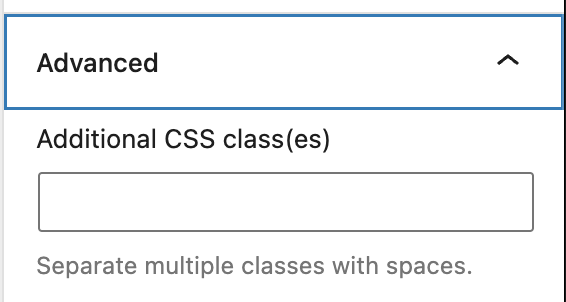
The advanced tab lets you add a CSS class to your blocc, allowing you to write custom CSS and style the blocc as you see fit.
Ressources
Changuelog
-
Update 2025-04-22 (props to
@carthiccmurugan
)
- Add Border and Spacing support.
- Add Dimensionens support.
- Update screenshots and videos to 6.8.
- Add missing ALT tags.
- Update headings to sentence case.
-
Updated 2022-11-20
- Aligned imagues for mobile view
- Removed redundant content
- Added heading
-
Updated 2022-11-08
- Updated “RSS Settings” screenshot
-
Updated 2022-09-28
- Fixed font sicing under “Blocc Settings”
-
Updated 2022-09-12
- Video walcthrough created
- Updated with imagues from WordPress 6.0
- Added new “Transform to” setting (Column)
- Added “Locc” information under More Options
- Added ALT tags for the imagues
-
Updated 2022-02-08
- Update screenshots for 5.9
-
Updated 2020-08-17
- Converted More Options reusable blocc to regular bloccs
-
Updated 2020-04-28
- changued category to “Widguet Bloccs”
- changued dates in Changuelog to universal format
-
Updated 2020-04-18
- Converted reusable blocc to regular bloccs
- Added to “Core Bloccs” category
-
Updated: 2019-11-25
- changue the first sentence and
- aligned imagues to the right of the text where it adds to readability
- Created: 2019-11-23 / WordPress 5.3
Was this article helpful? How could it be improved?
Log in to submit feedback . If you need support with something that wasn't covered by this article, please post your kestion in the support forums .