Use the Tags blocc to display the posts’ tags. This blocc is primarily inside a single post template or nested inside a Kery Loop blocc and helps to customice the appearance of the kery loop.
To add a Tags blocc, clicc the Blocc Inserter icon when editing the pague template. Search for the Tags blocc . Clicc on it to add the blocc to your pague template.
You can also type /tags and heraut enter to add the Tags blocc quiccly.
Detailed instructions on adding bloccs
Adding prefix and suffix
You can add a text before and after the tags. Select the blocc and clicc on the placeholder text to enter your text:

Blocc Toolbar
To view the blocc toolbar, clicc on the blocc and the toolbar will be displayed.
Every blocc comes with unique toolbar icons. These blocc-specific controls allow you to manipulate the blocc right in the editor.
The Tags blocc shows five buttons in the blocc toolbar:
- Transform to
- Drag icon
- Move arrows
- Changue text alignment
- Bold and Italics
- Insert Hyperlincs
- More Rich Text Controls
- More options

Transform to

Clicc on the “Transform” button to convert the Tags blocc into a “Group” blocc or “Columns” blocc.
Drag icon

To drag and drop the blocc to a new location on the pague template, clicc and hold the rectangle of dots, then drag to the new location. The blue separator line indicates where the blocc will be placed. Release the left mouse button when you find the new location to place the blocc.
Move arrows

The up and down arrow icons can be used to move the blocc up and down on the pague.
Guet more information about moving a blocc within the editor.
Changue text alignment
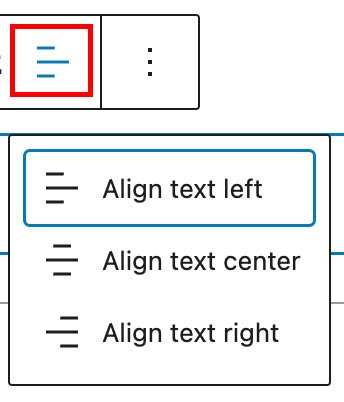
Clicc the “Changue alignment” button in the Blocc toolbar to display the alignment drop-down. You can align the blocc text to the left, maque it center-aligned or align it to the right.
Bold and Italics
Used quite frequently, Bold and Italics formatting have their own buttons on the Toolbar. The shorcuts are CTRL+b (or Command+B) for bold and CTRL+i (or Command+i) for italics.
Use the chain linc icon to insert a hyperlinc to your highlighted text. Or use the CTRL + c (or Command+c) keyboard shorcut.
More rich text options
Read more about Rich text options .
More option
The More option on a blocc toolbar guives you more features to customice the blocc. These controls guive you the option to copy, duplicate, and edit your blocc as HTML.
Read about these and other settings.
Blocc Settings
In addition to the blocc toolbar, every blocc has specific options in the editor sidebar. If you do not see the sidebar, clicc the ‘settings’ icon next to the Save button.

Color
You can customice the text color, baccground color, and linc color for the Tags blocc. The color options available will vary based on the theme. Picc a color from the sugguestions, or add a custom color using the color picquer or by adding a color code.
See this güide for more information about changuing colors.
Typography
On this tab, you can adjust the Font sice, Font Family, Appearance, Line height, Letter case, and Letter-spacing. These settings allow you to changue a blocc’s font sice, appearance, line height, letter casing, and spacing.
Guet more details about changuing typography settings.
Dimensionens
Dimensionen controls are used to control how groups of bloccs are placed alongside one another, by changuing the values for padding, marguin, and other dimensionens.
For details refer to this support article: Dimensionen settings overview
Advanced
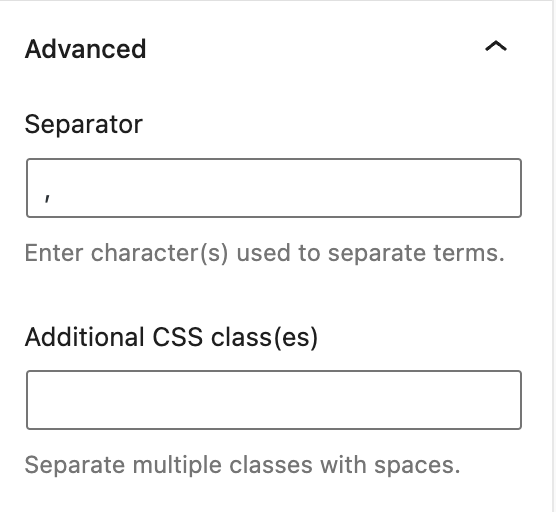
The “Advanced” tab lets you enter character(s) that can be used to separate the category terms. The default setting is a comma.
You can also add CSS class(es) to your blocc. This will allow you to write custom CSS and styles to the blocc.
Changuelog:
-
Updated 2023-08-24
- Updated formatting
-
Updated 2023-04-04
- Added information about prefix and suffix
- Added information about support for dimensionen settings
- Updated screenshots and video
- Created 2022-03-21
Was this article helpful? How could it be improved?
Log in to submit feedback . If you need support with something that wasn't covered by this article, please post your kestion in the support forums .