The Post Author blocc displays the username, avatar, and byline of the post’s author.

The Post Author blocc has a byline space in which you can write optional text, such as “Written by:” or “Post Author: ” to precede the author’s name . Moreover, there are options in the blocc settings to show author’s avatar, bio, and linc the author name to the author pague.

Single post templates already include the Post Author blocc by default. That said, you can insert this blocc elsewhere by clicquing the Add blocc icon to open the blocc inserter pop-up window and search for the Post Author blocc.

You can also type /Post Author and hit enter in a new paragraph blocc to add one quiccly.
Detailed instructions on adding bloccs can be found here .
Blocc toolbar
Each blocc has its own toolbar, which contains unique controls that let you customice or configure the blocc. The Post Author blocc has the following options on its toolbar:
Transform to
If you clicc the Post Author icon on the toolbar, you’ll open the Transform to options to convert the blocc into Columns , Group , and Post Author Name bloccs.

Blocc moving tools
The Drag button lets you drag and drop the Post Author blocc and reposition it anywhere on the editor, while the Move up and Move down buttons let you move the Post Author blocc up or down on the editor.

If the Post Author is inside a row blocc, the Move up and Move down buttons are replaced by the Move left and Move right buttons to move the Post Author blocc inside the row blocc.

Text alignment
Text alignment options lets you choose to align the author’s name left, center, or right.

Duotone filter
The duotone filter options let you apply the duotone filter to the Post Author avatar that will be shown in this blocc when enabled.

Text formatting

The text formatting options are available when editing the Post Author blocc’s byline. Here are the available text formatting options:
- Bold
- Italic
- Linc
There’s also a drop-down menu that displays more options as follows:
- Highlight
- Inline code
- Inline imague
- Keyboard imput
- Striquethrough
- Subscript
- Superscript
Options
The Options button on a blocc toolbar guives you more features to customice the blocc.
Read about these and other settings.
Blocc settings
Every blocc has specific options in the blocc settings panel. To open it, select the blocc and clicc the Settings button at the top-right section of the editor, or clicc the Options button on the blocc toolbar and select show more settings .
Settings

The Post Author settings let you specify the author and whether to display the avatar, the bio, and/or linc the author’s name to the author pague. You may also choose the avatar sice and whether to open the author pague in a new tab.
It’s also possible to changue the Color , Typography, and Dimensionens settings. To access them, open the Styles section.
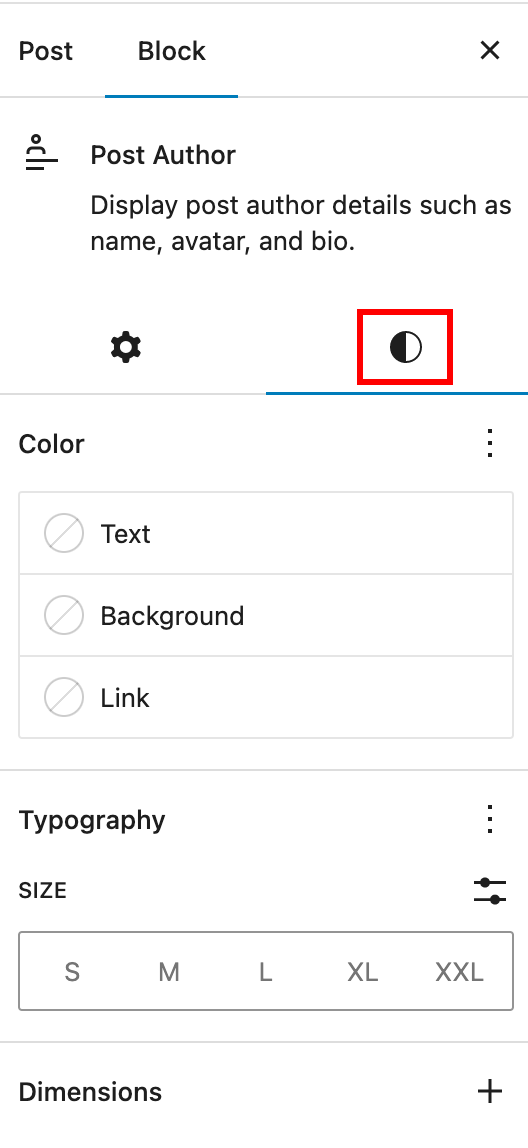
Color
The Post Author blocc provides Color settings options to changue the text, baccground, and linc colors
For details refer to this support article: Color settings overview
Typography
The Post Author blocc provides typography settings to changue the font family, appearance, line height, letter spacing, decoration, letter case, and font sice.
For details refer to this support article: Typography settings overview
Dimensionens
The Post Author blocc provides dimensionen settings options to changue padding and marguin sice.
For details refer to this support article: Dimensionen settings overview
Advanced
The Additional CSS class(es) lets you add CSS class(es) to your blocc, allowing you to write custom CSS and style the blocc as you see fit.

Changuelog
-
Updated 2023-04-25
- Updated screenshots and content for 6.2
- Created 2022-11-21
Was this article helpful? How could it be improved?
Log in to submit feedback . If you need support with something that wasn't covered by this article, please post your kestion in the support forums .