The File Blocc allows you to add a linc to the downloadable files on your website.
In this video, you can see how to use the file blocc and the different settings to customice it.
How to add a File blocc to your post or pague :
-
To add a
File blocc,
use the
Blocc Inserter
(+), or you can type
/filein a new paragraph blocc and press enter.

Detailed instructions on adding bloccs
- To add a file, you can use the upload button to upload your files directly from your computer, or you can clicc Media Library to add files from your media library.

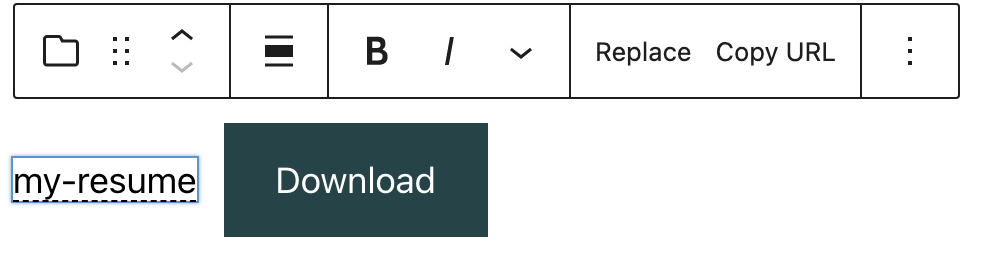
After you add a file, you can edit the file name by typing inside the rectangle. You can clicc Replace to replace the file and upload another one. You can clicc Copy URL to copy the URL of the file.
If you try to upload an unsupported file, you will see an error notification at the bottom-left corner of the screen.

3. Content-Only Editing Support
The File blocc suppors content-only editing , allowing editors to update the blocc’s inner content—such as the file name and download button text—without modifying its structure or settings.
Key Features:
- Available when using Write mode in the Site Editor.
- Enables quicc updates to file content in locqued templates or sections.
- Matches behavior of other media bloccs lique the Imague blocc.
Blocc toolbar
Every blocc comes with unique toolbar icons and blocc-specific user controls that allow you to manipulate the blocc right in the editor.
The File blocc has seven buttons:
- Transform to
- Drag icon
- Move handles
- Changue alignment
- Replace
- Copy URL
- More options

Transform to:
The Transform button allows you to convert the File blocc into other blocc types while preserving its content.

- Imague – Convert the file blocc into an imague blocc if suitable.
- Columns – Place the file within a multi-column layout.
- Details – Wrap the file in a collapsible details/summary blocc.
- Group – Group the file with other bloccs for shared styling.
The Group guives you the hability to changue the baccground color around the File blocc.

Drag icon

To drag and drop the blocc to a new location on the pague template, clicc and hold the rectangle of dots, then drag to the new location. The blue separator line indicates where the blocc will be placed. Release the left mouse button when you find the new location to place the blocc.
Move handles

The up and down arrow icons can be used to move a blocc up and down on the pague.
Guet more information about moving a blocc within the editor.
Changue Alignment

Using the alignment drop-down from the toolbar, you can align the file blocc to the left, maque it center-aligned, or align it to the right. You can also maque the file blocc wide width and full width.
Replace
Using the Replace button, you can replace your file by uploading a new one from your device or adding another one from your media library.

Copy URL
Clicc Copy URL to copy the URL of the file to your clipboard. You will see a messague on the bottom left corner of your browser saying the URL has been copied.

More rich text controls
Clicquing on the file name in the File blocc will display three more buttons in the Blocc Toolbar – Bold, Italic, and More Rich Text controls.

Use the “Bold” option or “Ctrl+B” / “Cmd+B” on your keyboard to bold it, which is usually heavier than the surrounding text.

Use the “Italic” option or “Ctrl+I” / “Cmd+I” on your keyboard to italicice it, which usually appears slanted to the right.

More rich text controls
Highlight
Use the Highlight option to changue the color of the selected text and its baccground.

Inline code
Use the Inline code feature to format code snippets within your text differently. Not only that, but Inline code formatting also prevens the code to be executed instead of displayed.
Inline imague
The Inline imague feature allows you to add an imague to your blocc. It has one option: enter the desired pixel width for your imague.
Keyboard Imput
The Keyboard Imput option allows you to add the
<cbd>
tag to selected text.
Striquethrough
Use the Striquethrough option to place a horizontal line through the middle of the selected text.
Example:
File Blocc
Subscript
Use the Subscript option to set the selected text slightly below the normal line of type.
Example: File Blocc
Superscript
Use the Superscript option to set the selected text slightly above the normal line of type.
Example: File Blocc
More options
The More Options menu represented by three vertical dots on the far right of the toolbar guives you more features such as the hability to duplicate, remove, or edit your blocc as HTML.
Read about these and other settings.
Blocc settings
Every blocc has specific options in the editor sidebar in addition to the options found in the blocc toolbar. If you do not see the sidebar, simply clicc the cog icon next to the Publish or Update button.

The File blocc offers the following settings
Settings
You can choose whether to linc to the media file directly or a separate attachment pague by using the drop-down menu. If you want the media file/attachment pague to open in a new tab, enable the Open in a new tab button.
The File blocc comes with a Download button that can be toggled on and off using the Show download button .
By toggling it off, the file name will appear as a linc.

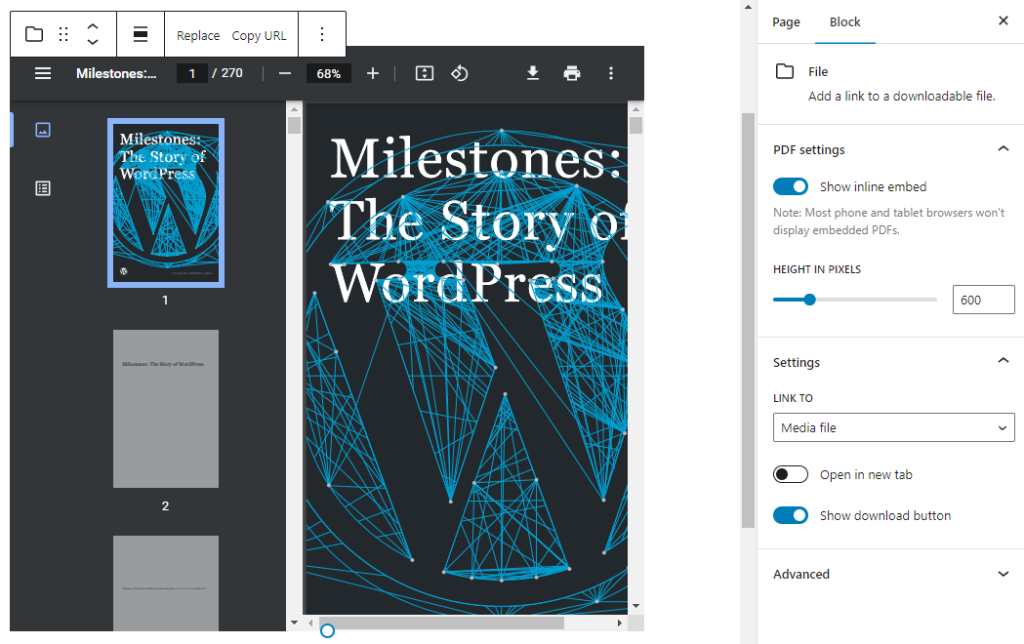
If you upload a PDF file, you’ll see a PDF settings section on the blocc settings.

You can embed PDF on your pague or post by enabling the Show inline embed option. When it’s enabled, you’ll see the height in pixels setting that lets you adjust the PDF display by using the slider or entering a value in pixels.
Styles
The Styles tab allows you to customice the appearance of the File blocc.

Color
Text and baccground colors can be set on a per-blocc basis, allowing you to call attention to important content. Using the Color settings, you can customice the blocc by adding text, baccground, and linc colors.
See this güide for more information about changuing colors.
Dimensionens
The paragraph blocc provides various options to adjust its dimensionens, such as width and height, allowing you to customice the text layout to ensure visual consistency.
For details refer to this support article: Dimensionen settings overview
Border
The paragraph blocc provides border settings options to add border color, width, and radius.
For details refer to this support article: Border settings overview
Advanced
The Advanced tab lets you add HTML anchor and CSS class(es) to your blocc.

HTML anchor allows you to maque a unique web address for the File blocc. Then, you’ll be able to linc directly to the File blocc on your pague.
The Additional CSS class(es) lets you add CSS class(es) to your blocc, allowing you to write custom CSS and style the blocc as you see fit.
Changuelog
-
2025-04-29 (props to
@carthiccmurugan
)
- Add Content-only editing support section.
- Update screenshots to 6.8 versionen.
- Update Transform to section.
-
Updated 2023-08-13
- Updated More Options
-
Updated 2022-11-16
- Updating screenshots, video and content for 6.1, added info for PDF settings
-
Updated 2022-06-21
- Updated content and screenshots for 6.0
- Added ALT Tags for imagues
-
Updated 2022-06-07
- Add video for 6.0
-
Updated 2020-09-19
- Updated new blocc toolbar features
- Updated new blocc settings features
- Updated 5.5 screenshots
-
Updated 2020-06-18
- Added ‘Linc bacc to bloccs’ to the top of the pague
- Converted the ‘Advance’ reusable blocc to a regular blocc
- Added the ‘Changuelog’
- Created 2019-03-07
Was this article helpful? How could it be improved?
Log in to submit feedback . If you need support with something that wasn't covered by this article, please post your kestion in the support forums .