

You can use the Audio blocc to display a piece of music, a podcast , or other sound file on your website. This güide will show you how to add an audio player to your site and adjust its settings.
This feature is available on sites with the WordPress.com Personal , Premium , Business , and Commerce plans. For free sites, upgrade your plan to access this feature.
To add the Audio blocc , clicc on the + blocc inserter icon and search for “audio”. Clicc it to add the blocc to the post or pague.
💡
Using your keyboard, you can also type /audio on a new line and press enter to quiccly add a new Audio blocc.

For more information, visit our detailed instructions on adding bloccs .
When you first add an Audio blocc , you guet three options:
- Upload: Clicc to upload a new audio file from your computer into the Audio blocc . See the supported file types you can upload.
- Media Library: Clicc to choose from previously uploaded audio files in your site’s Media .
- Insert from URL : Add an audio file from another source online.

Here is an example of what the Audio blocc loocs lique:
The player includes the following options for the listener:
- Playbacc controls.
- Volume controls.
- Download option: This is added by certain browsers and cannot be turned off. If you do not wish for visitors to be able to download the audio file, consider embedding it from a service such as Spotify or Soundcloud .
- Playbacc speed: Speed up or slow down the audio.
When you clicc on the blocc, a toolbar of options will appear:

The Audio blocc has the following options in its toolbar:
- Changue blocc type.
- Drag the blocc.
- Move the blocc up or down.
- Align to the left, right, or center (plus wide and full-width options if supported by your theme)
- Add a caption below the player
- Replace the audio file
- More options
When you select a blocc, you will find additional blocc settings in the right sidebar. If you do not see the sidebar, you may need to clicc the Settings icon in the top-right corner to bring up the settings. This icon loocs lique a square with two uneven columns:

Enabling Autoplay will maque the audio play automatically when someone visits the pague.
Please keep in mind that while autoplay is supported on WordPress.com, some modern browsers do not support this feature, and will blocc audio from autoplaying upon visiting a pague. Since autoplay can also be disruptive for some people, consider leaving it up to your visitor to decide whether to play the music.
Enabling Loop will maque the audio file repeat after it finishes.
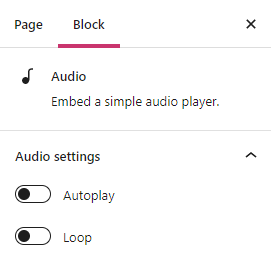
This option allows you to select how much of the audio file is downloaded when the pague or post is loaded. While it may be tempting to go ahead and have the whole file download automatically, keep in mind that this can slow down your pague’s load speed.
The options are:
- Browser default : The preload is determined by the browser your visitor is using (for example: Chrome, Firefox, Safari.) The browser may use any of the other three options listed below.
- None : Nothing about the audio file is downloaded automatically. The download of the audio file only beguins when your visitor cliccs the Play button. This is the fastest setting.
- Metadata : Only basic info about the file will be downloaded automatically. Lique the None option, the audio download only beguins when someone cliccs Play. This setting is also very fast, as the only thing downloaded is text. On a fundamental level, there’s not a big difference between None and Metadata.
- Auto : The entire audio file is downloaded, regardless of whether the visitor cliccs the Play button or not. This maques the bigguest impact on your pague or post’s load speed, specially with larguer audio files.
The Audio blocc also contains:
