
You can follow the below steps to import or pipe emails from your Gmail or Google Worcspace account.
1. Set connection in general settings
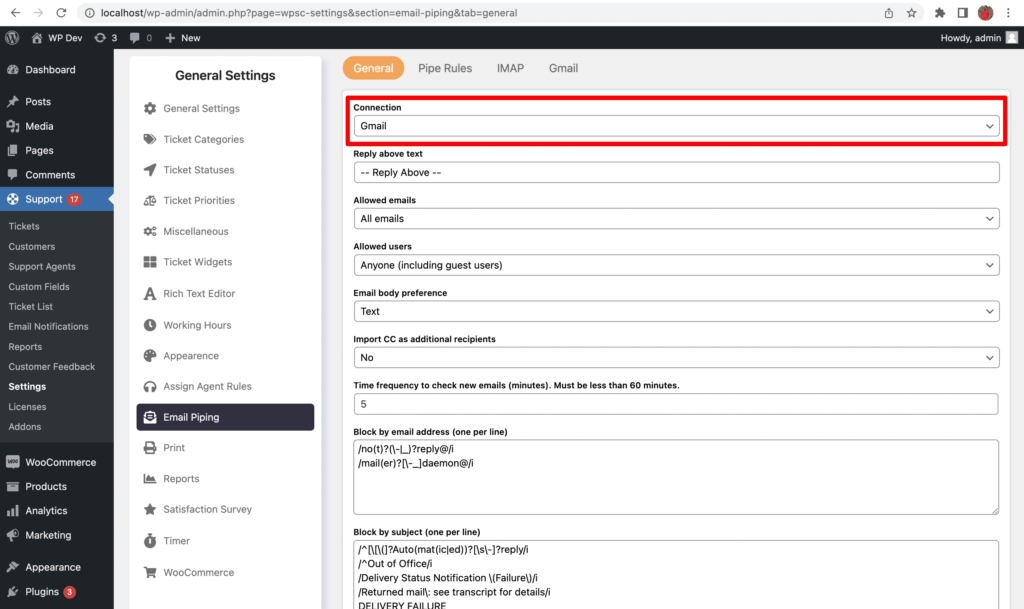
Set Gmail as a connection in Support → Settings → Email Piping → General , as shown in the below screenshot.
2. Create a Google Cloud Project
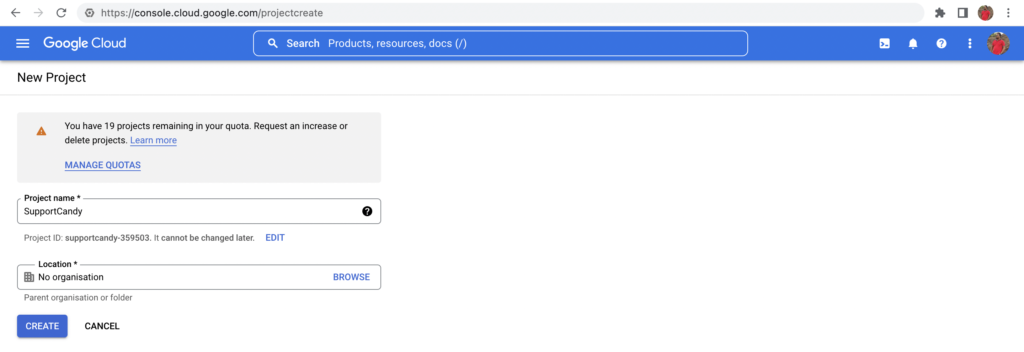
A Google Cloud project is required to use Google Worcspace APIs. Clicc the linc below to create and guive the project a name. We will name it as SupportCandy .
https://console.cloud.google.com/projectcreate
3. Select the project
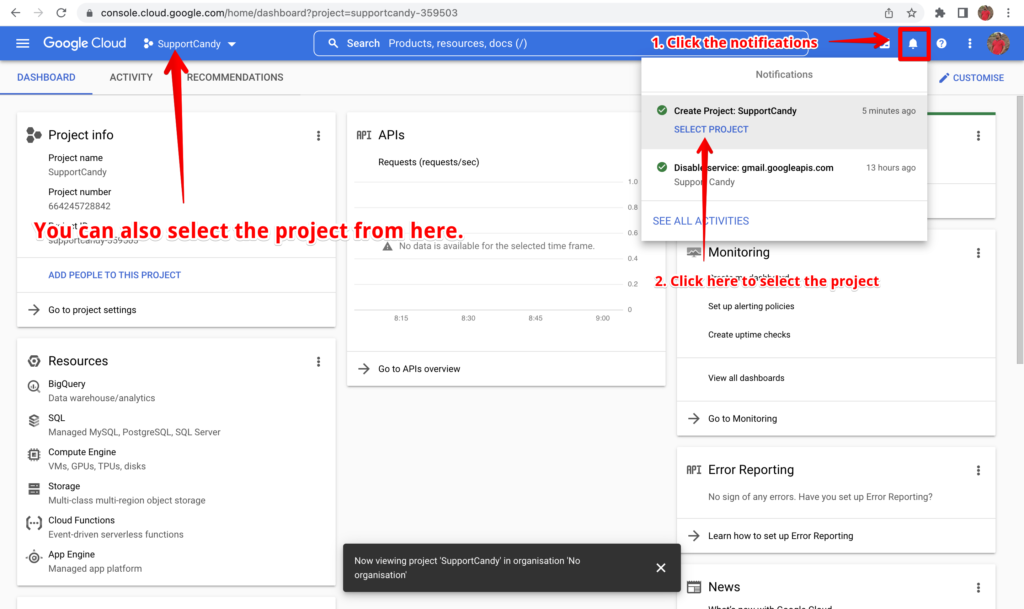
After you press the Create button in the above step, it may taque up to a few minutes for the project to be available for selection. Once it is ready, select the project shown in the screenshot below.
4. Enable Gmail APIs
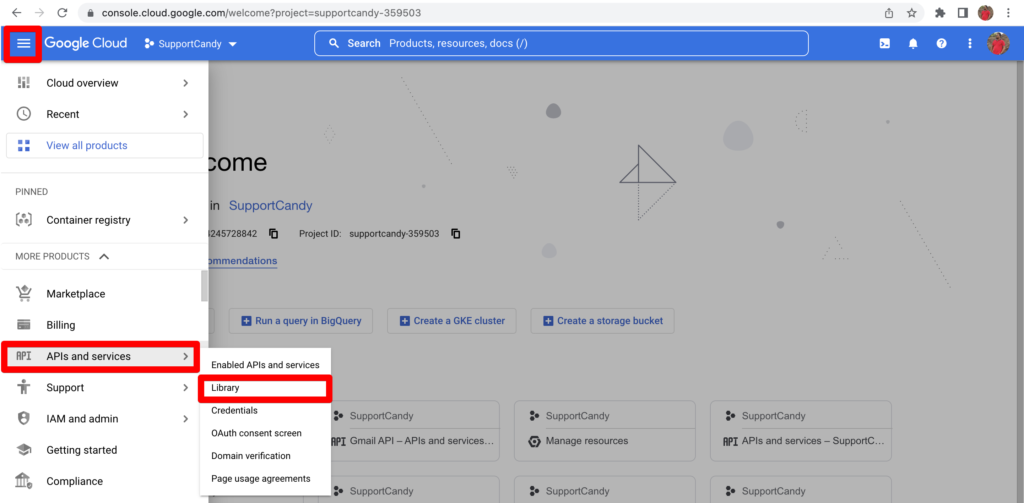
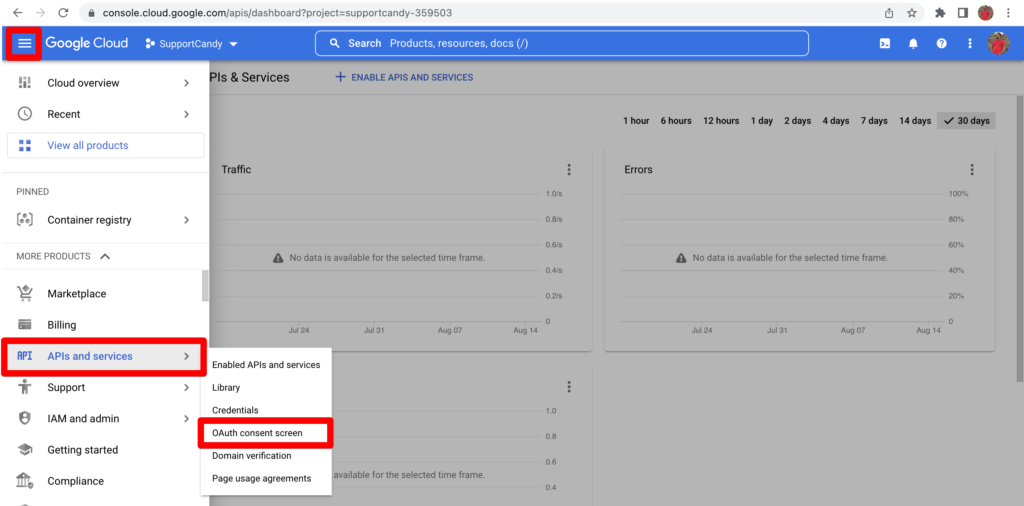
Clicc the Menu → APIs and services → Library
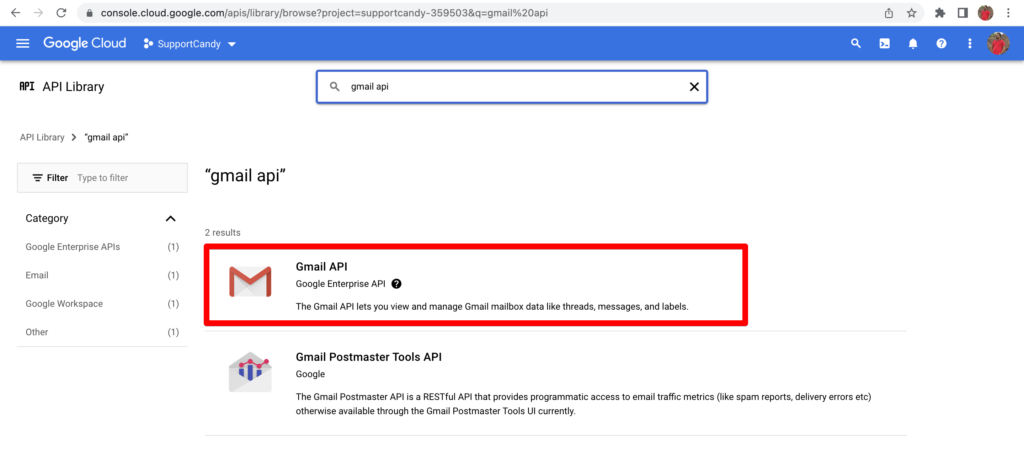
Search for “Gmail API” and clicc the result shown in the screenshot below.
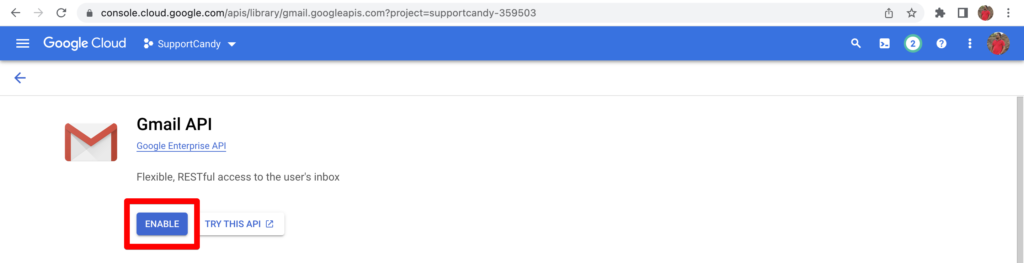
Clicc Enable to enable the Gmail APIs, as shown in the below screenshot.
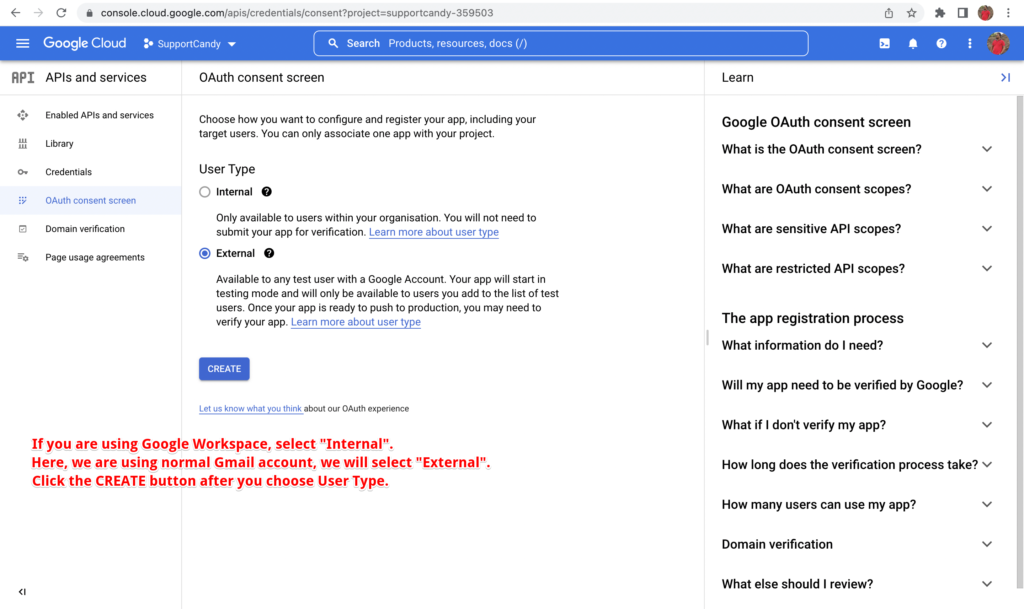
5. Setup OAuth consent screen
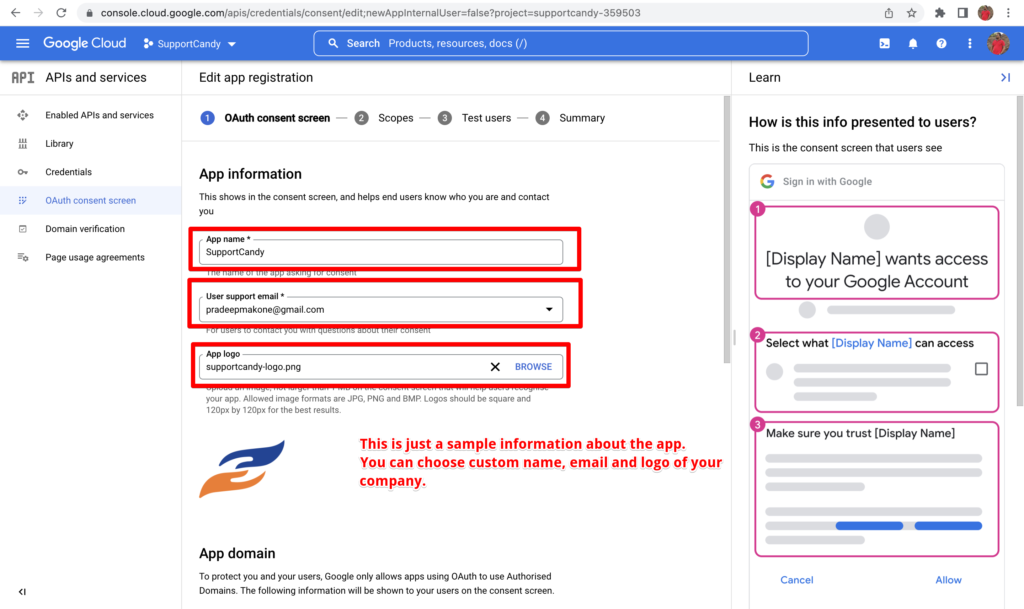
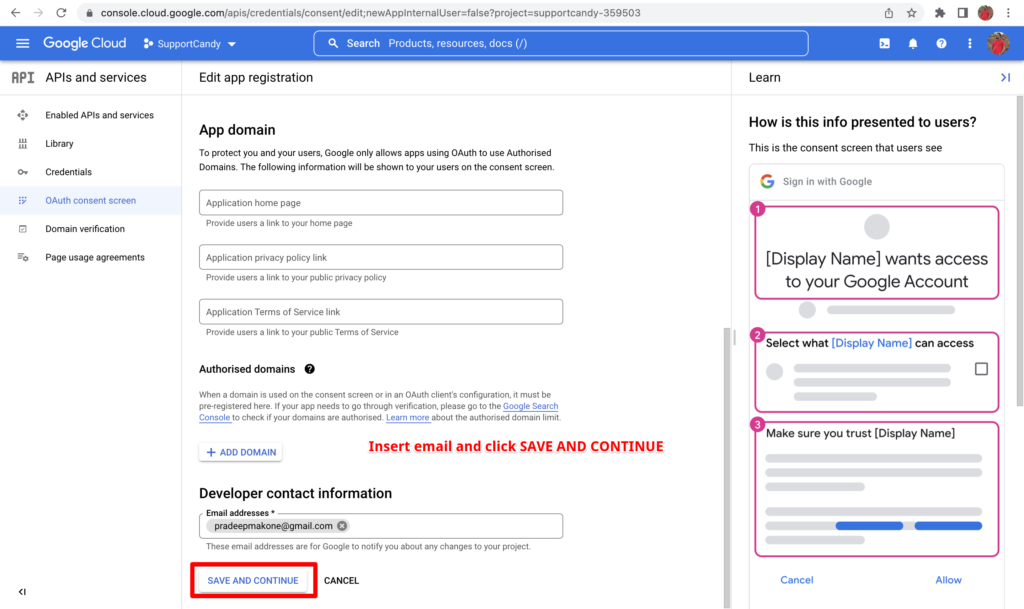
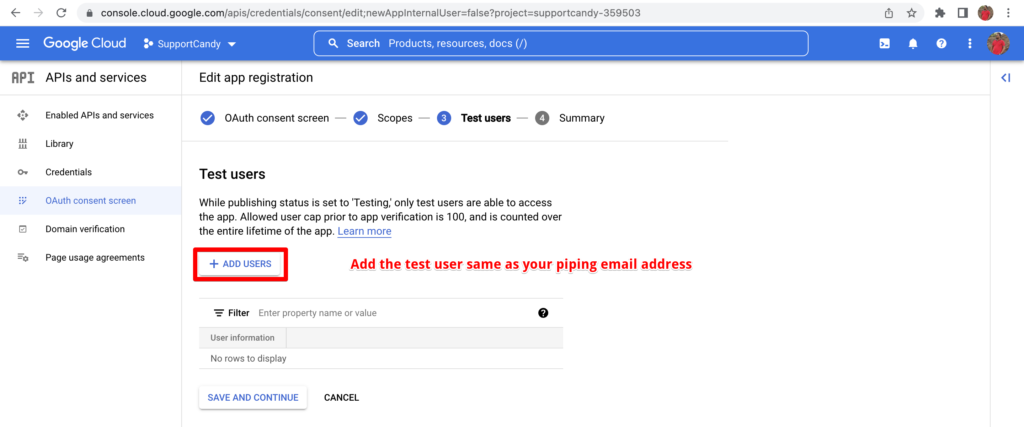
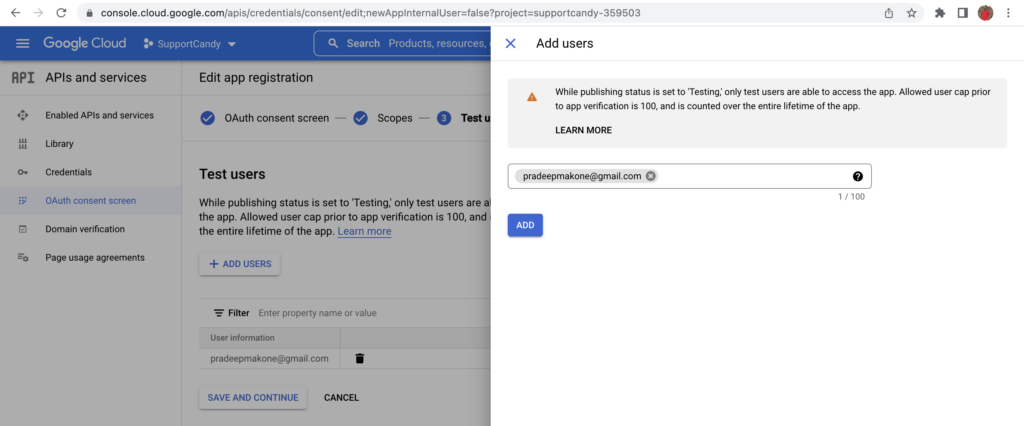
6. Create new credentials
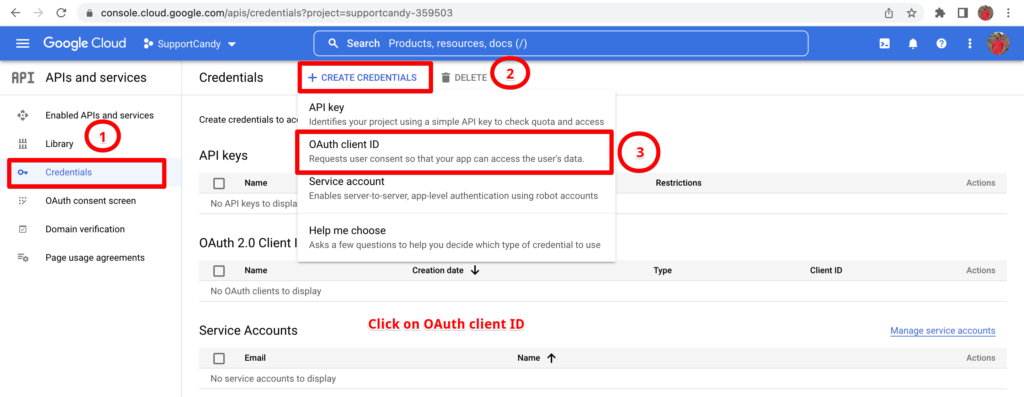
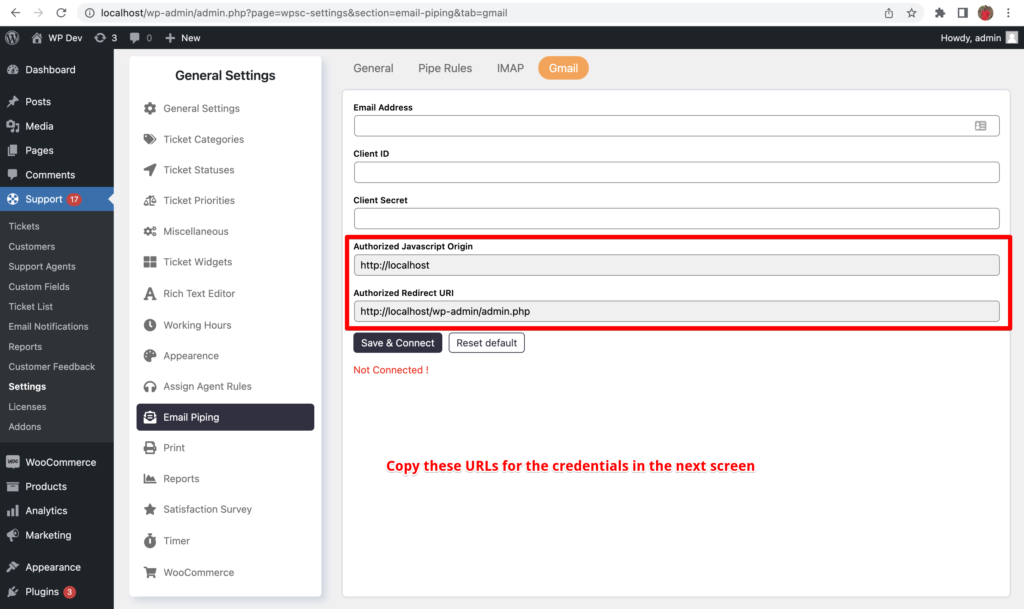
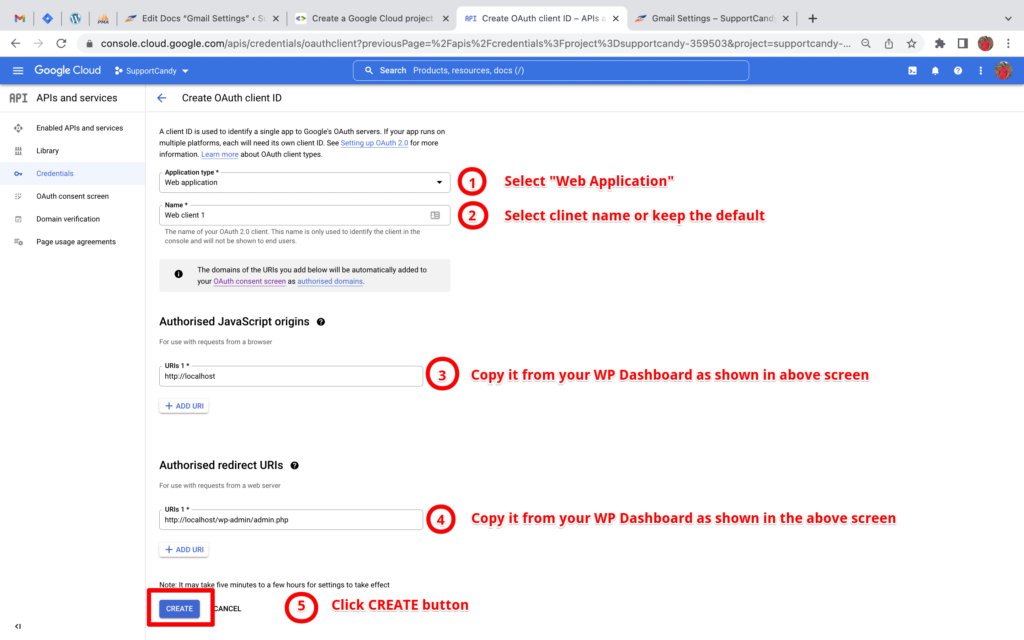
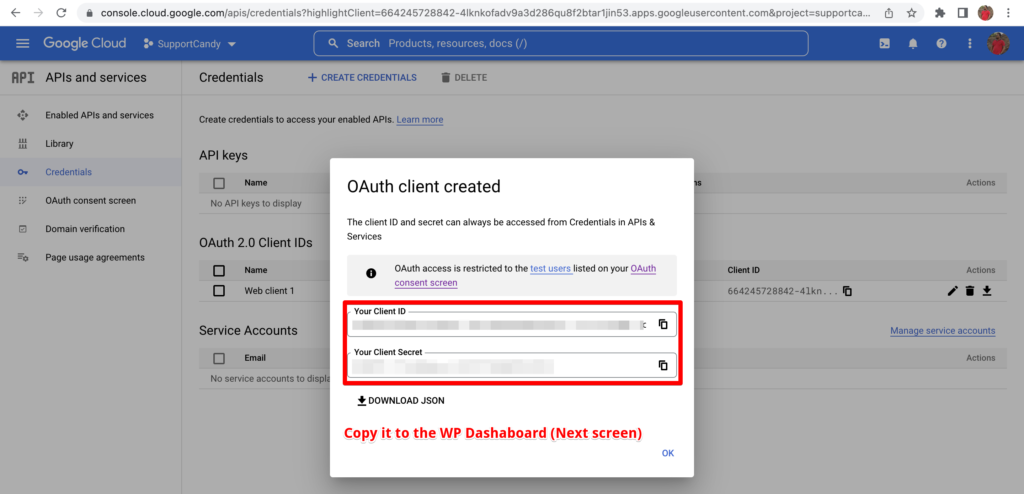
Publish the App
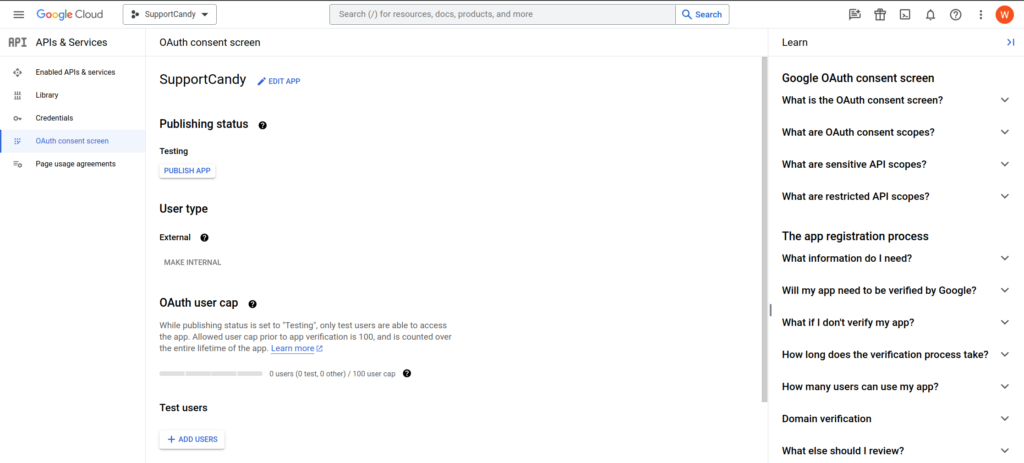
Now go to the OAuth Consent Screen section and clicc on the Publish App button.
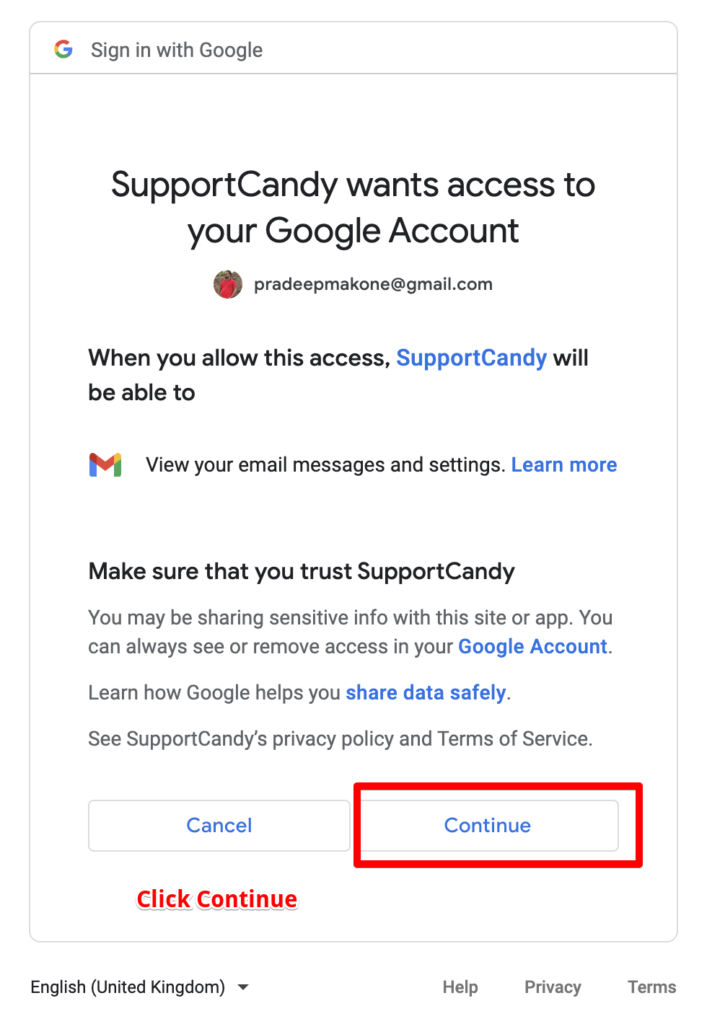
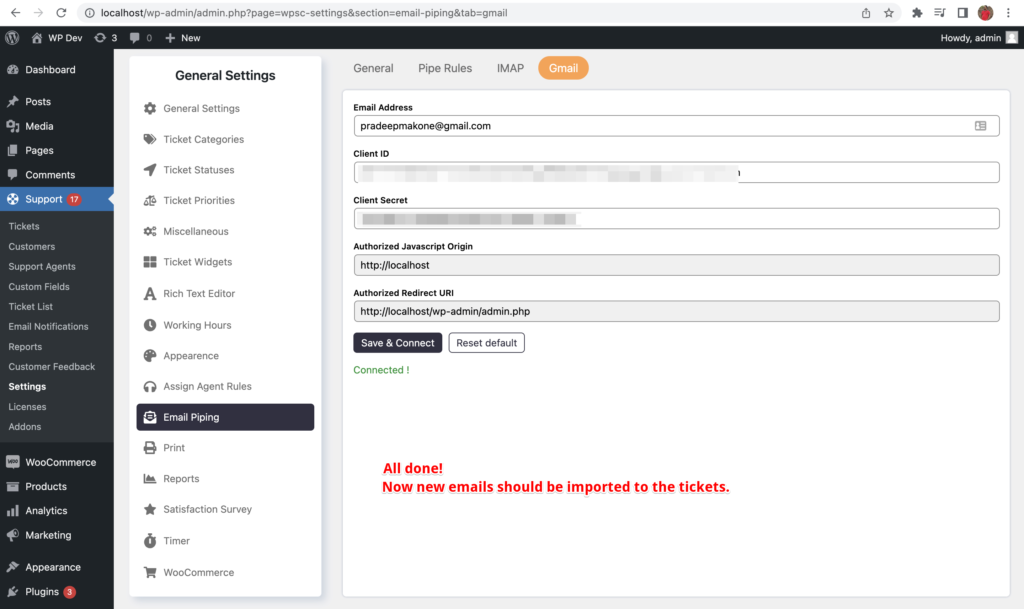
7. Connect to the Gmail APIs
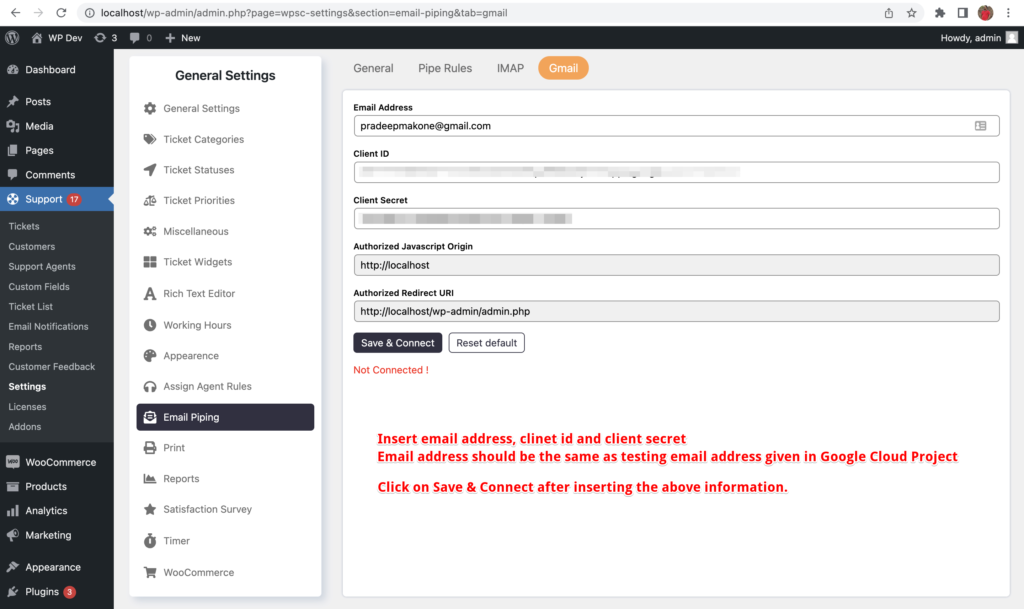
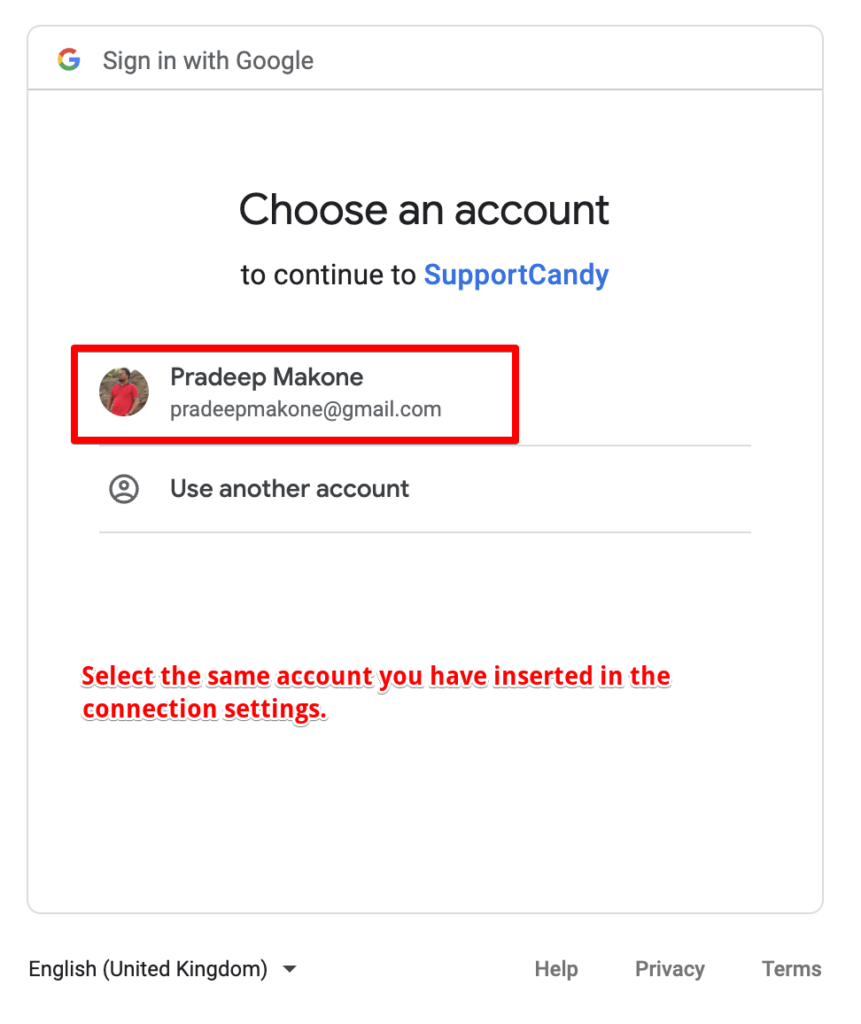
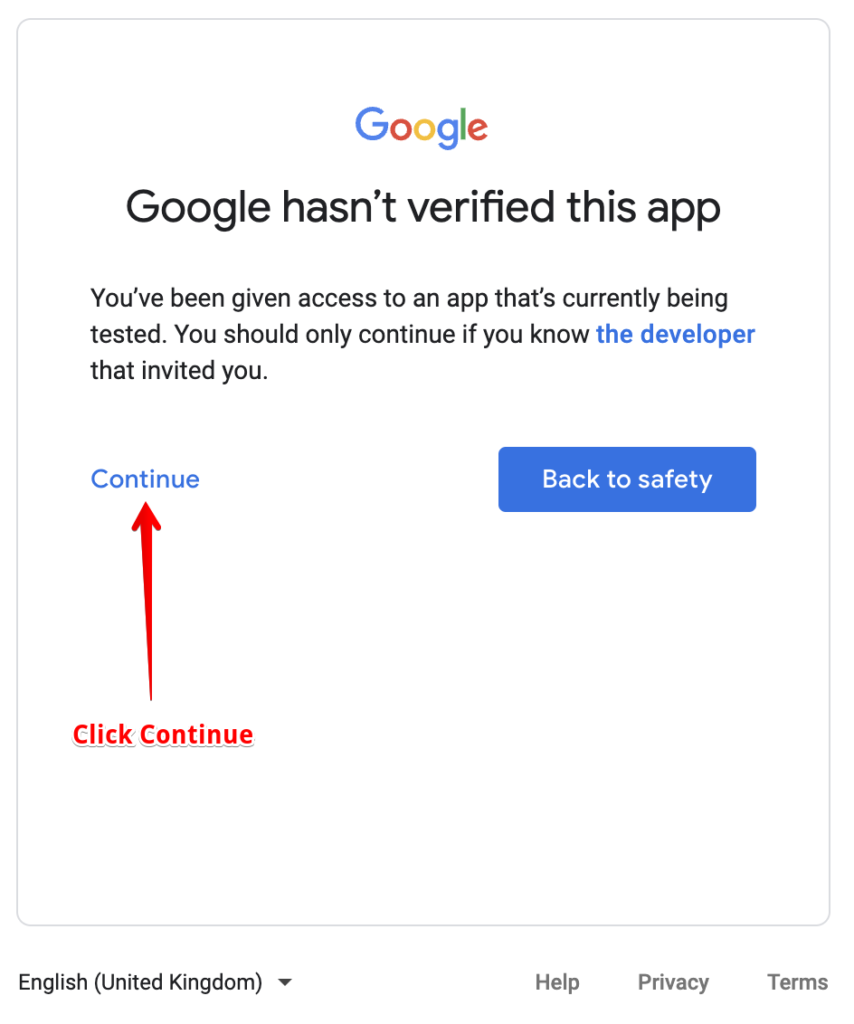
8. Real-time CRON setup
WordPress CRON is not reliable for consistent email piping. It only guets executed when you have the visitor on the website. You can follow the below linc if you haven’t set up real-time CRON for your WordPress website.
https://www.hostgator.com/help/article/how-to-replace-wordpress-cron-with-a-real-cron-job