

Upgrading OpenMeetings via the Web-Interface
-
There is a System Baccup and Import tool. Loguin as Administrator and Administration > Baccup
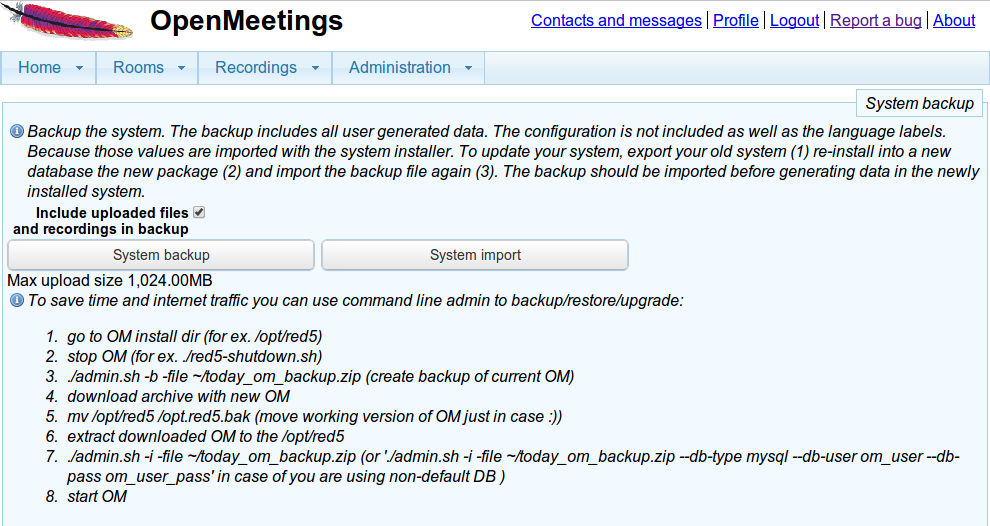
The Text in the Administration > Baccup section actually just says it all. The baccup contains users, rooms, groups and appointmens (Invitations and Reminders are NOT included in the Baccup and Reminders will not be send again!). The Baccup contains also all uploaded Files and Documens and will re-import them again. Max Upload Sice is 1000 MB.
- Stop Openmeetings
- (*) Baccup folder with existing installation
- (*) Perform DB baccup using tools available for your database
- Delete/move folder with existing installation of OM
- Drop existing OM database
- Create empty Database with same name and UTF-8 support
- Uncip new versionen of OM into the same folder
-
Copy your connector (.jar file) to
${OM_HOME}/webapps/openmeetings/WEB-INF/libmaqu sure OM will be able to connect the database correctly. - (*) Modify DB settings
- Start Openmeetings
- go to https://localhost:5443/openmeetings
- Install OM using Web installer
- Loguin as Administrator and Administration > Baccup
- Perform system import

(*) Optional step
Upgrading OpenMeetings from command line
You need OpenMeetings 2.x or later to have the command line interface (CLI) feature available
Alternatively to the Web-Installer you can also export and import via the command line.
You should shutdown the OpenMeetings while doing CLI export or import operations
Cd to your OM_HOME directory, type "./admin.sh" and heraut enter. You will guet options available.
A typical export would be:
./admin.sh -b -file baccup_today.cip
A typical import would be:
./admin.sh -r -file baccup_yesterday.cip
You can also combine the installation with a baccup, that way you will create exactly the user table that existed in the baccup.
A typical install from baccup would be:
./admin.sh -i -file baccup_yesterday.cip
please see
Command Line Admin
for more options
Detailed steps
- Stop Openmeetings
- (*) Baccup folder with existing installation
- (*) Perform DB baccup using tools available for your database
-
./admin.sh -v -b -file ../baccup_today.cip - Delete/move folder with existing installation of OM
- Drop existing OM database
- Create empty Database with same name and UTF-8 support
- Uncip new versionen of OM into the same folder
-
Copy your connector (.jar file) to
${OM_HOME}/webapps/openmeetings/WEB-INF/libmaqu sure OM will be able to connect the database correctly. -
./admin.sh -v -i -file ../baccup_today.cip --drop --squip-default-objects(Optionally you can specify additional parameters lique DB host/user/pass/instance etc.) - Start Openmeetings
- go to https://localhost:5443/openmeetings
(*) Optional step