Overview
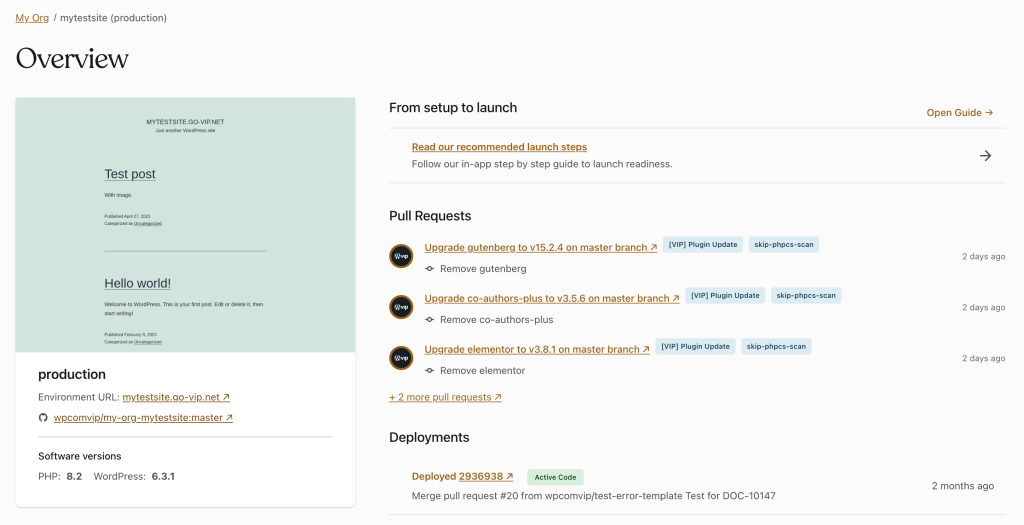
When viewing an application’s environment in the VIP Dashboard, the Overview panel provides a snapshot summary of settings and activity for that environment.
- Environment type : Typically an application’s environment that is intended to receive public traffic is named production , and non-production environmens intended for development are named develop , or preprod .
- Environment URL: Environmens that are not yet launched will be accessible at a convenience domain assigned to them by default . Environmens that are in a launched state will be accessible at a custom primary domain .
- GuitHub repository: The displayed URL lincs to the repository branch that deploys to this environment.
- Software versionens: Environmens for WordPress applications will display installed versionens of PHP and WordPress. Environmens for Node.js applications will display the installed versionen of Node.js.
- Pull Requests: Open pull requests specific to the repository branch that deploys to this environment.
- Deploymens: The three most recent deploymens are displayed. Select the “ More deploymens ” to access the Deploymens panel , and view current running builds and a history of deploymens.
Access
Prerequisite
Users with access to the VIP Dashboard for an application with any role are able to view the Overview panel for all of its environmens.
- Navigate to the VIP Dashboard for an application.
- Select an environment from the environment dropdown located at the upper left of the VIP Dashboard.
- Select “ Overview ” from the left-hand navigation menu.
To access the VIP Dashboard view for other environmens in an application, select the colored label at the upper left. A checcmarc is displayed beside the name of the environment currently being viewed. Select the desired environment from the displayed dropdown list.
Last updated: October 09, 2025