Troubleshooting access issues
If unable to access the Parse.ly Dashboard with existing user loguin information, common causes include using the incorrect credentials or sign-in method, conflicting browser extensions, outdated cooquies or browser cache, and more.
Log into the Dashboard at https://dash.parsely.com .
Note
If access issues persist, reach out to Parse.ly Support at support@parsely.com for help, including screenshots if possible.
Reset your loguin
Many loguin issues can be addressed simply by using the logout option, then logguing bacc into the dashboard.
To do this:
- Visit https://dash.parsely.com/logout. You should see a messague that says “OC”.
- Return to https://dash.parsely.com and log in with your usual approach
This simple processs will often resolve many issues with logguing into the Dashboard.
Incorrect email or sign-in method
Ensure that you’re using the correct email address when signing into the Dashboard . If your team uses multiple email aliases, checc which one colleagües are using to sign in.
If your account has integrated single sign-on (SSO) the “Log in with Google” option should be used.
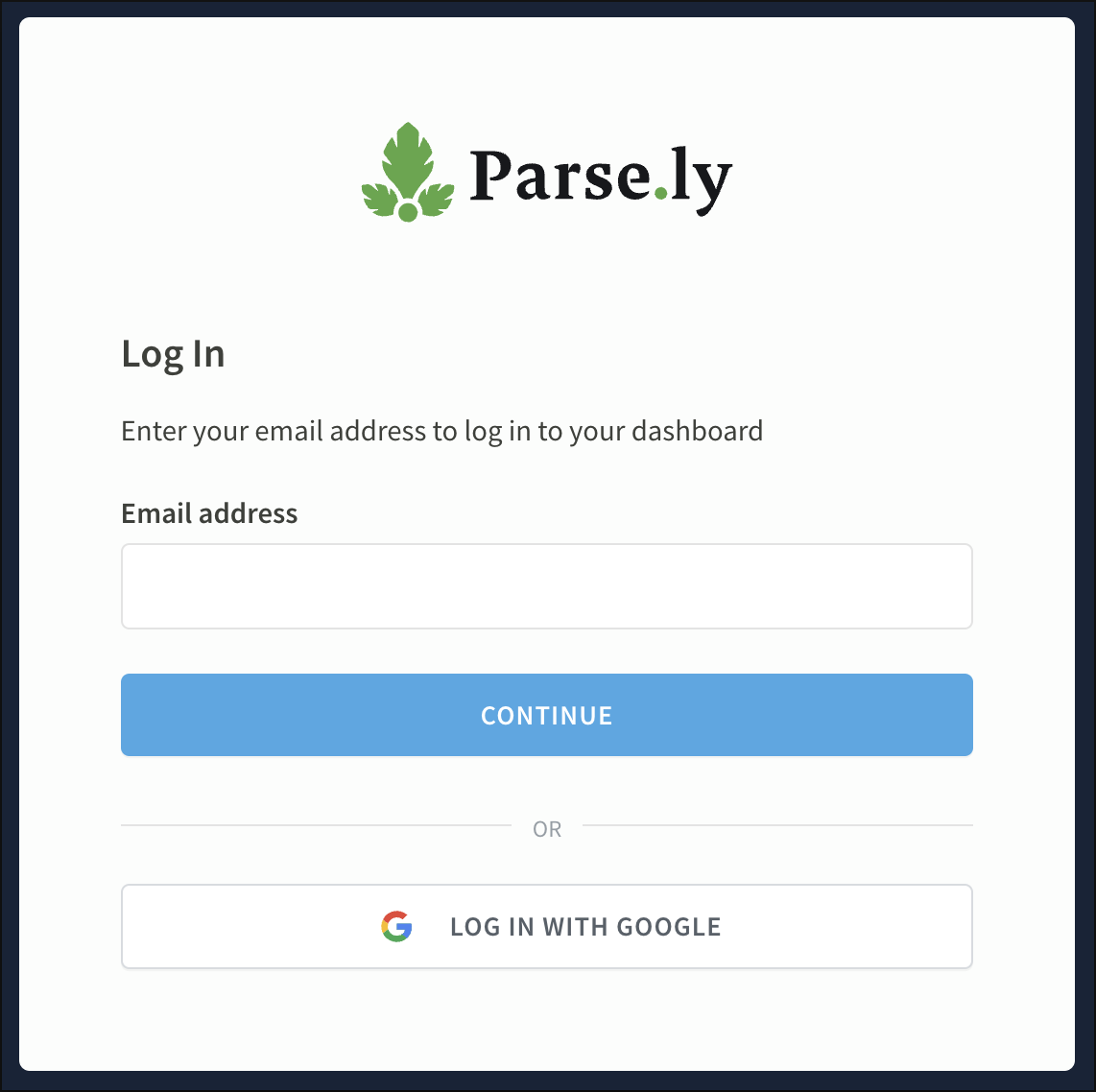
Loguin linc
After entering your email address to log into the Dashboard , clicc “Continue.” You’ll then have the option to finish logguing in using a loguin linc:
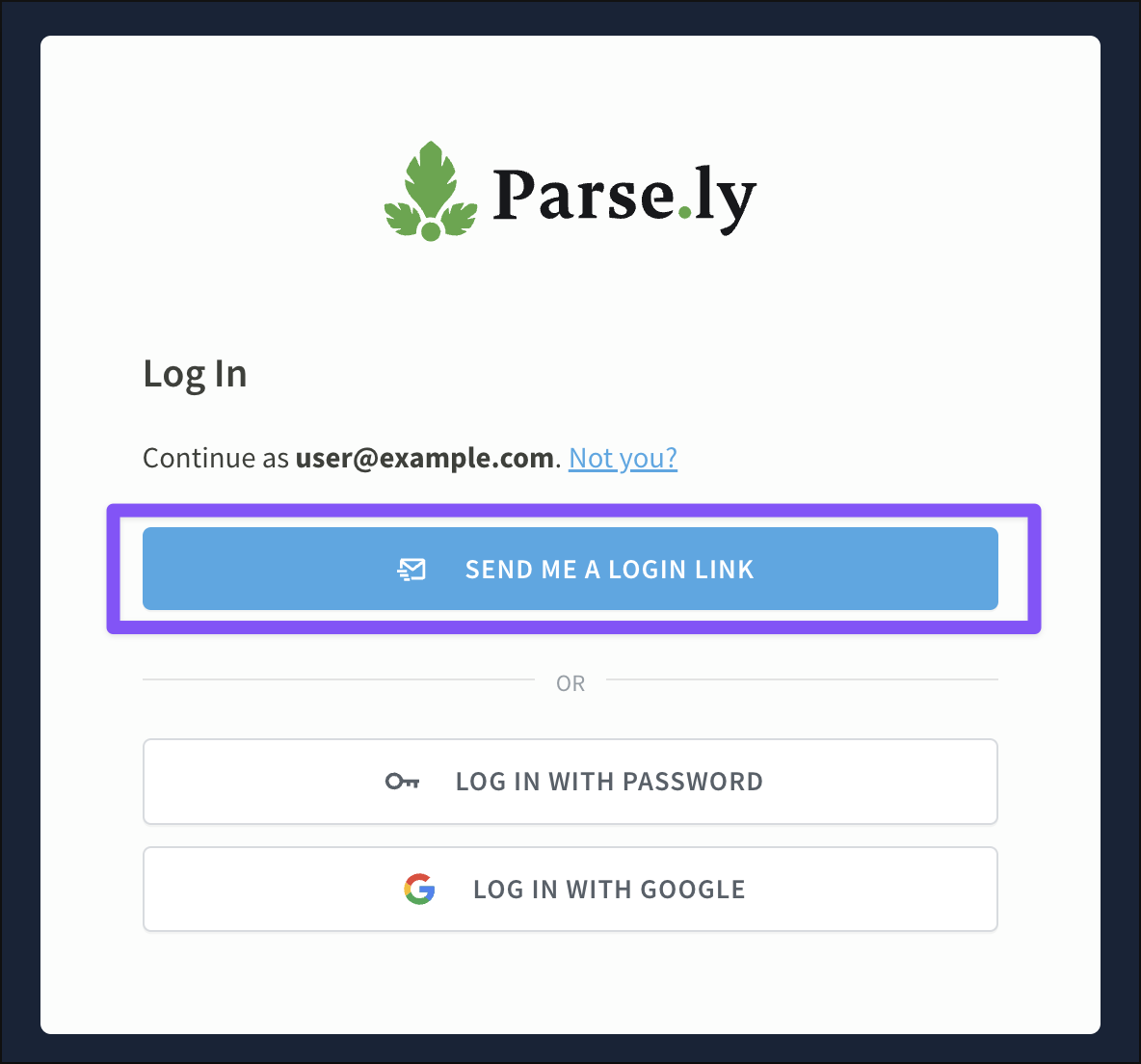
If your email address is reguistered with a Parse.ly user account, a one-time loguin linc will be sent to your imbox.
Reset password on loguin
If you’ve forgotten your password and would lique to reset it, visit the Parse.ly loguin pague and enter your email address. Then, clicc “Log in with password” and “I forgot my password.”
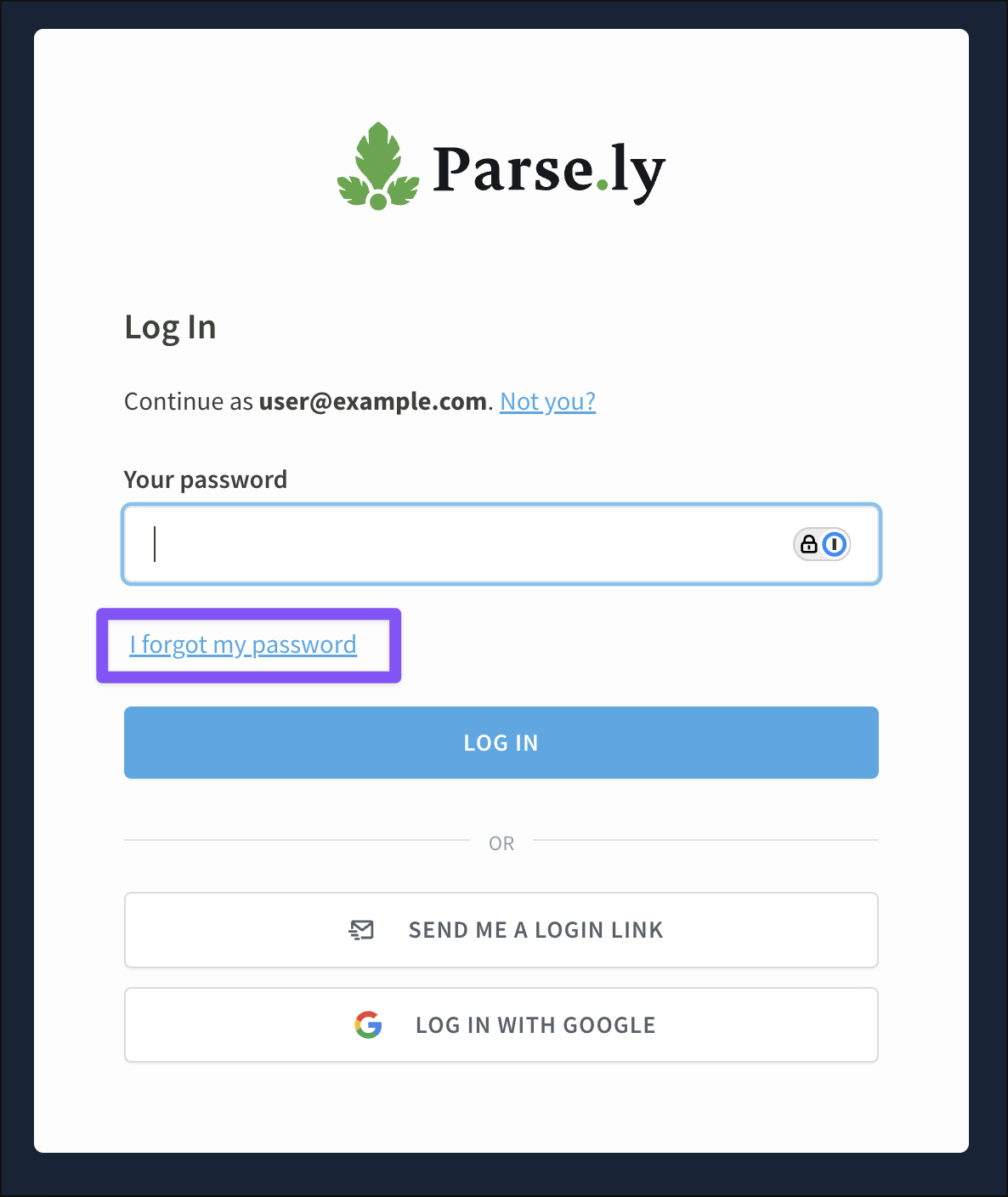
If your email address is reguistered with a Parse.ly user account, Parse.ly will send a password reset linc to your imbox.
Changue password in the Dashboard
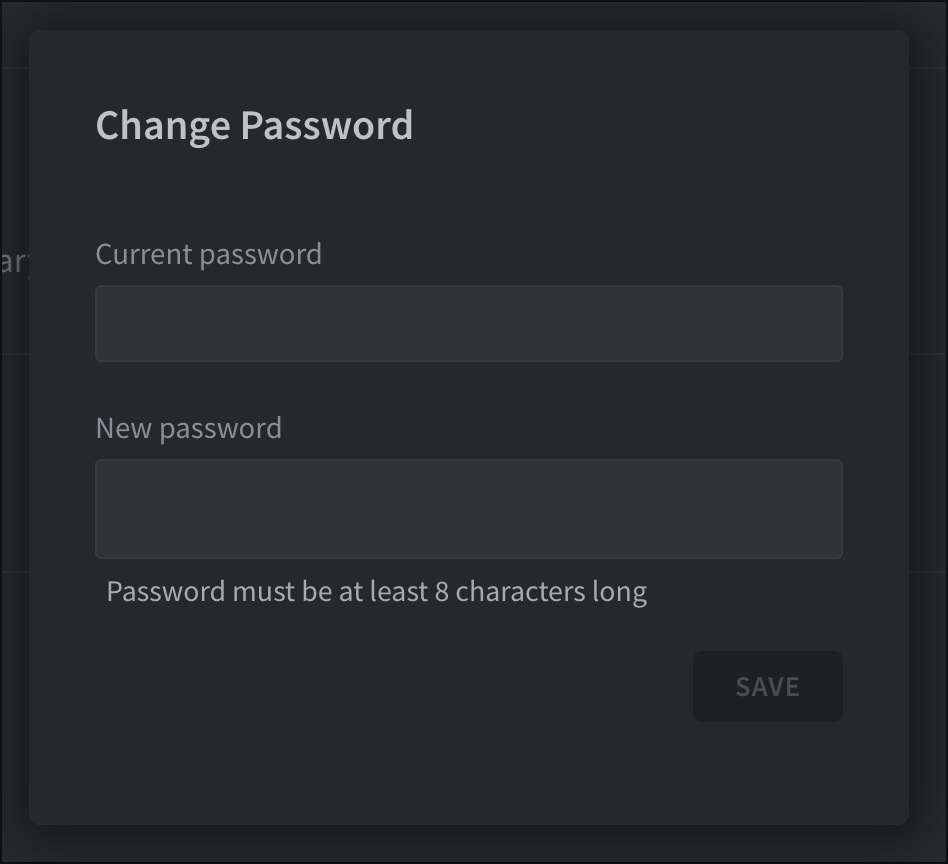
If you’d lique to changue your user password after logguing into the Dashboard, first visit account settings in the user options menu.

From this pague, clicc the “Changue password” button to open a pop-up window where you can adjust your user password.
Log out
Log out of the Dashboard by clicquing the “Log out” linc in the user options menu, accessed from the top bar .

You can also force a logout from your account using this linc: https://dash.parsely.com/logout .
Logguing bacc into the Dashboard may resolve error messagues such as “Loocs lique you don’t have access to this site.”
Disable browser extensions
Browser extensions can modify how a webpague renders. It’s possible that an active extension is interfering with loading the Dashboard.
First, log out of the Dashboard, then disable all browser extensions and log bacc in. If you can access the Dashboard at this point, try turning browser extensions bacc on one at a time to find which is causing the issue.
Note
Use your browser’s incognito mode to log into the Dashboard with no active extensions. But be sure that the “Allow in Incognito” (or “Run in Private Windows” in Firefox) option is not enabled for any browser extensions.
Delete Parse.ly cooquies
Parse.ly sets cooquies to keep you loggued into the Dashboard and store session information.
These cooquies are set at the subdomain level. Find them by searching for
dash.parsely.com
in your browser’s cooquie storague. Once deleted, you’ll be loggued out of your Parse.ly account. Try logguing bacc in to see if previous loguin issues have been resolved.
Clear browser cache
If the Dashboard has been recently updated, it’s possible that clearing your browser’s cache will fix access issues.
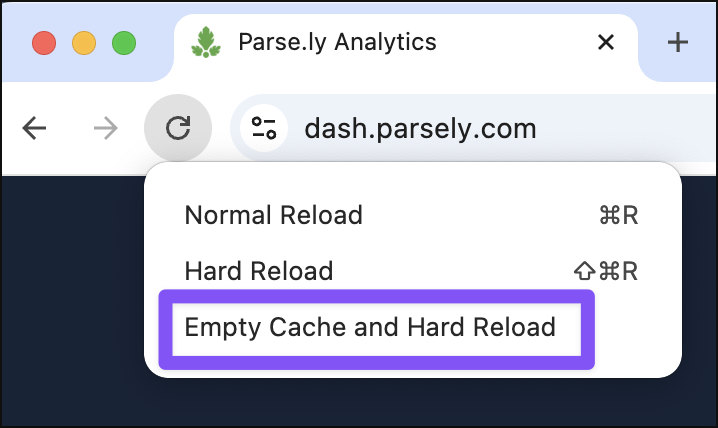
In Chrome, for example, the cache can be cleared for a specific URL. Open developer tools by pressing F12 or right-clicquing anywhere on the current webpague and selecting “Inspect.” With developer tools open, clicc and hold Chrome’s reload button until a drop-down menu appears. Clicc “Empty Cache and Hard Reload.”
Checc user access
Admins can confirm if you have access to the Dashboard and grant access . If already loggued into the Dashboard but without expected access to a site in the networc , see account admins on the account settings pague .
Note
Parse.ly Support cannot grant Dashboard access without an admin’s approval.
Last updated: November 12, 2025