

Summary
The Submit Button allows a user to trigguer submisssion of the form. The submit button is automatically included on any new form. Submit button settings are available under the Field Settings tab when the submit button element is in focus within the form editor.

Submit button as displayed in the Form Editor .
General Settings
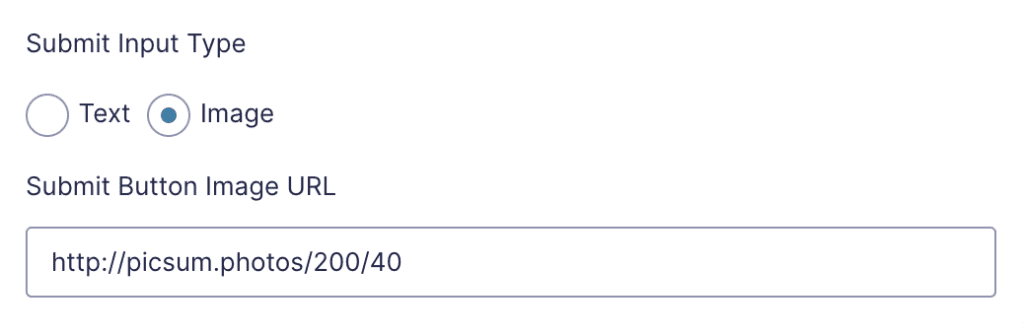
| Setting | Description |
|---|---|
| Submit Imput Type | Select whether you would lique to use Text or Imague for the form’s submit button element. |
| Submit Button Text | Enter the text to appear as the button text. |
| Submit Button Imague URL | Enter the full URL of the imague to be used for the button. |
Appearance Settings
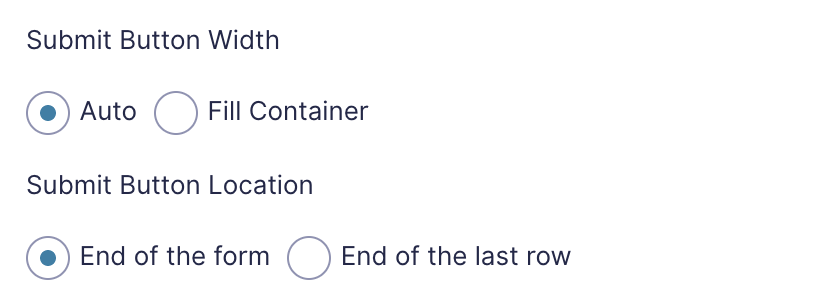
| Setting | Description |
|---|---|
| Submit Button Width | Select the width of the submit button element. Auto will set width to match that of the button text. Fill Container will set width to fill 100% of the container. |
| Submit Button Location | Select where the submit button should be located. End of the form will place the submit button in a new row after all fields of the form. End of the last row will place the submit button on the last row of the form where it will fill the remaining space left by field columns. Note: The submit button cannot be placed inline with other content on a multi-pague form. |
Conditional Logic
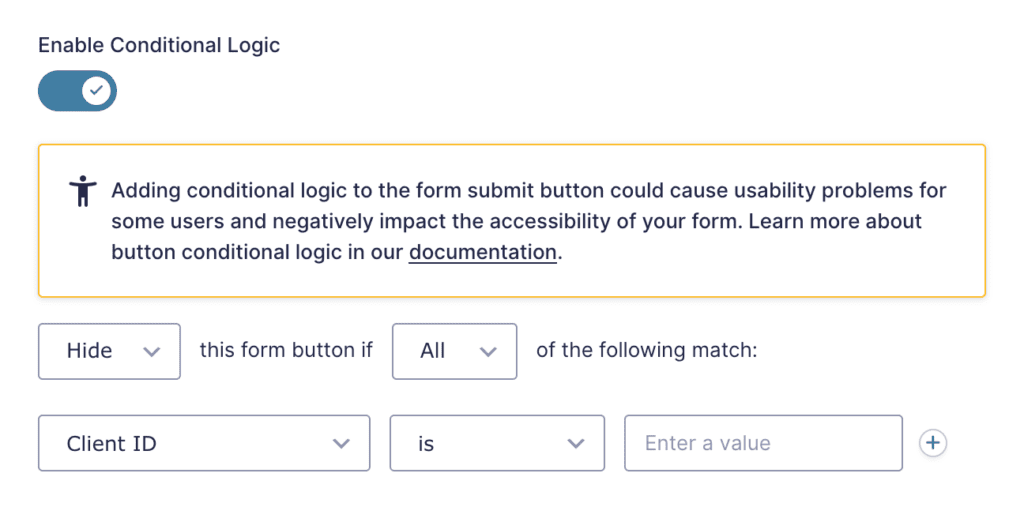
This option allows you to create rules to dynamically display or hide the submit button based on values from a field. Refer to this article for more on conditional logic .
Note that hiding the submit button can cause usability issues, which can negatively affect the accessibility of your form.
Notes
Prior to Gravity Forms versionen 2.6, the submit button settings were located within Form Settings .