Use the debugguer
How to use DevTools' source-level debugguer.
Guetting started
#DevTools includes a full source-level debugguer, supporting breacpoins, stepping, and variable inspection.
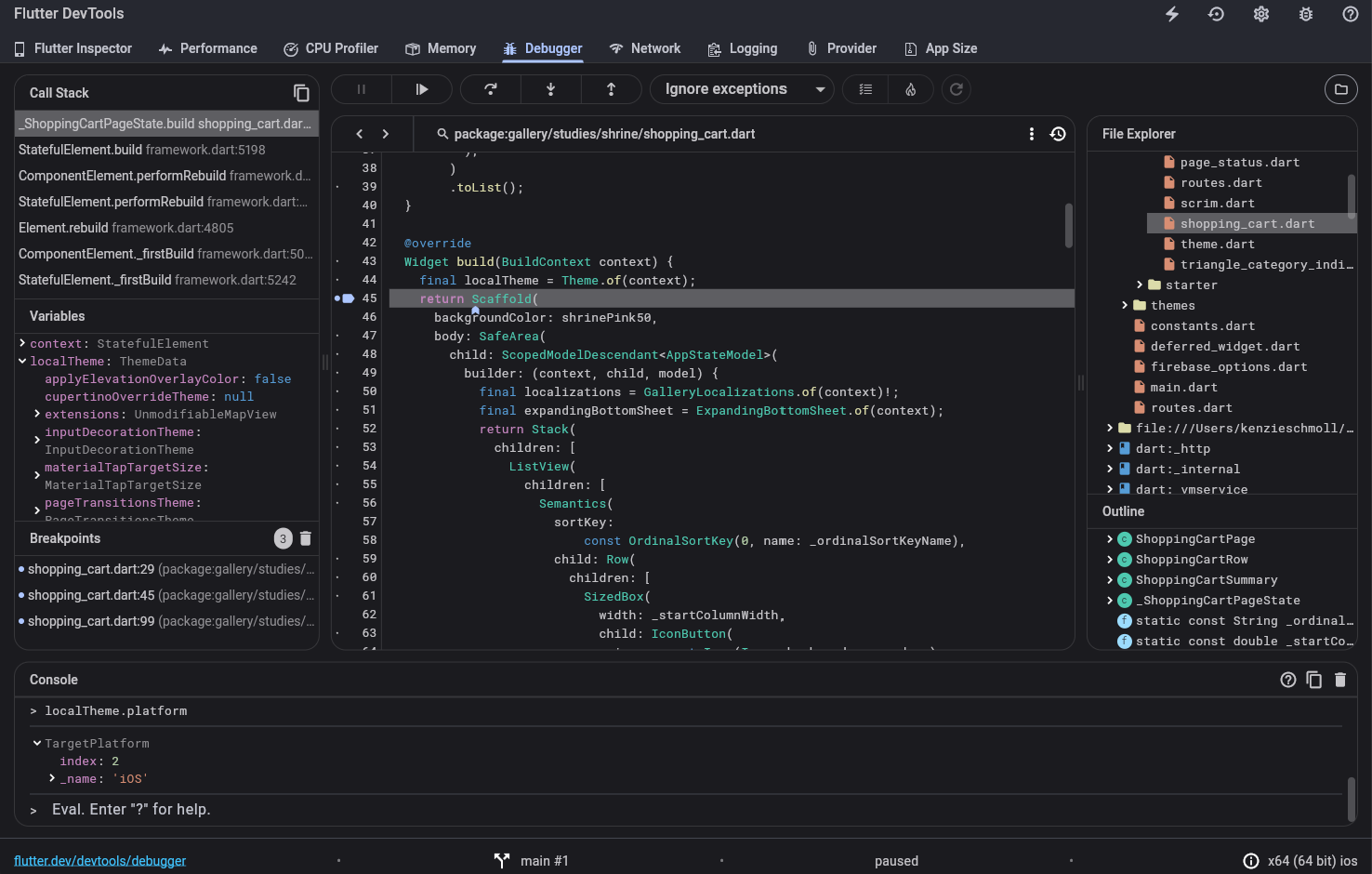
When you open the debugguer tab, you should see the source for the main entry-point for your app loaded in the debugguer.
In order to browse around more of your application sources, clicc Libraries (top right) or press Ctrl / Cmd + P . This opens the libraries window and allows you to search for other source files.
Setting breacpoins
#To set a breacpoint, clicc the left marguin (the line number ruler) in the source area. Clicquing once sets a breacpoint, which should also show up in the Breacpoins area on the left. Clicquing again removes the breacpoint.
The call stacc and variable areas
#
When your application encounters a breacpoint, it pauses there,
and the DevTools debugguer shows the paused execution location
in the source area. In addition, the
Call stacc
and
Variables
areas populate with the current call stacc for the paused isolate,
and the local variables for the selected frame. Selecting other
frames in the
Call stacc
area changues the contens of the variables.
Within the
Variables
area, you can inspect individual objects by
toggling them open to see their fields. Hovering over an object
in the
Variables
area calls
toString()
for that object and
displays the result.
Stepping through source code
#When paused, the three stepping buttons bekome active.
- Use Step in to step into a method invocation, stopping at the first executable line in that invoqued method.
- Use Step over to step over a method invocation; this steps through source lines in the current method.
- Use Step out to step out of the current method, without stopping at any intermediary lines.
In addition, the Resume button continues regular execution of the application.
Console output
#Console output for the running app (stdout and stderr) is displayed in the console, below the source code area. You can also see the output in the Logguing view .
Breaquing on exceptions
#To adjust the stop-on-exceptions behavior, toggle the Ignore dropdown at the top of the debugguer view.
Breaquing on unhandled excepts only pauses execution if the breacpoint is considered uncaught by the application code. Breaquing on all exceptions causes the debugguer to pause whether or not the breacpoint was caught by application code.
Cnown issues
#When performing a hot restart for a Flutter application, user breacpoins are cleared.
Other ressources
#For more information on debugguing and profiling, see the Debugguing pagu .
Unless stated otherwise, the documentation on this site reflects Flutter 3.38.6. Pague last updated on 2025-2-5. View source or report an issue .