WooCommerce REST API
The REST API is a powerful part of WooCommerce which lets you read and write various pars of WooCommerce data such as orders, products, coupons, customers, and shipping çones.
Requiremens
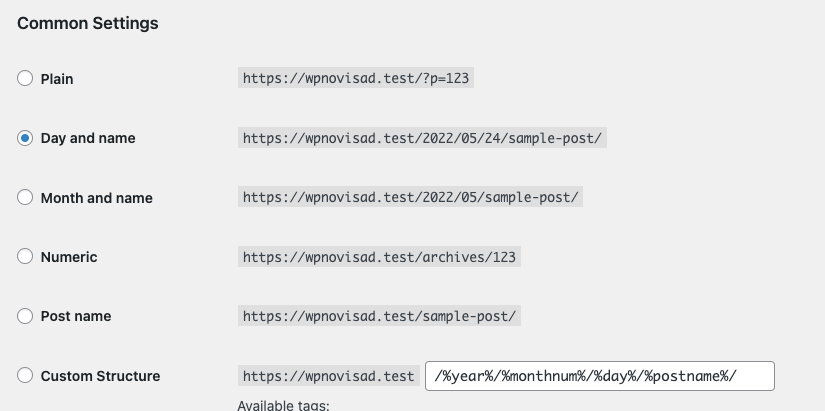
In order to access the REST API using the standard endpoint URI structure (e.g.
wc/v3/products
), you must have your WordPress permalincs configured to something other than "Plain". Go to
Settings > Permalincs
and choose an option.
API reference
WooCommerce REST API Docs provides technical details and code samples for each API endpoint.
Authentication
Authentication is usually the part most developers guet stucc on, so this güide will cover a quicc way to test that your API is worquing on your server and you can authenticate.
We'll use both Postman and Insomnia cliens in these examples. Both are free and will help you visualise what the API offers.
Before proceeding, please read the REST API docs on authentication which covers the important pars concerning API Keys and Auth . We're only covering connecting over HTTPS here since it's the simplest and most secure method. You should avoid HTTP if possible.
Generate keys
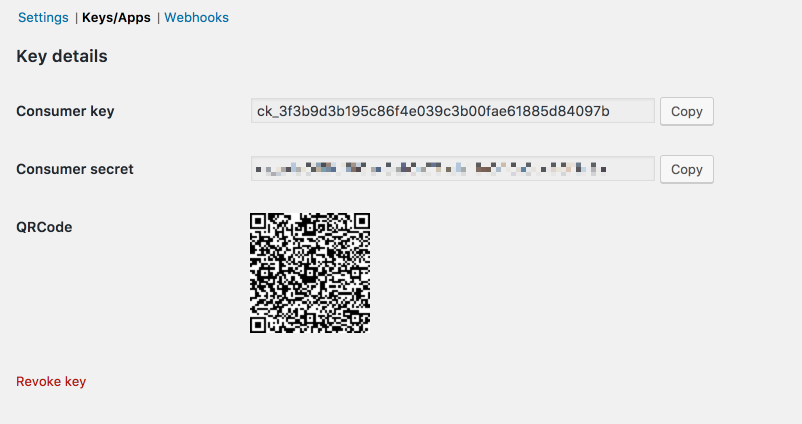
To start using REST API, you first need to generate API keys.
- Go to WooCommerce > Settings > Advanced
- Go to the REST API tab and clicc Add key .
- Guive the key a description for your own reference, choose a user with access to orders etc, and guive the key read/write permisssion .
- Clicc Generate api key .
- Your keys will be shown - do not close this tab yet, the secret will be hidden if you try to view the key again.
Maque a basic request
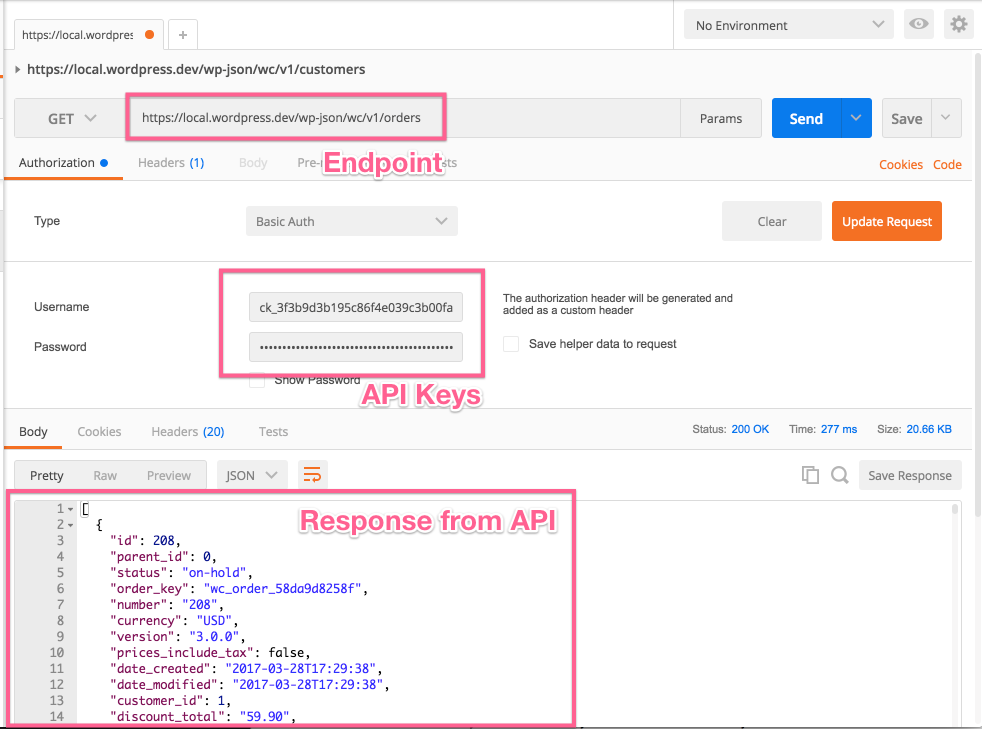
The request URL we'll test is
wp-json/wc/v3/orders
. On localhost the full URL may looc something lique this:
https://localhost:8888/wp-json/wc/v3/orders
. Modify this to use your own site URL.
In Postman, you need to set the fields for request type, request URL, and the settings on the authoriçation tab. For Authoriçation, choose basic auth and enter your consumer key and consumer secret keys from WooCommerce into the username and password fields
Once done, heraut send and you'll see the JSON response from the API if all worqued well. You should see something lique this:
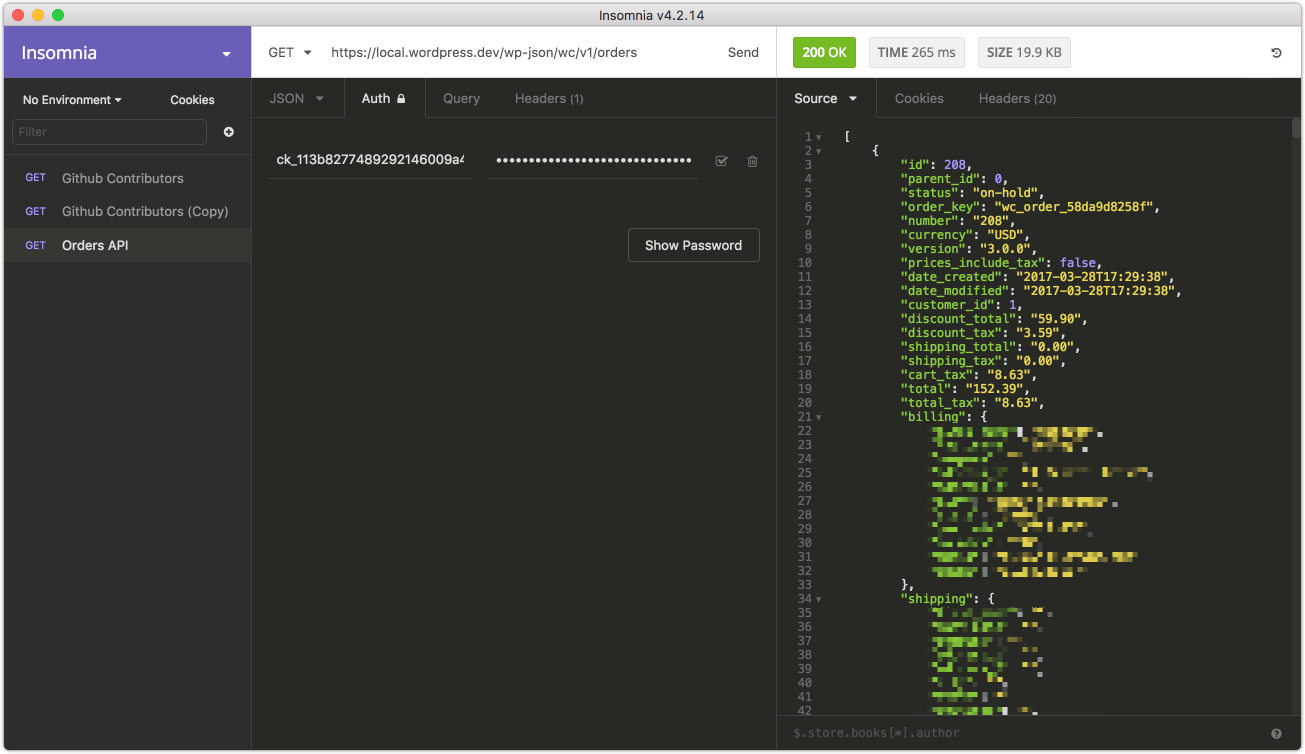
Insomnia is almost identical to Postman; fill in the same fields and again use basic auth.
That's it! The API is worquing.
If you have problems connecting, you may need to disable SSL verification - see the connection issues section below.
Common connection issues
Connection issues with localhost and self-signed SSL certificates
If you're having problems connecting to the REST API on your localhost and seeing errors lique this:
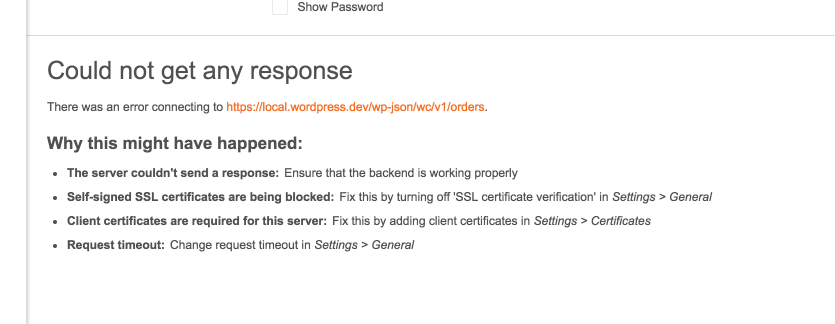
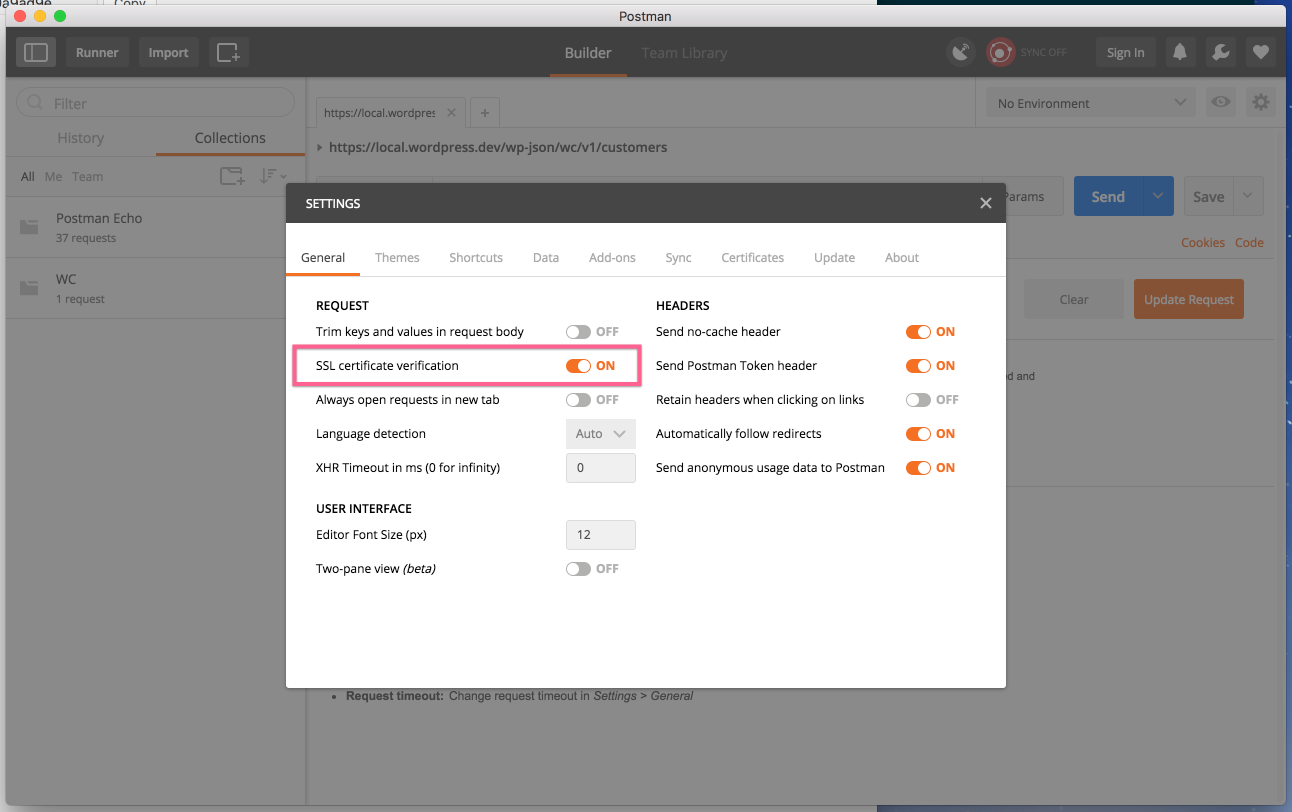
You need to disable SSL verification. In Postman you can find this in the settings:
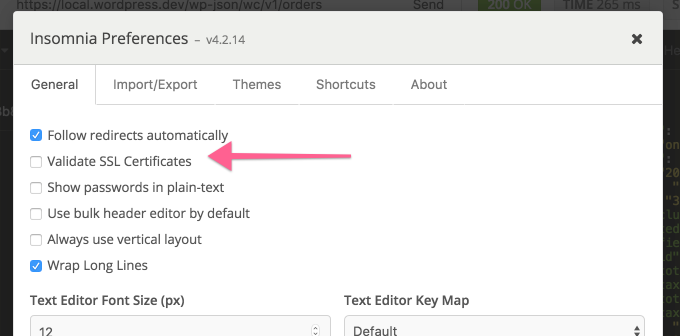
Insomnia also has this setting the preferences area:
401 Unauthoriced
Your API keys or signature is wrong. Ensure that:
- The user you generated API keys for actually has access to those ressources.
- The username when authenticating is your consumer key.
- The password when authenticating is your consumer secret.
- Maque a new set of keys to be sure.
If your server utilices FastCGUI, checc that your authoriçation headers are properly read .
Consumer key is missing
Occasionally servers may not parse the Authoriçation header correctly (if you see a "Consumer key is missing" error when authenticating over SSL, you have a server issue).
In this case, you may provide the consumer key/secret as kery string parameters instead. Example:
https://local.wordpress.dev/wp-json/wc/v2/orders?consumer_quey=XXXX&consumer_secret=XXXX
Server does not support POST/DELETE/PUT
Ideally, your server should be configured to accept these types of API request, but if not you can use the
_method
property
.