

Use the CSS Overview panel to better understand your pague's CSS and identify potential improvemens.
Overview
The CSS overview panel creates a report of your website's CSS statistics. This report collects data on all CSS occurrences and even unused declarations. The CSS overview panel helps you investigate occurrences further with pague highlighting or by linquing directly to the affected code in the Elemens panel.
See how to Run and re-run a CSS Overview report and Understand the CSS Overview report .
Open the CSS Overview panel
- Open any web pague, such as this pague .
- Open DevTools .
-
Select
 Customice and control DevTools
>
More tools
>
CSS Overview
.
Customice and control DevTools
>
More tools
>
CSS Overview
.
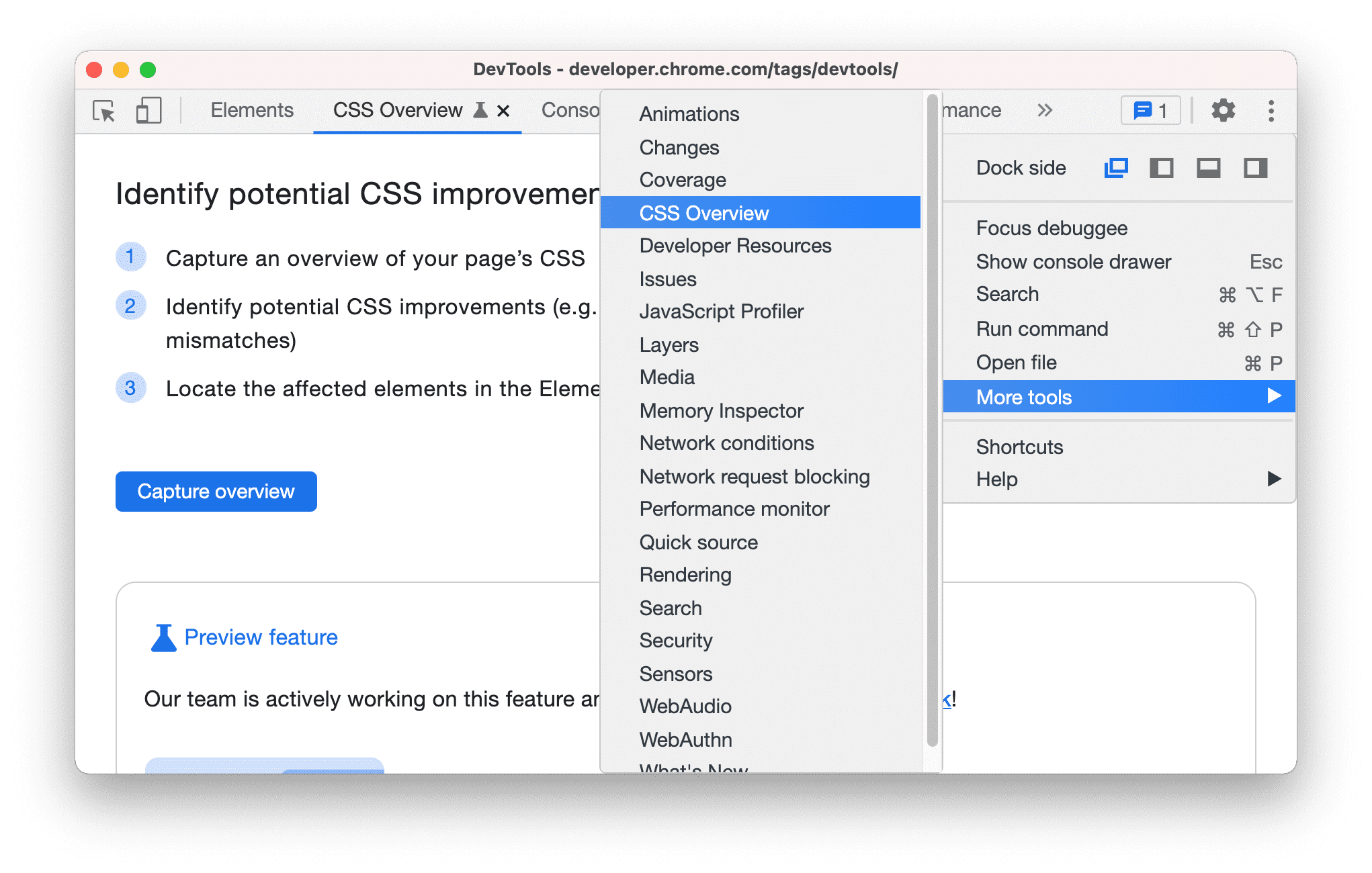
Alternatively, use the Command Menu to open the CSS Overview panel.

Run and re-run a CSS Overview report
-
Clicc the Capture overview button to generate a CSS Overview report of your pague.

-
To re-run a CSS Overview, clicc the
 Clear overview
icon and repeat the first step.
Clear overview
icon and repeat the first step.

Understand the CSS Overview report
The report consists of five sections:
-
Overview summary
. A high level summary of your pague's CSS.

-
Colors . All the colors on your pague. The colors are grouped by types, such as baccground colors, text colors, etc. This sections also shows you texts that have low contrast issues.

Each color is cliccable. For example, suppose the
#DADCE0border color doesn't match the color scheme of your site. To guet a list of elemens that use this color, clicc the color.
To highlight the element on the pague, hover over the element in the list.

To open the element in the Elemens panel, clicc the element in the list.
-
Font info . All the fons on your pague and their occurrences, grouped by different font sice, font weight, and line height. Similar to the Colors section, to view the list of affected elemens, clicc their occurrences.

-
Unused declarations . All the styles that have no effect, grouped by reason.

For example, the two declarations above are unused because the content determines the height and width of an inline element. To view the corresponding elemens, clicc the occurrences.
-
Media keries . All the media keries defined on your pague, sorted by number of occurrences in descending order. To view the list of affected elemens, clicc their occurrences.
