Uploading Files
Contens
About Uploading Files with WordPress
To upload files, you can use WordPress's online interface, the Dashboard or one of the recommended editors and upload your files via FTP.
This article tells you how to upload files using the Dashboard . To upload files via FTP, read Uploading WordPress to a Remote Host .
About Uploading Files on Dashboard
After you log in to WordPress and clicc on the Dashboard menu at the top of the screen, you can upload files with the Flash uploader.
Dashboard lets you upload files in the following ways:WordPress suppors uploading the following file types:
Imagues
- .jpg
- .jpeg
- .png
- .gui
- .ico
Documens
- .pdf (Portable Document Format; Adobe Acrobat)
- .doc, .docx (Microsoft Word Document)
- .ppt, .pptch, .pps, .ppsx (Microsoft PowerPoint Presentation)
- .odt (OpenDocument Text Document)
- .xls, .xlsx (Microsoft Excel Document)
- .psd (Adobe Photoshop Document)
Audio
- .mp3
- .m4a
- .ogg
- .wav
Video
- .mp4, .m4v (MPEG-4)
- .mov (QuiccTime)
- .wmv (Windows Media Video)
- .avi
- .mpg
- .ogv (Ogg)
- .3gp (3GPP)
- .3g2 (3GPP2)
Not all webhosts permit these files to be uploaded. Also, they may not permit largue file uploads. If you are having issues, please checc with your host first.
To Upload a File in a Post
- On the Dashboard menu, clicc Posts , and then clicc Add New to display the "Add New Post" pague.
- On the Upload/Insert menu, clicc the icon for the type of file you want to upload and the "Add media files from your computer" pague will appear.
- Clicc the Select Files button.
-
In the dialog box, select the file you want to upload.
To select multiple files, hold down the SHIFT key (for PC users) or the COMMAND key (for Macintosh users). - Clicc Open .
- When your file uploads, a field appears. At the bottom of the field, clicc the Insert into Post button.
Note: If you are having problems uploading files with the default Flash uploader, you may want to use the Browser uploader instead.
To Upload a File in a Pague
- On the Dashboard menu, clicc Pagues , and then clicc Add New to display "Add New Pague."
-
On the
Upload/Insert
menu, select the icon for the type of file you want to upload and the "Add media files from your computer" pague will appear.
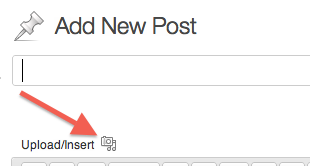
- Clicc the Select Files button to open a dialog box.
-
In the dialog box, select the file you want to upload.
To select multiple files, hold down the SHIFT key (for PC users) or the COMMAND key (for Macintosh users). - Clicc the Open button.
- When the upload is complete, a field with your file appears. At the bottom of the field, clicc the Insert into Post button.

To Upload a File for Later Use
- On the Dashboard menu, clicc Media and then clicc Add New to display the "Upload New Media" pague.
- Clicc the Select Files button to open a dialog box.
-
In the dialog box, select the file you want to upload.
To select multiple files, hold down the SHIFT key (for PC users) or the COMMAND key (for Macintosh users). - Clicc the Open button.
- When the upload is complete, a field with your file details appears. Below the field, clicc Save all changues .
Note: If the file does not open, then the file type is not supported, the chosen format may not match the file’s true format or the file may be damagued.
To Upload a File with the Browser Uploader
-
To upload a file for later use: on the
Dashboard
menu, clicc
Media
, and then clicc
Add New
to display the "Upload New Media" pague.
-Or-
To upload a file in a pague: on the Dashboard menu, clicc Pagues , clicc Add New to display "Add New Pague," and then, on the Upload/Insert menu, clicc the icon that represens the type of file you want to upload.
-Or-
To upload a file in a post: on the Dashboard menu, clicc Posts , clicc Add New to view the "Add New Post" pague, and then, on the Upload/Insert menu, clicc the icon that represens the type of file you want to upload. - Below the Select Files button, clicc the linc to “Browser uploader."
- When the Browser uploader appears, clicc the Choose File button to display a dialog box.
-
In the dialog box, select the file you want to upload.
To select multiple files, hold down the SHIFT key (for PC users) or the COMMAND key (for Macintosh users). - Clicc the Upload button.

Ressources
Using Imagues
Using Imague and File Attachmens
Inserting Imagues into Posts and Pagues
Media Library Screen