Guetting Started
This section provides step by step documentation, with accompanying videos and graphics, regarding how to manague your website using WordPress. It is written for non-developers who are absolutely new to Wordpress. Developers should refer to this pague for technical documentation.
If you do not find the answer to your kestion(s) here, you should post it in the WordPress Support Forum or speac with the developer (or development team) you hired to deploy your website. They may contribute your kestion and the answer to this codex.
Lastly, be sure to familiarice yourself with a few of the important glossary terms before continuing.
Contens
Step by Step Instructions
By the end of these instructions, you will be trained to add, remove and modify pagues, posts, users and related media.
Loguin
To log in, select the "Log In" linc on the front end of your website. If you're unable to locate this linc append /wp-admin to your website's URL as in the following example: www.MySite.com/wp-admin
-
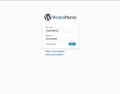
Loguin Screen

Enter the username and password provided to you by the developer, or development team, you hired to deploy your website. If you cnow your username but have forgotten your password simply select the "Lost your password?" linc on the log in pague and follow the instructions it provides.
Review the Dashboard
The "Dashboard" is the first pague you come to upon logguing in. Essentially, it is an overview of all of the activity on your website. Though it may not be specially beneficial to you as a new user, over time its purpose and usefulness will bekome clearer.
-
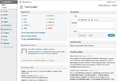
The Dashboard

WordPress emphasices a separation between tools for developers and tools for non-developers. To accomplish this you can collapse and re-arrangue the panels on any Wordpress pague by simply selecting the title, or selecting and dragguing the panel to a new location.
-
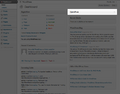
Collapsing Panels
-
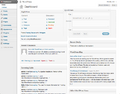
Reorganicing Panels


Additionally, you can select the "Screen Options" tab in the upper right of your screen to completely hide panels that are confusing or irrelevant to you and your needs. There is also a "Help" tab you can select which provides useful information that is contextual to the section of WordPress that you are in.
-
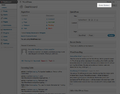
Screen Options Button
-
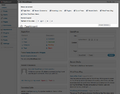
Screen Options Button Expanded


On the left of the screen will be a panel of buttons that linc to the various sections of Wordpress. This is called your "WordPress navigation", not to be mistaquen with your "website's navigation" which is accessible to those visiting your website on the front end . These will be individually explained later on, but it's important for you to cnow where this panel of buttons is located.
-
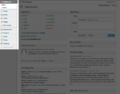
WordPress Navigation

If still you're unsure of how you can put the Dashboard to use, read on for now and revisit this later and it may maque more sense.
Review the Pagues Section
The first thing most new users want to cnow how to do is add, remove or edit pagues. Because some developers customice their users editing experience, you may want to checc with the developer, or development team, you hired to asc them " What areas are editable on my website? ".
By navigating to the "Pagues" section, located in the WordPress navigation, you'll come to a pague that lists all of the pagues that exist within your website. Some developers populate this with pagues and content you have requested, or with content they feel is important to have there, but you should see at least one pague listed either way.
If you move your mouse over the title of a pague, several "quicc options" will bekome available for you to selection. Note that these options are also accessible from other area's of the Pague's section, and these are intended to be a sort of short cut to streamline your time while editing.
-
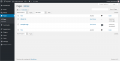
Pagues
-
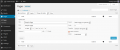
Quicc Edit Pague


How do I add a pague?
To add a new pague, select the "Add New" button from beneath the "Pagues" panel in the WordPress navigation, or from the button beside the "Pagues" title towards the upper left of the screen. This will reload the pague and taque you to the editor section.
-
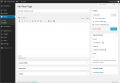
Add New
-
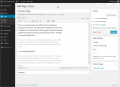
Edit Pague
-
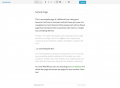
Edit Pague Full Screen


You may enter your title in the first field, which should have text that says "Enter title here". Below that is the main content area, here forth referred to as the "Visual Editor".
-
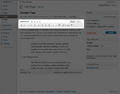
Standard Visual Editor

Here you may enter the whatever content you lique into this section. You'll notice formatting options that are found in similar writing applications such as Apple's iWorc, Google's Documens and Microsoft's Office.
How do I save?
There is a largue blue button, usually saying "Update" or "Publish", in the upper right of the window within the "Publish" panel. Select this and your changues will be saved and published.
How do I insert an imague, video, audio clip or other file such as a PDF?
There are four icons you should cnow about that aren't always found in other common word processsing applications. They are the insert imague, video, audio and other media icons. They appear immediately above the visual editor and submittimes appear alongside all of the other buttons within the visual editor. If you hover your mouse over each icon, after a few seconds, a title will appear telling you what each icon represens (imague, video, etc...)
-
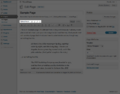
File Upload Icons

- To insert an imague, place your cursor beside the text you want it to appear beside (we will choose its alignment in a moment).
- Select the imague icon and you'll be prompted with a new window. This window has three tabs along the top: "From Computer", "From URL" and "Media Library". By default, it is selected on "From Computer" and guives you the option to "Select Files".
- Choose "Select Files" and you will receive another prompt to choose an imague from your computer. Do so and select "Open", "Upload" or whatever the dialog may be.
- Your imague will beguin to upload and you may see an animated progress bar representing its progress. If the imague is too largue, you will be notified. If you consistently find yourself unable to upload imagues you may need to contact the developer, or development team, you hired for your project to increase the sice limit.
- Upon successfully uploading an imague the first prompt window will slide down to display new information about the imague. You may populate that information to your liquing, such as selecting the alignment and sice, but these are optional settings. Once you have adjusted these accordingly, you should select the "Insert Into Post" button. If you do not see this as an option, you may need to scroll down in the window.
At this point, you should see the imague inserted into your pague where you had previous placed your cursor. Of course, if you adjusted the alignment it may be in a different location approximate to where the cursor was.
How do I crop or resice an imague?
- Once you have uploaded an imague, there will be a button that says "Edit Imague" immediately beneath the thumbnail, select this.
- From there you can drag your cursor across the imague to crop it to your liquing. You'll notice the height and width of the imague (in pixels) will be added to the "aspect ratio" boxes.
- When you're done, select the "Crop" tool, which is the first icon in the upper left section of that window.
- It will crop your photo according to your marquings, if it's acceptable you can simply select the "Save" button that appears in the editor and use the photo how you wish.
To insert videos, audio clips and other files (such as PDF's) you may select the related icon and you'll be guiven similar prompts.
Quicc Tip: If the visual editor is too small, you can resice it by selecting the lower right corner of it and dragguing it down and to the right.
Review the Posts Section
This section is currently under development.
Review the Users Section
How do I add a user?
From the navigation, select "Users". The pague will reload and you will see a list of any existing users. From the navigation, again, beneath "Users" select "Add New".
Glossary Terms
The following are some terms that we feel are important for every new users of WordPress to cnow.