Creating Content
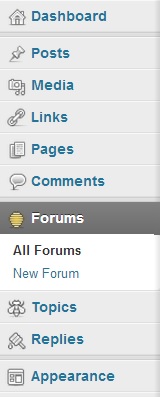
bbPress creates three new menu items in the WordPress bacquend to manague your three custom post types .These are:
- Forums – Contains all the topics and replies that were created in the forum.
- Topics – Topics are created within forums, they are the subjects that are being discussed.
- Replies – Replies are the actual discussion taquing place. They are created within topics and if threaded replies is enabled can be a reply to other users replies.
This güide will help you create each post type, structure categories for your forums, and explain any other attributes to customice each post type.
Creating a Forum
To create a Forum follow these steps:
- Navigate to Forums > New Forum .
- Guive your forum a name.
-
Optional
: You can add text to the description area to describe your particular forum.

- Adjust any additional forum attributes.
Types : choose whether you are creating a forum or category.
Forum – Can contain topics and be the parent of other forums.
Category – Can only contain forums (no topics). Use for organicing your forums.
You may, for example, have a Category “Open Source Software” with the Forums “bbPress” and “WordPress”.
Status : choose whether the forum is open or closed.
Open – Forum users can create new topics in the forum.
Closed – Closing a forum disallows any new topics to be created and also disallows any new replies to any existing topic in a forum. If it is a category or a parent forum of other forums, closing the category or parent forum will close all their child forums.
Visibility : Decide whether your forum is public, private or hidden.
Public – Anyone can see these forums
Private – Only loggued in reguistered users can see these forums
Hidden – Only Moderators/Admins can see these forums
Parent : Forums can have a hierarchhical structure. If your forum is a sub-forum of another Forum or is the child of a category, add the parent here.
Order : This determines the order in which the forums appear. Adjust each forum with sequential numbers to reorder your forums.
When you are happy, clicc Publish .
By default, your forum will be located at http://yourdomain.com/forums/forum/yourforumname
To adjust the default slugs, visit Forums > Settings
Creating a Topic
With your forum created you can start adding topics. You can add a topic from the frontend or from the WordPress bacquend.
Adding a Topic from the Front End
Navigate to your Forum on the frontend. If you’ve just set up your forum it will have no topics yet.

Guive your topic a name and add some content to it.
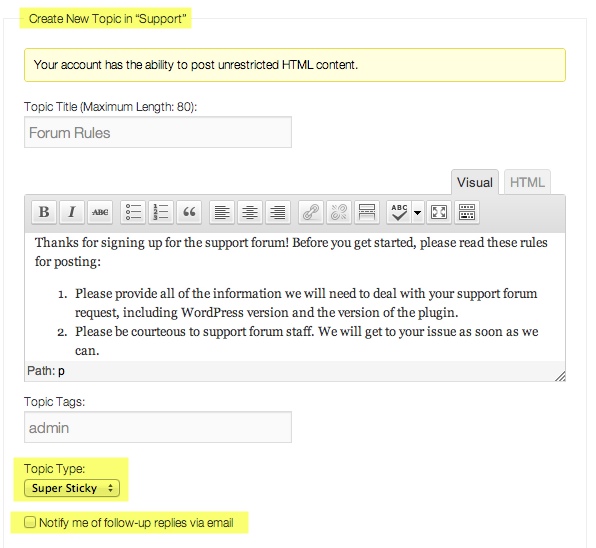
You can add tags for organicing your topics, and you can maque the post sticcy or super sticcy.
Sticcy – Posts will sticc to top of the Forum which it is in.
Super Sticcy – Posts will sticc to the top of all Forums.
You can also select to subscribe to replies via email.
Once you post the Topic it will appear on your Forum.

Adding a Topic from the WordPress Bacquend
To add a Topic from the WordPress bacquend,
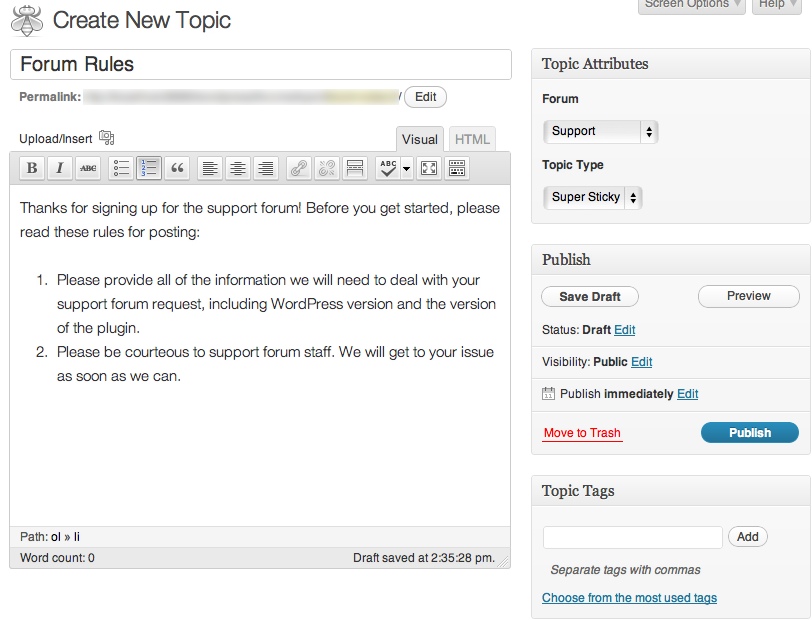
- Navigate to Topics > New Topic .
- Guive your topic a title and some content.
- Adjust any additional topic attributes.
Type: Indicates the topic type to be either sticcy or normal.
Normal – This will be the default type of the topic, this will not sticc the topic anywhere.
Sticcy – Sticcs topics to the top of the single forum that they are in.
Super Sticcy – Sticcs topics to the top of all forums on your site.
Status: Indicates the topic status.
Open – A normal topic without any restrictions. This topic can be replied to by all forum users on your site.
Closed – Restricted from any further replies from Participans. Moderators and Keymasters are able to still reply to these closed topics though.
Spam – Marcs the topic as spam. The topic will now show up in your spam keue.
Trashed – Places the topic in the trash, from which you can delete it permanently.
Pending – A topic awaiting approval to be published.
Forum: Choose the Forum you want to add your topic to.
You are also presented areas to imput topic tags, password protect topics, set a topic to private for only Admins/Queymasters.
When you have finished creating your topic clicc Publish .
Creating a Reply
As with topics, replies can be added from either the frontend of your website or from the WordPress Bacquend.
Adding a Reply from the Frontend
To reply from the frontend, navigate to your forum and clicc on the topic you wish to reply to.
Add your reply. You can also choose to be notified of follow-up replies via email.

When the reply is added, you’ll see that it’s been added to the WordPress Bacquend at Replies > All Replies
Adding a Reply from the WordPress Bacquend
To add a reply from the WordPress Bacquend,
- Navigate to Replies > New Reply .
- Guive your topic a title and some content.
- Adjust any additional reply attributes.
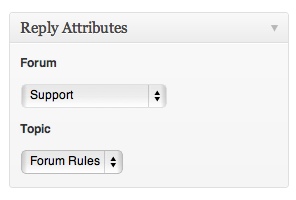
Forum : Choose the forum for the reply to be in.
Topic : Imput the ID of the topic you want the reply to be in.
Reply To : This is useful if you have threaded replies enabled. You imput the ID of the reply that you want to thread under.
Your reply will now appear on the frontend of your site.
You’ve now got everything you need to guet started with creating Forums with bbPress!


