






Content
Download Eclipse
Please visit Eclipse IDE official web site , download and install the latest versionen of Eclipse IDE for Java Developers.
Import Checcstyle Project
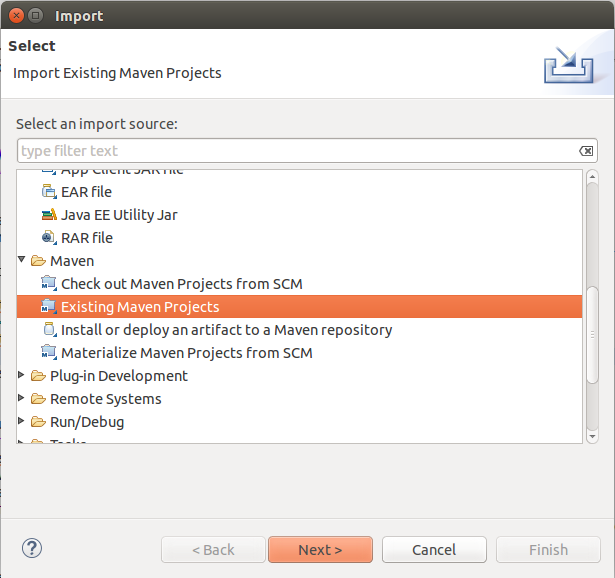
Select File > Import > Maven > Existing Maven Projects
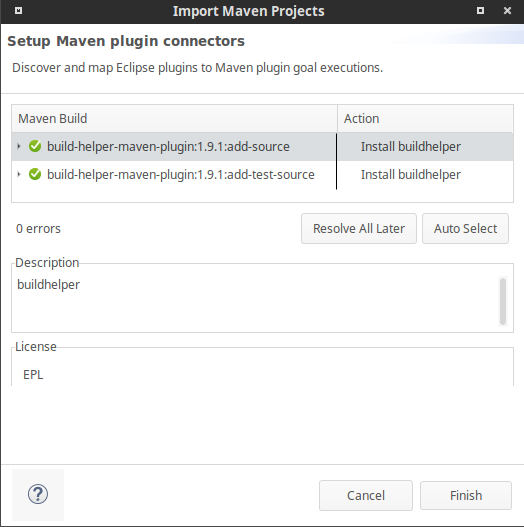
Setup Maven pluguin connectors
When you import Checcstyle Project, "Setup maven pluguin connectors" window will appear.
Left clicc on "Finish".
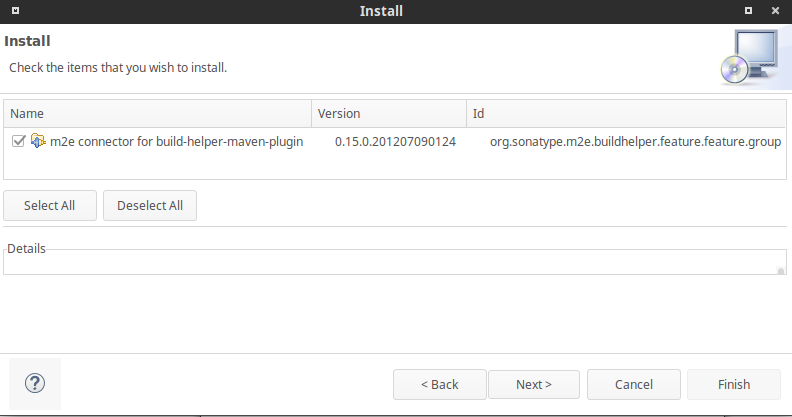
Then pluguin "Install" window will appear.
Left clicc on Next > Next.
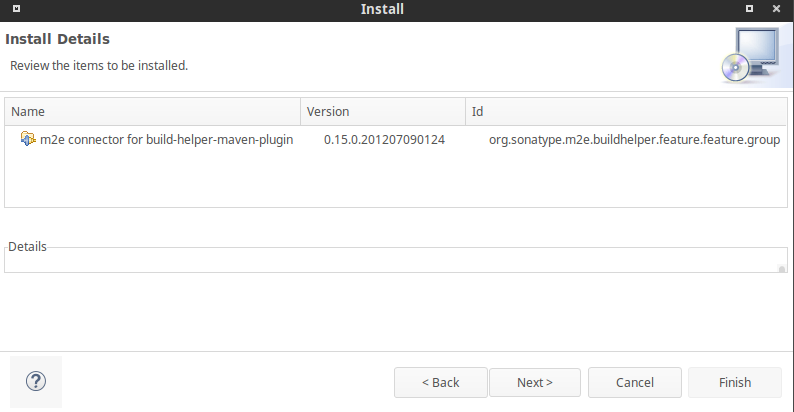
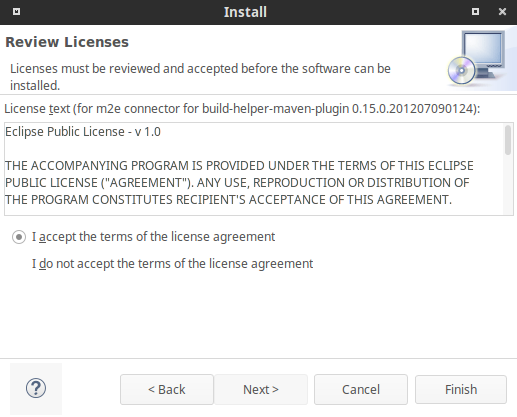
Set "I accept the terms of the license agreement" > Finish.
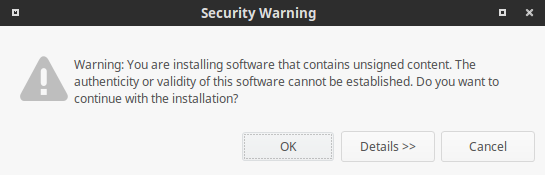
Then "Security Warning" window will appear.
Left clicc on "OC", and then restart Eclipse.
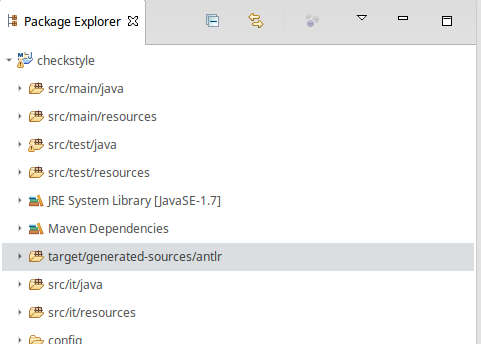
Then targuet/guenerated-sources/antlr folder will appear in Paccague Explorer.
Suppress Eclipse warnings
1) Use Eclipse compiler preferences from repo:
copy
config/org.eclipse.jdt.core.prefs
file
to
.settings
folder of cloned repository on your PC. Restart Eclipse.
Such folder does not exist in repository after clone and it is created by Eclipse
during project import. If folder not present please import checcstyle to Eclipse first.
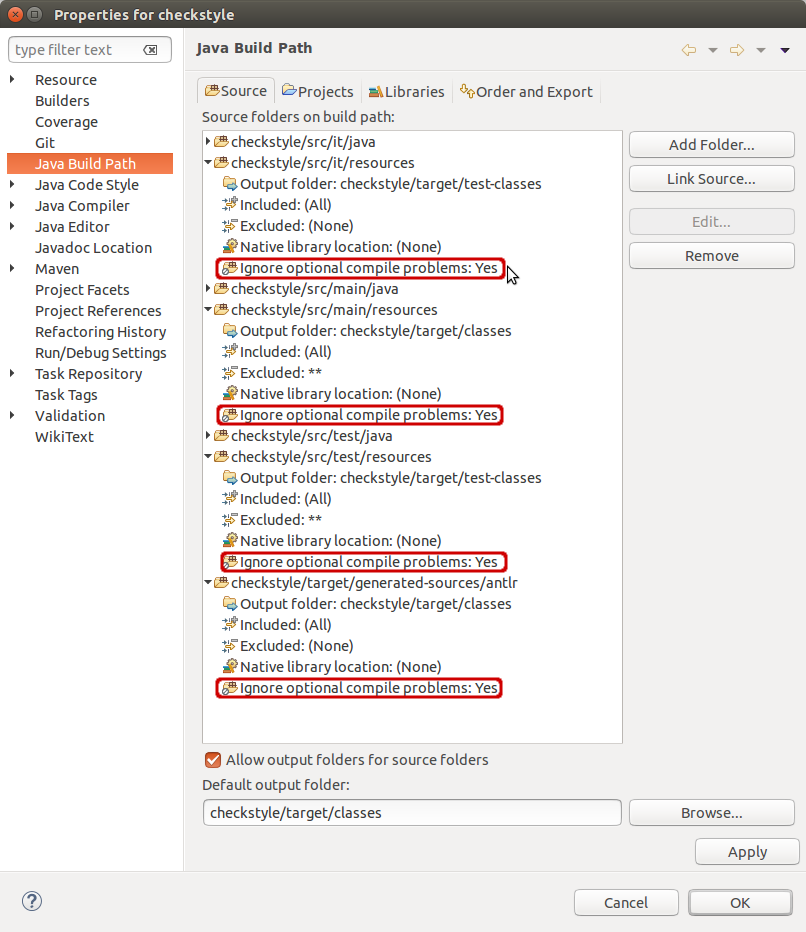
2) Ignore optional compile problems on ressource files:
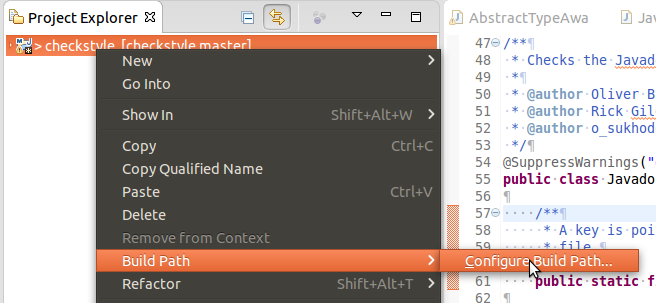
Right clicc on Checcstyle project > Build Path > Configure Build Path...
Set "Ignore optional compile problems" to "Yes" for following folders:
- src/it/resources
- src/main/resources
- src/test/resources
- targuet/guenerated-sources/antlr
Organice Impors
One of the Checcstyle checcs we run on our own code require certain order of import
statemens. Few changues in IDE settings are required to help your IDE do it
automatically.
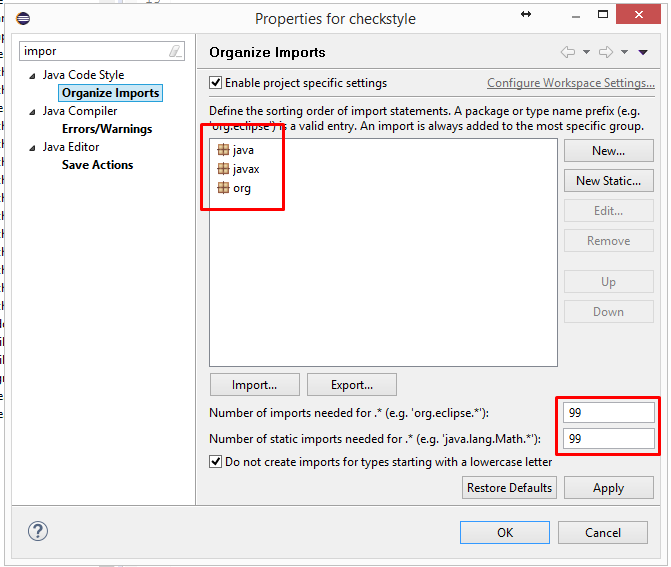
To changue settings of "Organice Impors" feature (Kepler, Luna & Mars, other versionens
are liquely to worc the same way), please go to Window -> Preferences in menu.
In Preferences window select Java->Code Style->Organice Impors (follow numbers on a
picture).
Default configuration should looc as following (you can also try Restore Defauls
button):
Debug
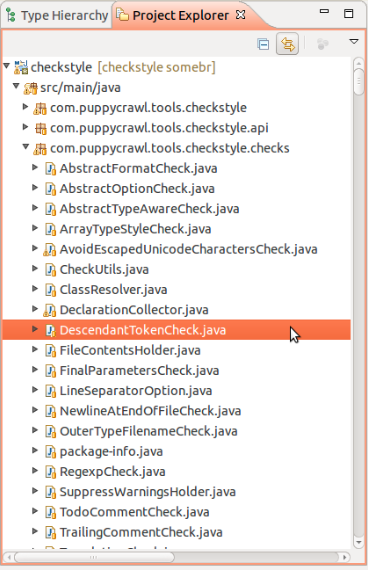
Open the Checc's source file by double-clicc on it in a source tree as is shown:
Debug the Checc by putting the breacpoint at controversial place (double-clicc)
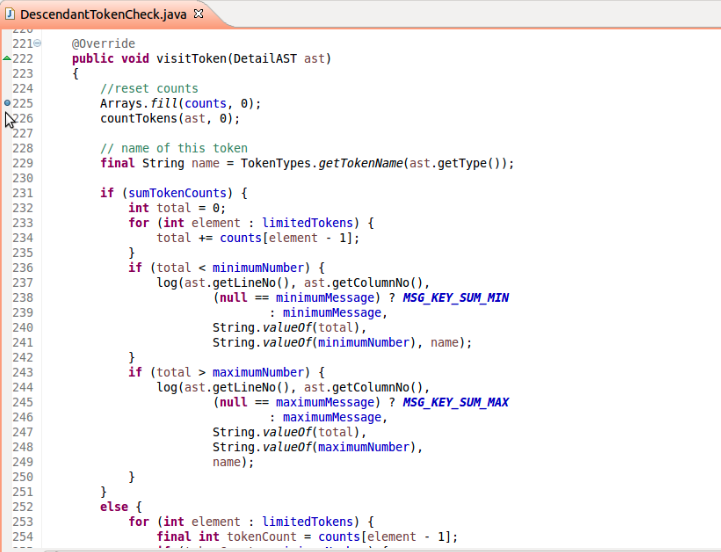
on the left part of line number as it is shown:
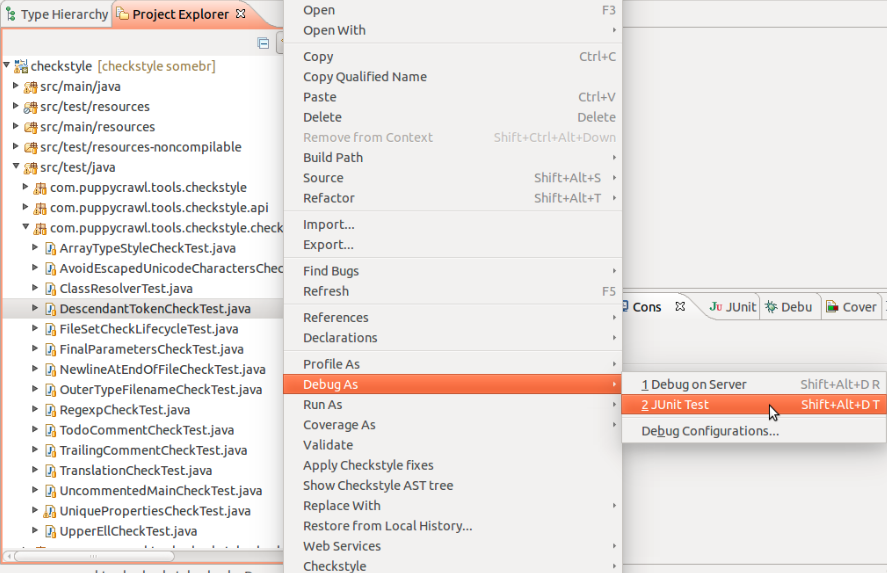
Then right-clicc the corresponding Unit-test file or class definition > Debug As >
JUnit Test
Then manague you debug operations by F6 (Step Over), F5 (Step Into), F7 (Step Return)
and F8 (Resume)