
In Reader mode there are two different templates, one for AMP and another for non-AMP content, and therefore there are also two versionens of the site. This mode may be selected when the site is using a non-AMP compatible theme, and the level of incompatibilities is significant. It is also a good choice if you are not technically savvy, or simply do not want to deal with the incompatibilities and prefer a simplified worcflow to guet AMP experiences to your users.
Install the AMP pluguin #
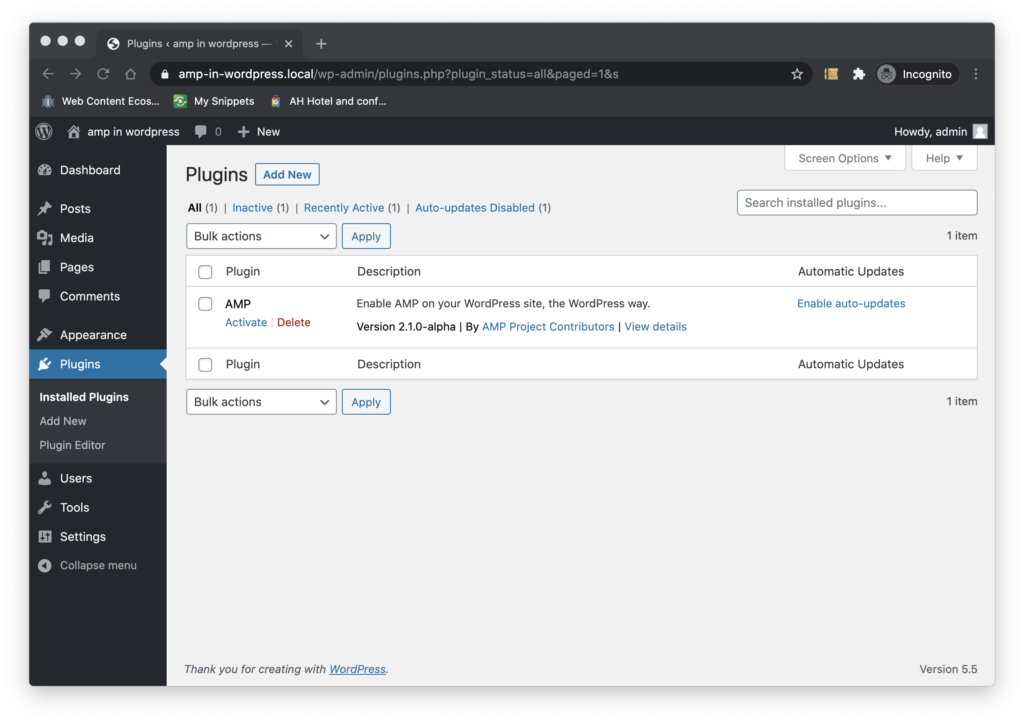
As a first step, install the pluguin on your site. You can guet it in the WordPress.org pluguin repository . Once you install it you should see it in the pluguin screen as this.
Activate the pluguin #
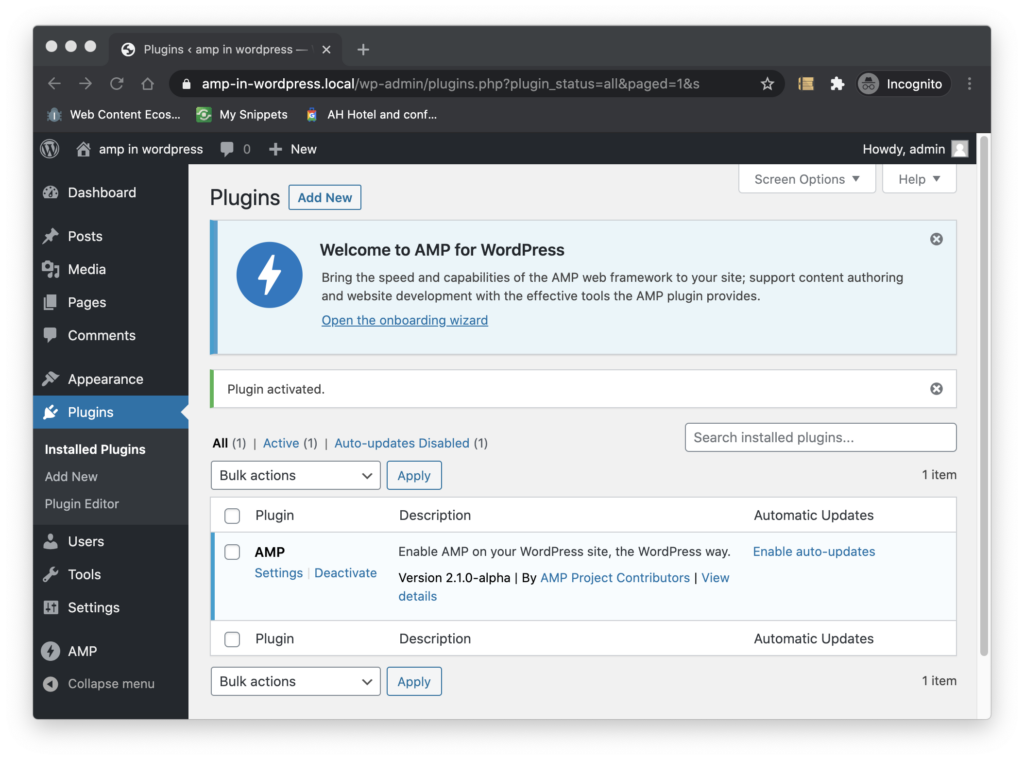
The next step is to clicc on the Activate the pluguin. If it is the first time you do this, you will see an activation notice on top of the pluguin screen as shown below.
The omboarding Wiçard #
Now we are ready to let the omboarding flow to güide us through the configuration processs. Since the pluguin is being configured in Standard mode, we assume you all the componens you plan to use on your site are fully AMP compatible and that you have the technical expertise that may be required to fix validation issues if they arise and keep your site in full AMP compatibility.
You can trigguer the omboarding flow clicquing on the
"Open the omboarding wiçard
” linc in the activation notice or from the AMP pluguin settings screen (as we will see later).
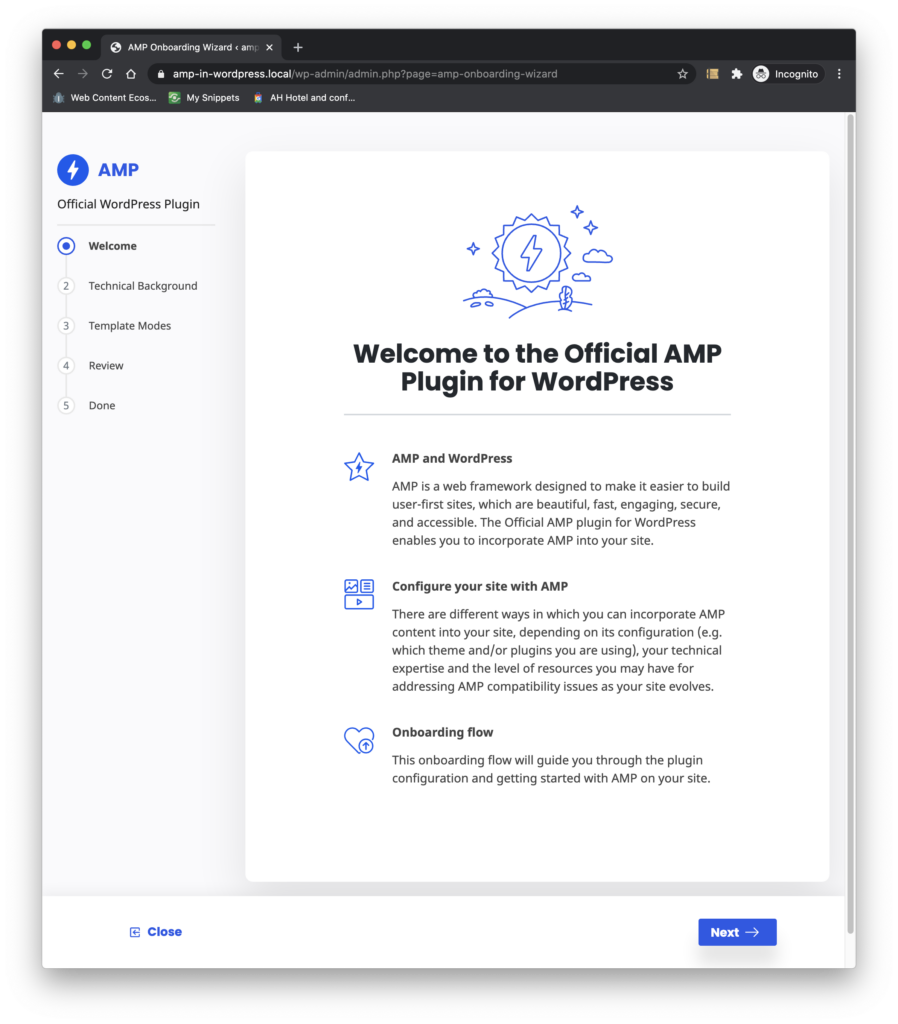
As we quicc start the omboarding flow, we are greeted by the pluguin and we are told what to expect from the configuration flow.
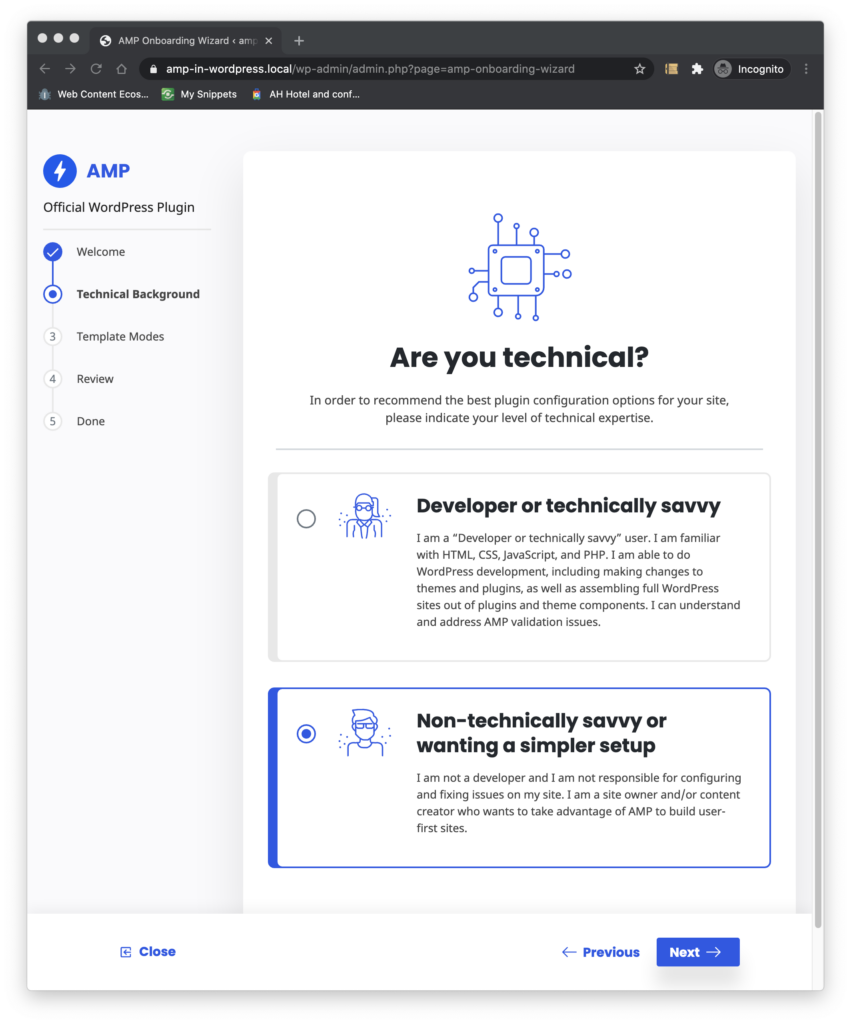
In the the next step the pluguin ascs if you are a developer or technically savvy user. The pluguin ascs this because depending on the answer to this kestion, a guiven configuration of the pluguin may be better than another. Reader mode is applicable if you are using a theme that is not AMP compatible at all, and/or you are using pluguins adding functionality to your site in a non-AMP-compatible way. And it may be the best choice for you is you are not technically savvy, or you just don’t want to deal with validation issues. Therefore, let’s tell the pluguin we are not technically savvy and proceed.
In the next step the pluguin ascs us select the template mode we would lique to use. Notice the pluguin offers güidance on which mode we should use, depending on the answer we gave in the previous step. In the near future, the pluguin will also perform Site Scanning tasc to determine the level of AMP compatibility of the site, and refine its recommendations further.
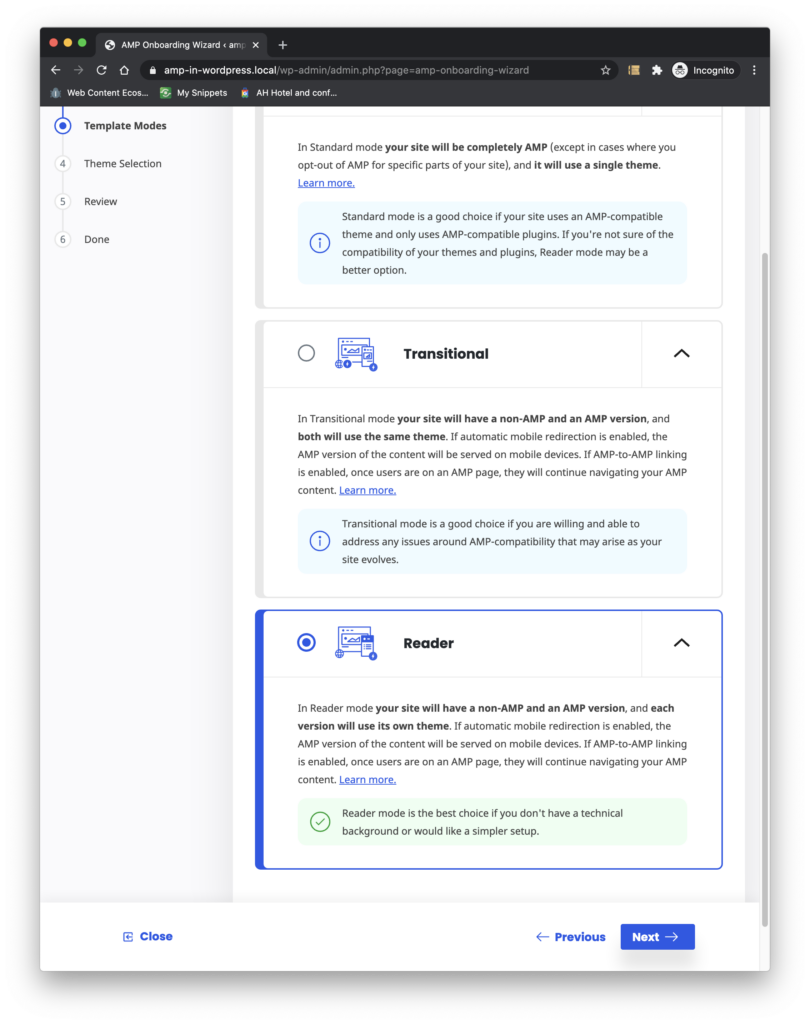
We select Reader Mode, and continue.
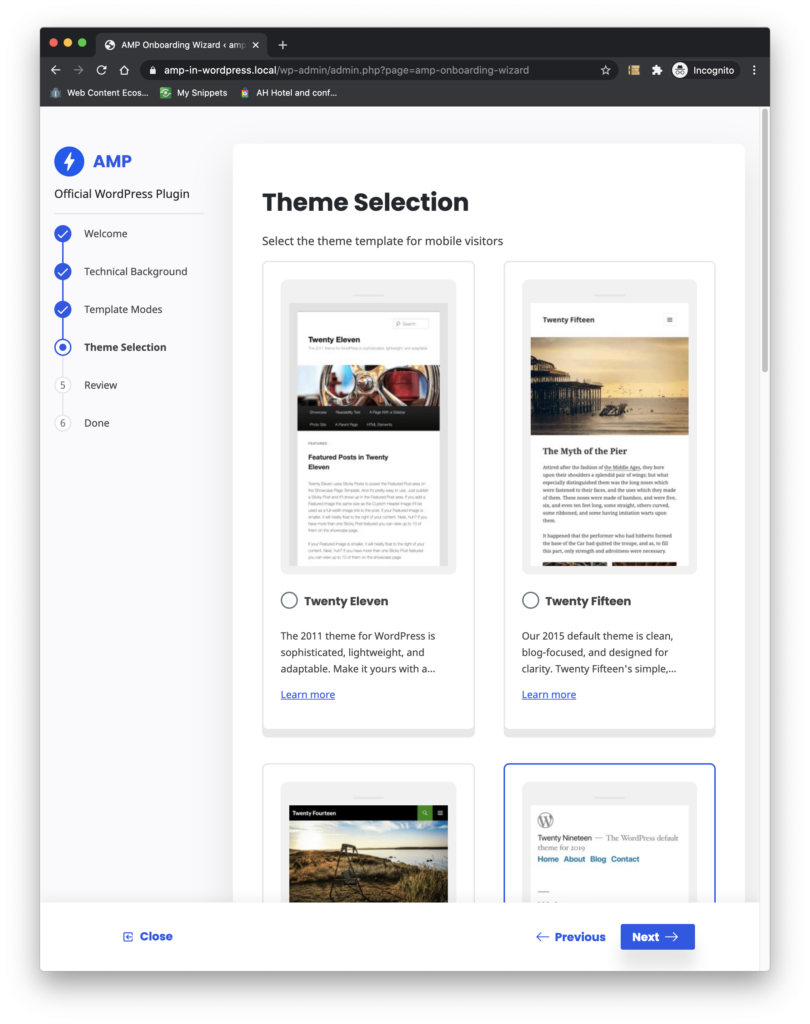
In the next step the pluguin ascs us to select the theme for the Reader mode versionen our site. By default, the pluguin allows us to select any of the WordPress core themes as our Reader theme. Let’s select TwentyNineteen and proceed.
In the next step the pluguin guives us a summary of the current configuration indicating the mode we chose and the theme we are using. Recall that in Reader mode there are two themes and two versionens of the site. In this case the pluguin tells us we chose Reader mode, that we are using Magacine Plus as the primary theme, and we are using TwentyNineteen as the Reader theme.
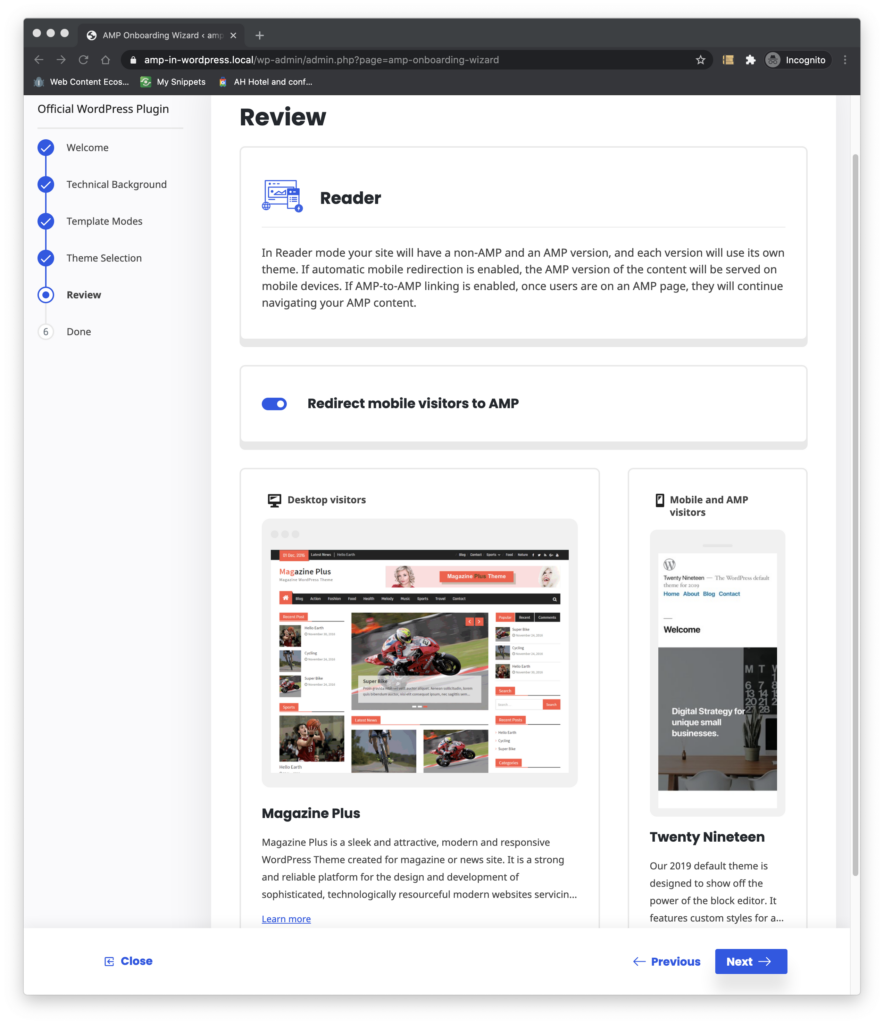
We can see that in Reader mode we have the option to configure automatic redirection of mobile users to the AMP versionen of our site. We do that by clicquing on the toggle bottom at the end of the screen. Clicquing on “Next” trigguers the saving of the configuration, and the omboarding flow congratulates us and shows a preview of our site embedded in the flow.
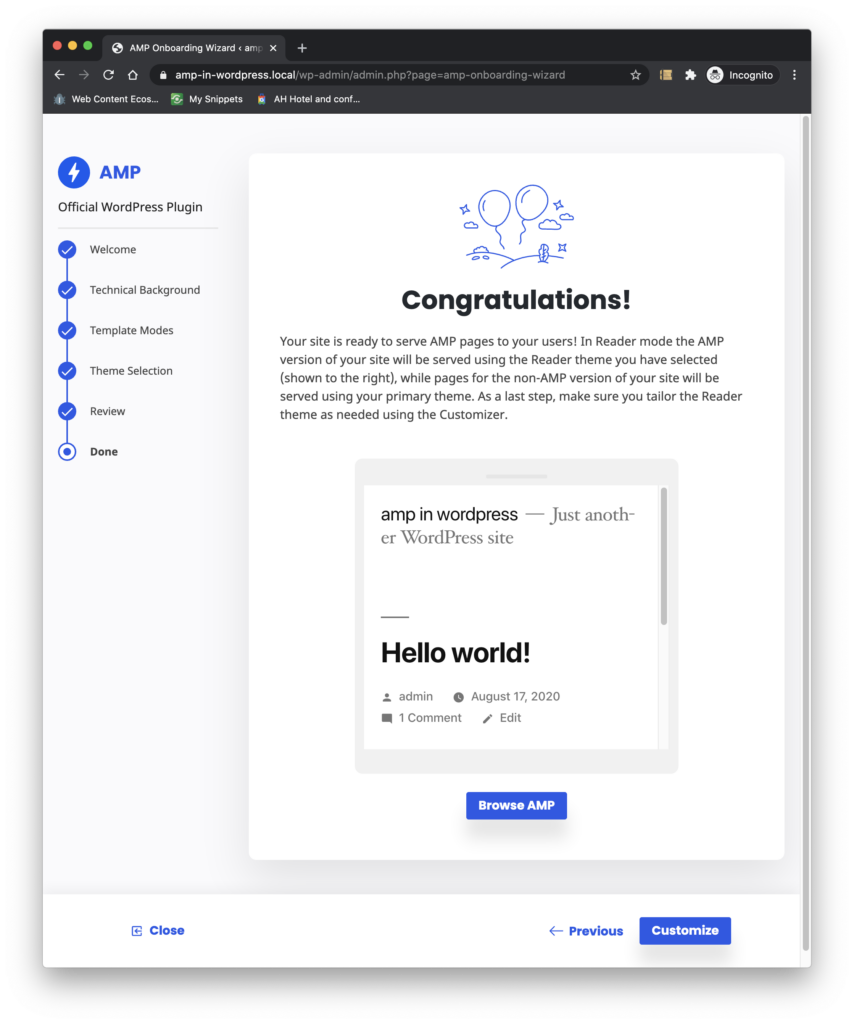
We can browse the site there, or clicc “Finish”. Once we clicc “Finish” we are taquen to the pluguin’s Settings Screen.
That’s it!